User Manual EDITING February 16, 2010
Xynergi Media Production Centre Page 127
Step 1 Press the Preset soft key, then press the save preset soft key.
Step 2 Type a name for the new custom preset, then press the
Enter key on your console (not on the
QWERTY keyboard).
To change the shape stored in a custom preset:
Step 1 Recall the custom preset as described above.
Step 2 Adjust the shape at the head or tail of the clip, or capture new ones from a clip.
Step 3 Press the
Preset soft key, then press the save preset soft key.
Step 4 Now immediately press the
Enter key to save the current values over the selected preset. This
will overwrite the preset, and the software will give no warning.
A special preset can be created called “default”. Whenever the Clip EQ display is opened for a clip with
no EQ, this preset will automatically be loaded into the display.
Using the Mouse and Screen
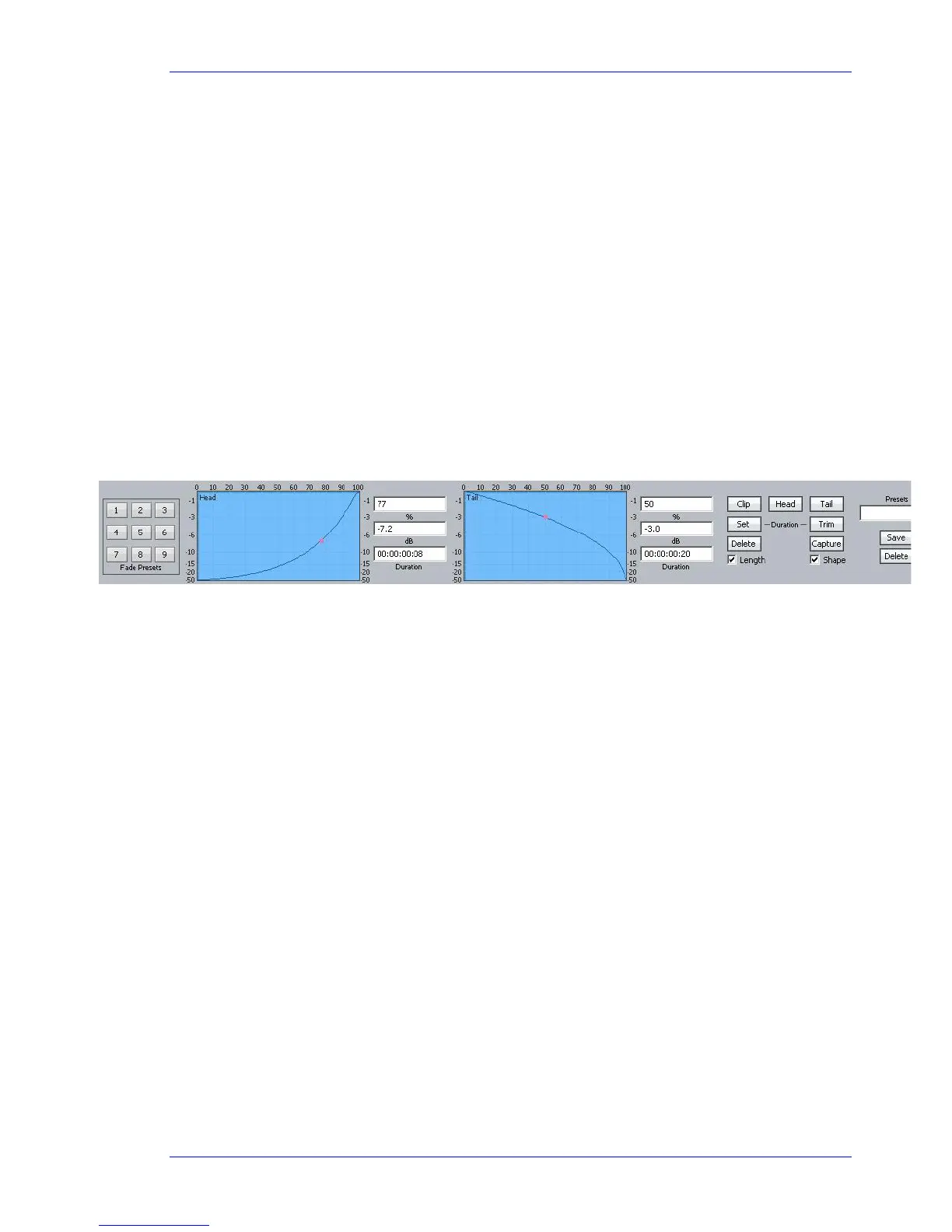
While the Fade mode is active, the screen displays shapes and controls for creating and editing fades.
Fade Head
Step 1 Select a track and move a clip under the cursor.
Step 2 Press the
fade button (if not already on).
Step 3 Click the
Head button in the screen display (it’s near the upper right).
Step 4 Adjust the shape of the Head fade (described below).
Step 5 Click the Apply button. The fade described in the shape is applied to the head of the clip.
Note that the fade duration is set by the cursor position, as when using the picture keys.
Length and Shape
The Length and Shape tickboxes allow you to choose what to apply. You can untick the Length tickbox
if you only want to apply the shape, and vice versa.
Fade Shape
Using the mouse and screen method allows you to set the fade shape before applying it. The shape
includes the following parameters:
Percentage (X-Point) – this controls the percentage of the fade’s duration when it reaches the
Crossover Point.
Attenuation (X-Level) – controls how loud the fade is (compared to the full Level of the clip) at the
Crossover point.
Duration – the total length of the fade, in frames. (Duration is not really part of the shape, but its
control is close by).



 To Next Page