User Manual TRACKS & TRANSPORT February 16, 2010
Xynergi Media Production Centre Page 170
Directly adding a clip
To directly add a clip, use the Track menu as follows:
Step1 Use the command
Track Add Clip
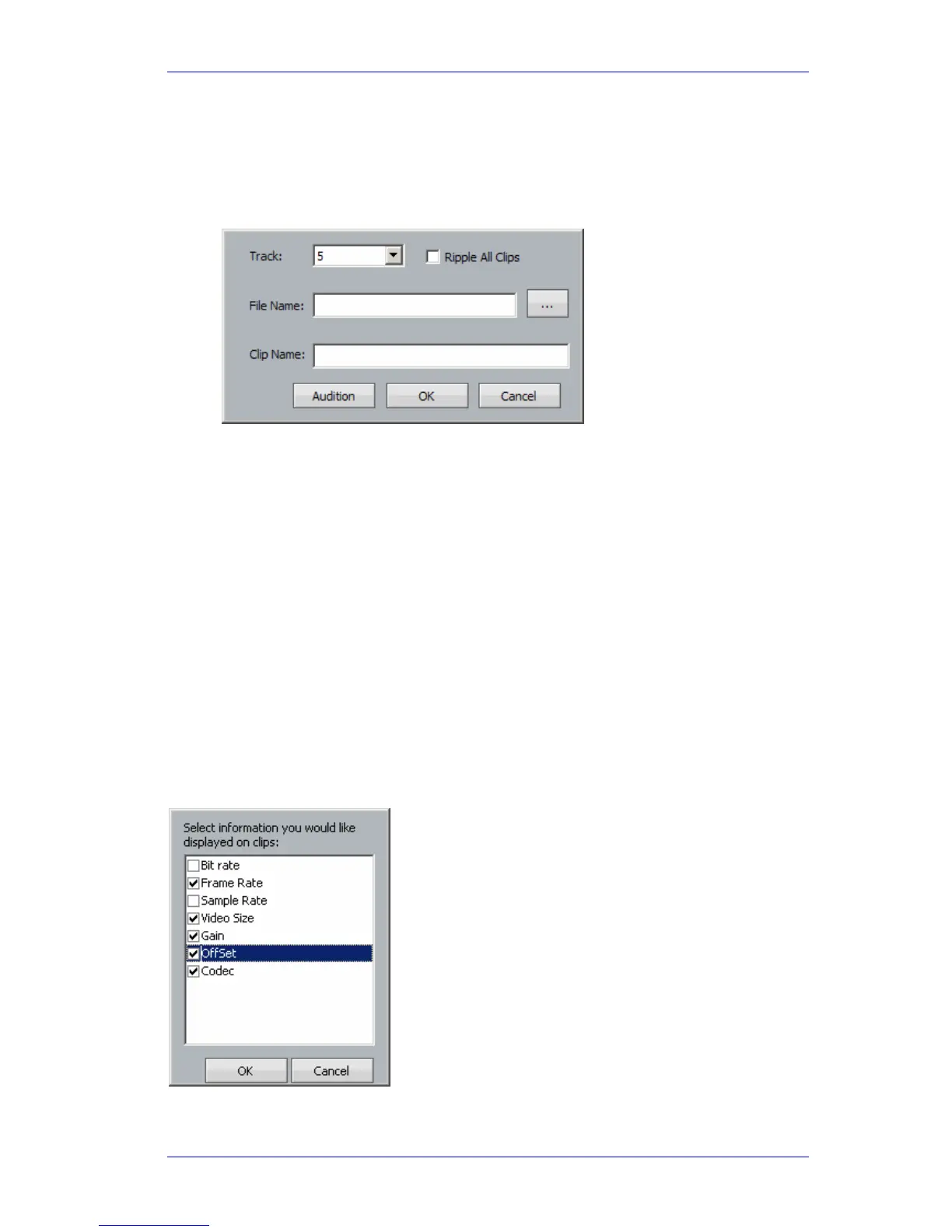
The system displays the following dialog:
Step2 Choose the track where you want the clip to be placed
Step3 Choose the audio file that will be played by the clip.
You may type in the name of the file if you know it, including its full
path
Alternatively, click the Browse button (labeled “…”) and find the file in
your disk storage
Step4 Choose a name for the clip.
Step5 You may audition the clip at any stage to confirm that you have the right audio
Step 6 Click OK to create the clip. It will be placed at the current timecode position, on the track
that you chose.
Clip Display Information
You can choose which information is displayed in clips using the command: View Displayed
Clip Information
. The system displays a dialog like this:



 To Next Page