User Manual TRACKS & TRANSPORT February 16, 2010
Xynergi Media Production Centre Page 171
Note that Frame Rate, Video Size and Codec are only shown on Video clips (see Chapter 34 –
Pyxis Track, on page 256, for details about video).
Choosing Clip Colours
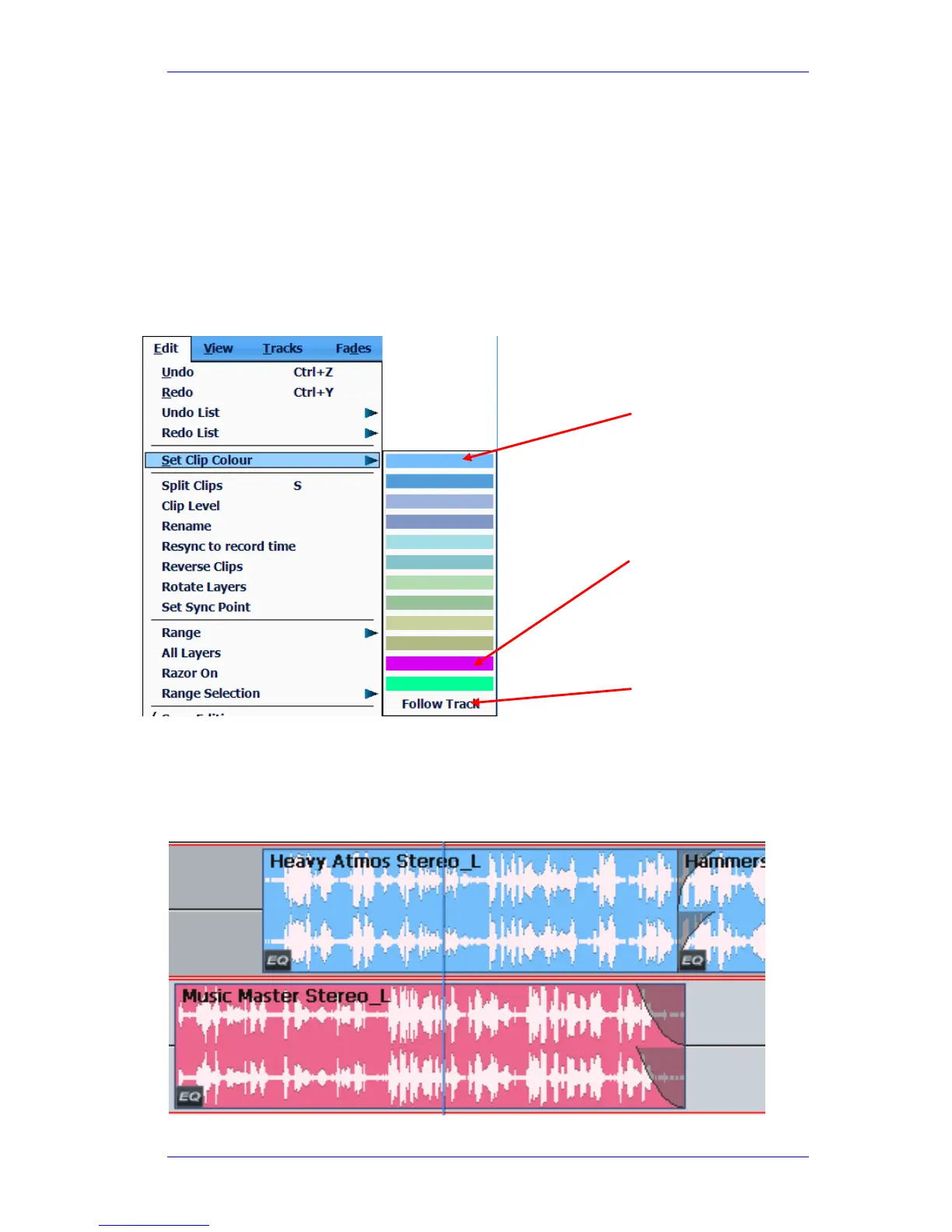
To explicitly choose clip colours, do the following:
Step 1 Select tracks containing the clips you want to colour.
Step 2 Move the transport so the clips are under the cursor, or make a range using the From and
To keys. The clips should be red.
Step 3 Use the menu:
Edit Set Clip Colour
Multichannel Clips
Multichannel clips are linked for editing operations. They are displayed with no separating line,
and a little smaller in height.
The picture below shows two stereo multichannel clips.
Click to choose a
colour for all selected
(red) clips.
Click to return the
selected clips to their
track colour.
There are two extra
colours just for clips,
useful for reminding
you that they need
attention.



 To Next Page