User Manual HOW TO … February 16, 2010
Xynergi Media Production Centre Page 38
Step 2 Select some channels to be soloed.
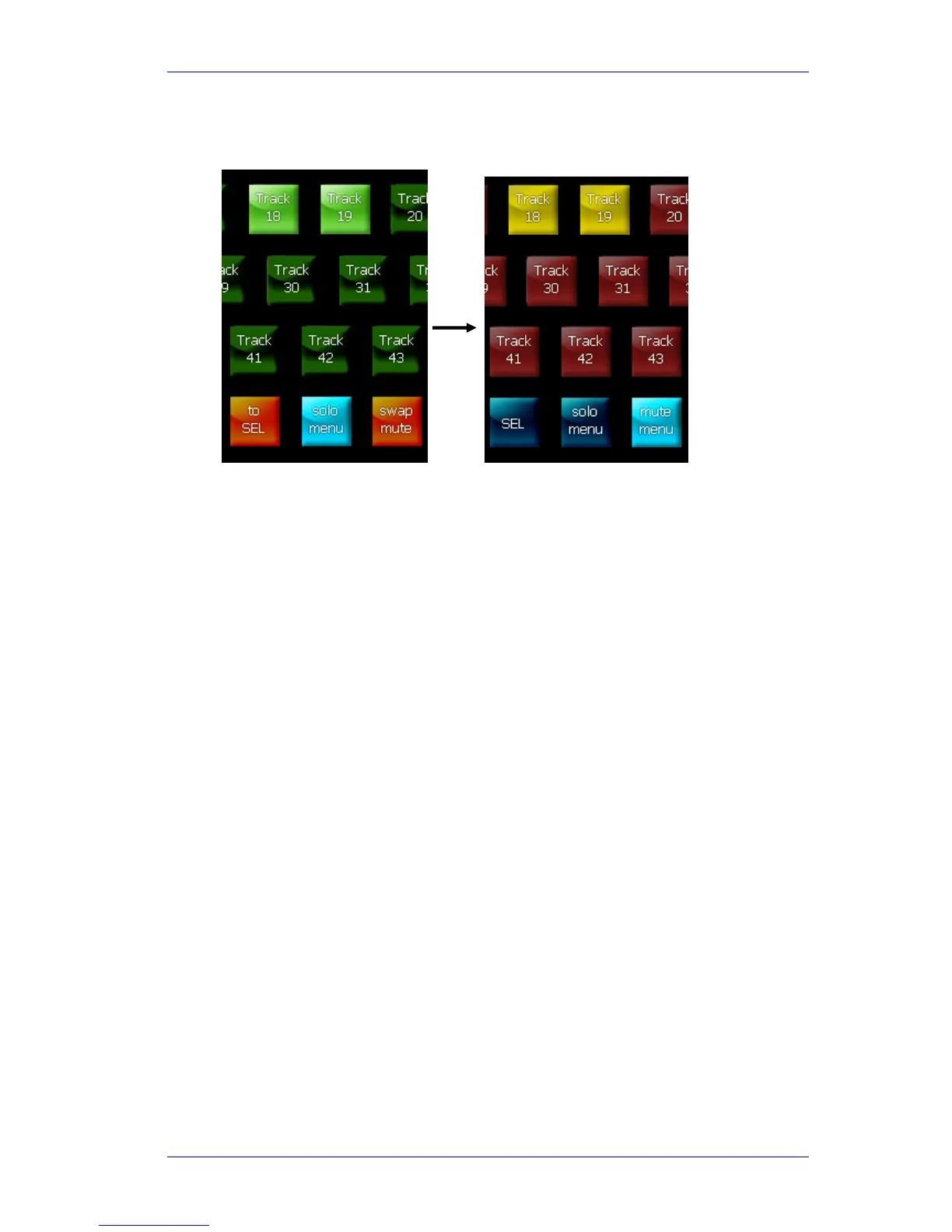
Step 3 Hold down the
Solo Menu button. Two new buttons appear beside it.
Step 4 Press the
Swap Mute button. The Mute Menu appears, and the channels that were soloed
are now muted. These channels are the ONLY channels muted – if there were other
channels muted before, they no longer are.
To move channels from Mute to Solo:
Step 1 Engage the Mute menu by either holding down the
Mute button, or pressing the SEL
button and then the
Mute Menu button
Step 2 Select some channels to be muted.
Step 3 Hold down the
Mute Menu button. Two new buttons appear beside it.
Step 4 Press the
Swap Solo button. The Solo Menu appears, and the channels that were muted
are now soloed. These channels are the ONLY channels soloed – if there were other
channels soloed before, they no longer are.
Solo and Mute to SEL
Constellation XCS allows you to transfer your solo or mute selection into an edit or mix selection.
This is useful when you have used solo and mute to isolate a set of channels that need work, and
you now want to make some changes to them.
To make your Soloed channels also be the selected channels:
Step 1 Engage the Solo menu by either holding down the
Solo button, or pressing the SEL
button and then the
Solo Menu button
Step 2 Select some channels to be soloed.
Step 3 Hold down the Solo Menu button. Two new buttons appear beside it.
Step 4 Press the
to SEL button. The SEL layout appears, and the channels that were soloed are
now also selected. These channels are the ONLY channels selected – if there were other
channels selected before, they no longer are.
To make your Muted channels also be the selected channels:



 To Next Page