72
CONNECT NAV+
“Add” icon key
“Add” icon enables to add a new en-
try to the phonebook.
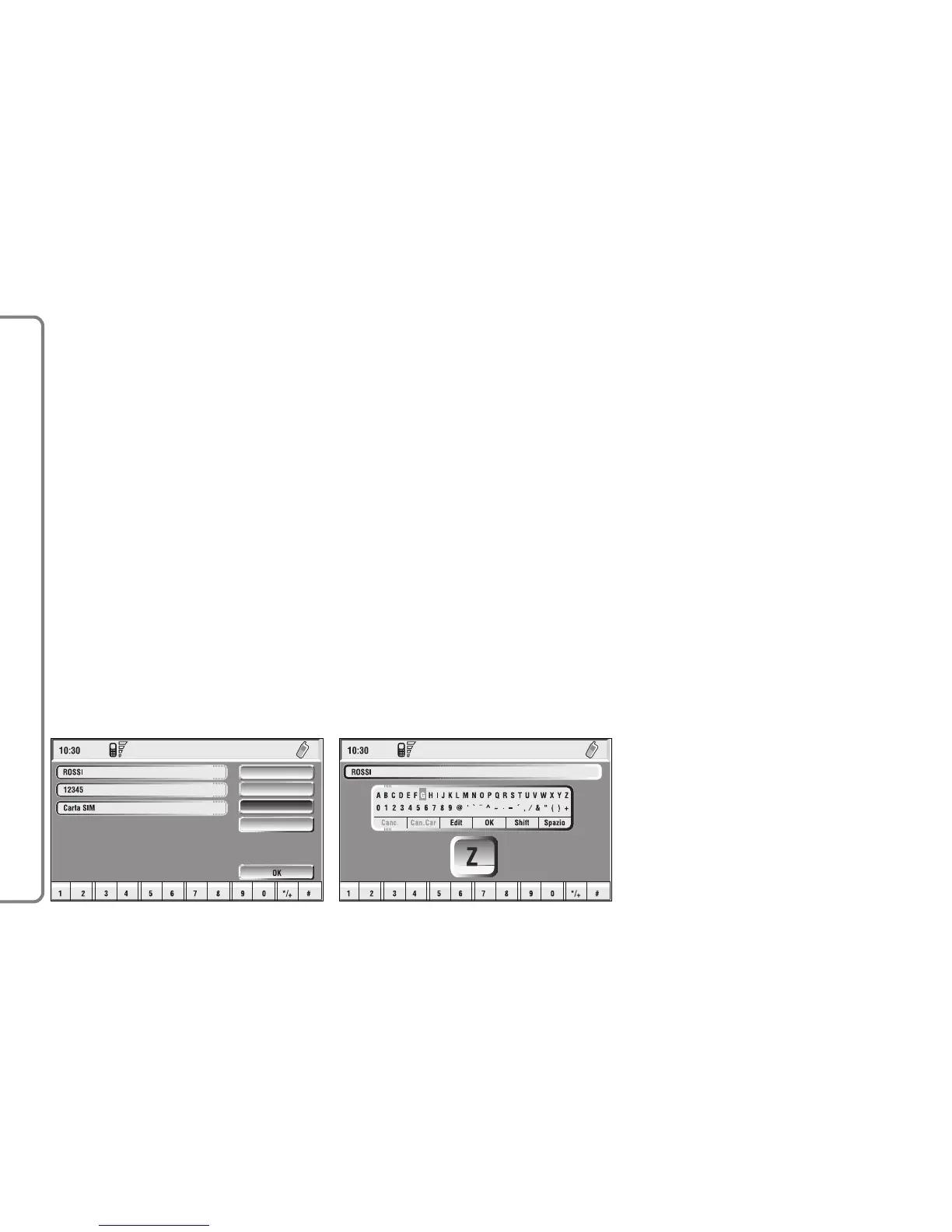
Rotate the knob 15-fig. 1, select
“Add” and then press the knob to
confirm; the display shows the status
in fig. 56 and the following icon keys:
“Name”, “Number”, “Location”,
“Voice recognizer”, “OK”.
fig. 57
F0Q3056g
“Name”: allows input of name and
surname of new entry, proceed as fol-
lows:
IMPORTANT When selecting
“Name”, remember that it is not pos-
sible to add a name already present in
the Navigator function directory.
– rotate the knob 15-fig. 1, choose
“Select” and then press the knob to
confirm; the display shows the keypad
and the editing box fig. 57.
– form name and surname by select-
ing letters one by one through the
knob 15-fig. 1 and pressing it to con-
firm; proceed in this way until com-
pleting the entry;
– rotate the knob 15-fig. 1, select
“OK” and then press the knob to con-
firm; the display returns to screen in
fig. 56.
“Number”: allows insertion of new
phone number, proceed as follows:
– rotate the knob 15-fig. 1, select
“Number” and then press the knob to
confirm; the display shows the keypad
and the editing box fig. 57.
– form the number selecting digits
one by one through the knob 15-
fig. 1 and then press it to confirm;
proceed in this way until completing
the required phone number;
– rotate the knob 15-fig. 1, select
“OK” and then press the knob to con-
firm; the display returns to the screen
in fig. 56.
“Location”: this icon is used to store
the new entry on the SIM card or di-
rectory according to the chosen op-
tion. SIM card numbers are automat-
ically copied to the directory after PIN
validation and cleared at SIM card ex-
traction.



 To Next Page