or:
– select “Select from site directory”
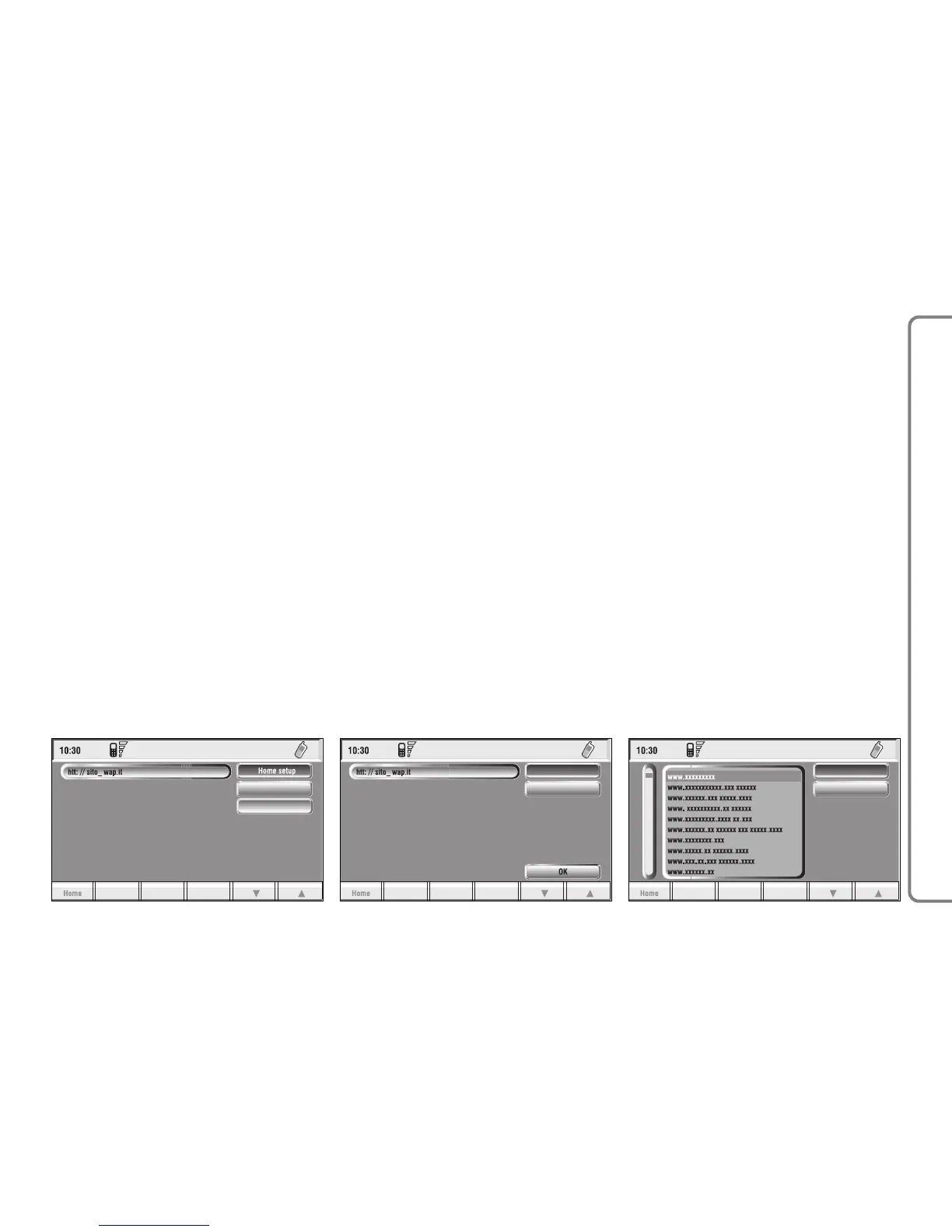
fig. 79 rotating and pressing the knob
15-fig. 1; the display shows the stored
site directory;
– select the required site rotating the
knob 15-fig. 1 and then press the
knob to confirm.
“Site directory”
This key fig 78 selected and con-
firmed by rotating and pressing the
knob 14-fig. 1, displays the WAP site
directory screen as shown in fig. 80,
with the options: “Select” and “Enter”.
“Select”: this key fig. 80 selected and
confirmed by rotating and pressing the
knob 15-fig. 1, gives access to the
WAP sites stored in the directory. For
each item of the list the display shows
the address and the associated name,
if stored.
Select the required item by turning
and pressing the knob 15-fig. 1; the
display will show detailed info on the
selected address and the following
icon keys: “Change” and “Delete”
fig. 81.
“Change”: this key fig. 81 selected
and confirmed by rotating and press-
ing the knob 15-fig. 1, allows to
change site address and/or name; in
this case the display shows the keypad
and the editing box for typing the re-
quired address; proceed as follows:
– select “Address” and then change
the address using the keypad;
– select “Name” and then change the
name using the keypad;
– select “OK” to store changes.
85
CONNECT NAV+



 To Next Page