145
Sending and receiving faxes
www.gateway.com
4 Type the recipient’s name, company (if applicable), and fax number, then
click
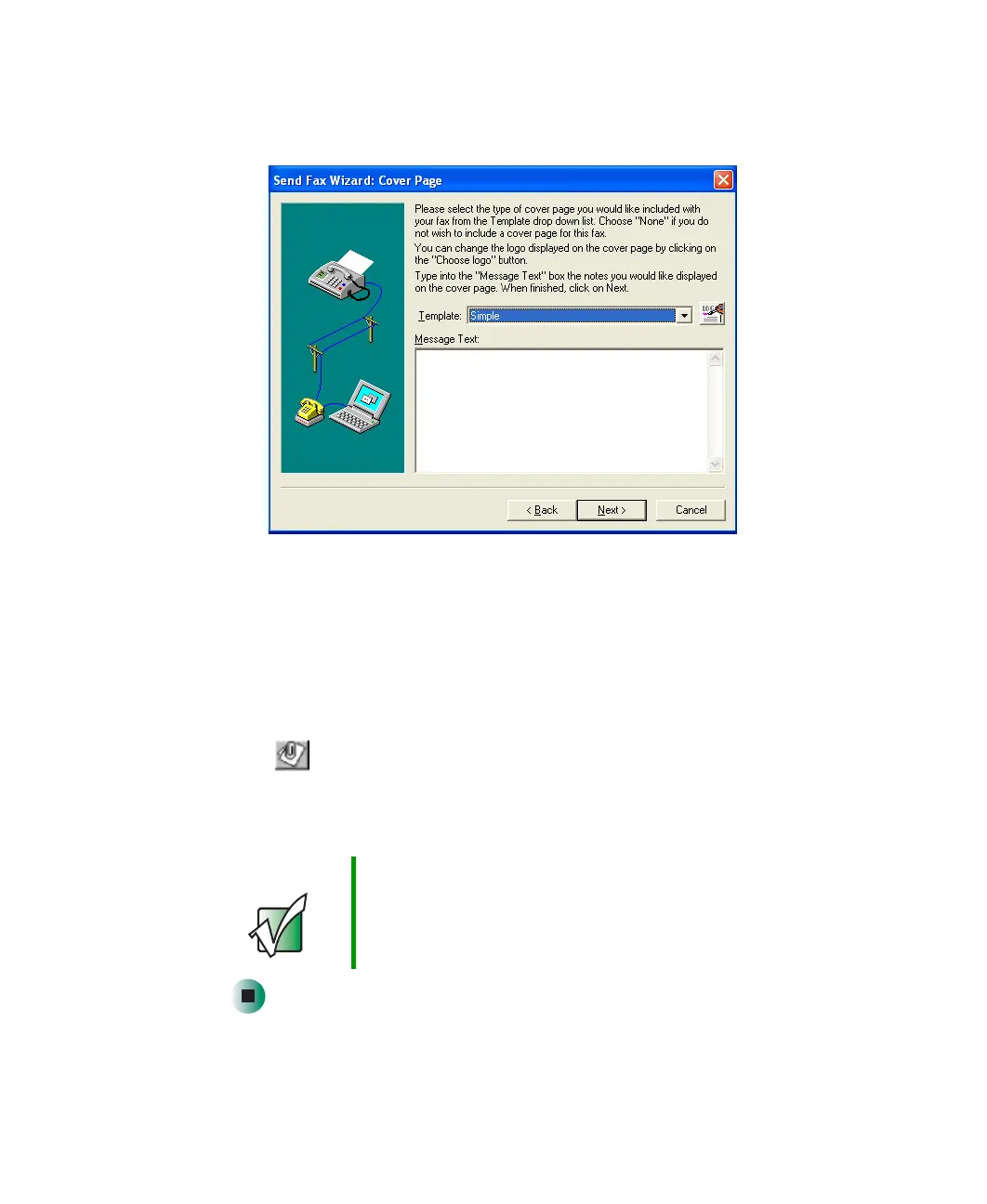
Next.
5 Type the message text in the Message Text area.
6 Click the arrow button to open the Template list, then click the template
cover page that you want. If you typed a message in the Message Text area,
you must select a cover page.
7 Click Next.
8 If you want to attach a file, make sure that the file is not open, then
click (browse), click the file, then click
Open.
9 Click Next, then click Finish. The Confirm Transmissions dialog box opens.
10 Click Send. PhoneTools dials the fax number and sends your fax.
Important If for any reason you receive a failed transmission
message, click Send, then click Outbox. Right-click the
fax that was not sent to modify it.
8509203.book Page 145 Tuesday, July 1, 2003 7:54 PM



 To Next Page