TruVision DVR 40 User Manual 101
Viewing system logs
To view the logs recorded in the TVR 40
You can search the recorded logs by:
Options. There are four log options: All, Category & Time, Time, and Category.
Main information types. There are four main information types: All, Alarm, Notification, and
Operation.
Sub information types. There are several different types of sub information depending on the
main type selected. See Table 16.
Table 16: Sub information types by main type
Main information types Sub information types
All All
Alarm All, ViewTamper Stop,ViewTamper Start, MotDetStop, MotDetStart, Alarm Out,
Alarm In
Notification All, DCDLost, IP Conflict, HardDiskFull, HardDiskError, IllegalAccess
Operation All, SaveToSATADISK, EndSaveToSATADISK, EndSaveToIDECDRW,
EndSaveToUSBCDRW, EndSaveToUSBHD, EndSaveToUSBDISKK, change,
Altered, File End Time, File Start Time, Net PTZ, Net Time Play, Net File Play,
Net Upgrade, BiComStop, BiComStart, Net Reboot, Alert Off, Alert On,
NetGetStatus, NetGetConfig, NetGetPara, NetStopTrans, NetStartTrans,
NetStopRecord, NetLogout, NetLogin, LocalFileCopy, LocalUpgrade,
Panel Set Time, PanelPTZ, LocalStopRec, LocalStartRec, PanelTimePaly,
PanelConfig, PanelLogout, PanelLogin, AbnormalShut, Shutdown, PowerOn
Date and time. Logs can be searched by date as well as start and end recording times.
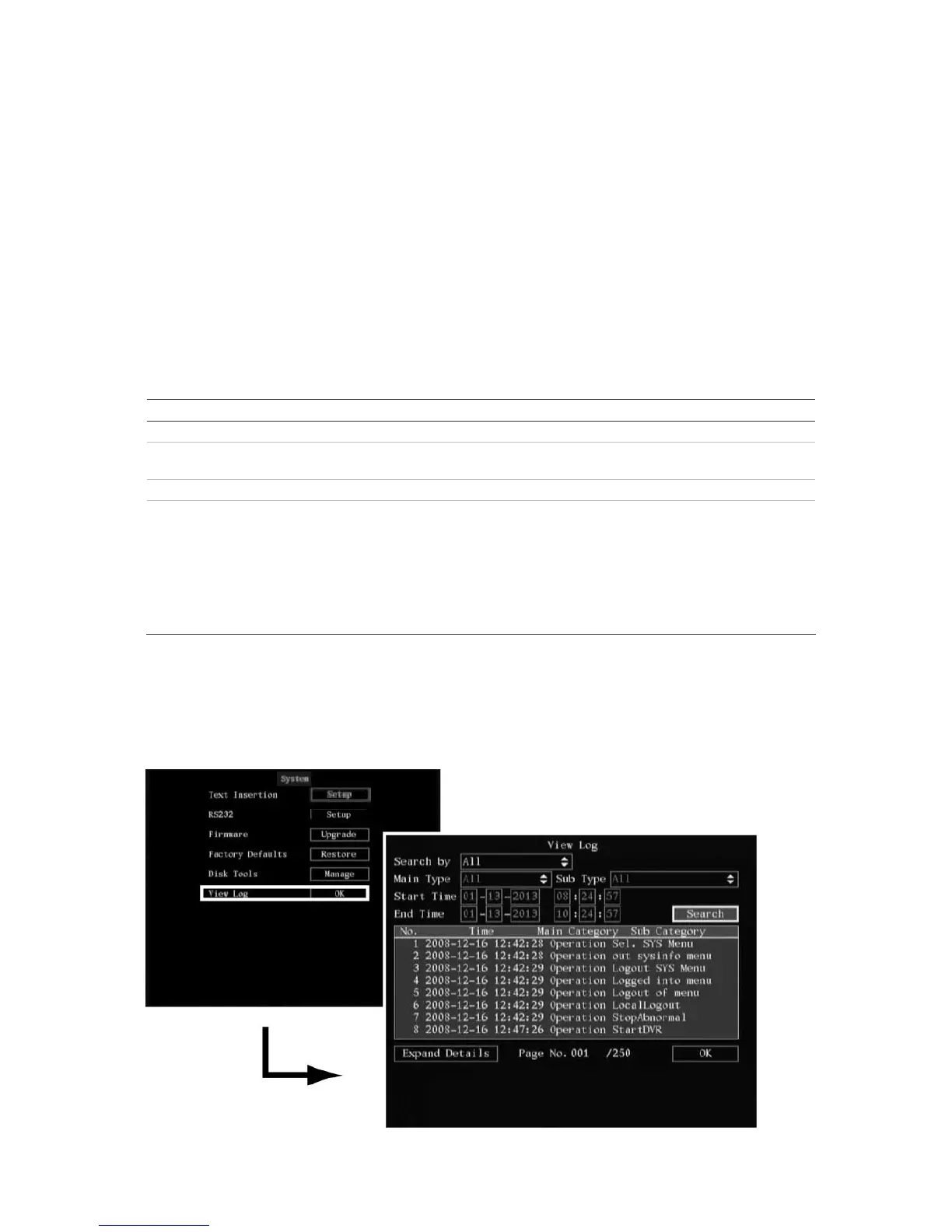
1. In the System menu select the View Log edit box and press Enter or left-click the mouse. The View
Log menu appears.



 To Next Page