TruVision DVR 40 User Manual 29
7. Go to the Archive Today list box to set the number of days back to be automatically archived. Up
to 6 days can be selected. Today is 0. Yesterday is -1.
8. Go to the Set Today’s Time edit boxes and enter the period of time during the day to be archived.
Note: Time has a 24-hour format.
9. Go to the Archiving Delay list box and select the time after activating the TVR 40 for auto backup
to start. If the option “0Min” is selected, backup will start immediately OK is pressed.
10. Select OK to save your changes and return to live mode.
Controlling a PTZ camera
You can control the PTZ operation of the cameras. It is entered from live mode.
The PTZ camera can be controlled using buttons on the front panel and IR remote control as well
using the on-screen PTZ control icons accessed with the mouse. However, some functions are only
available using the mouse.
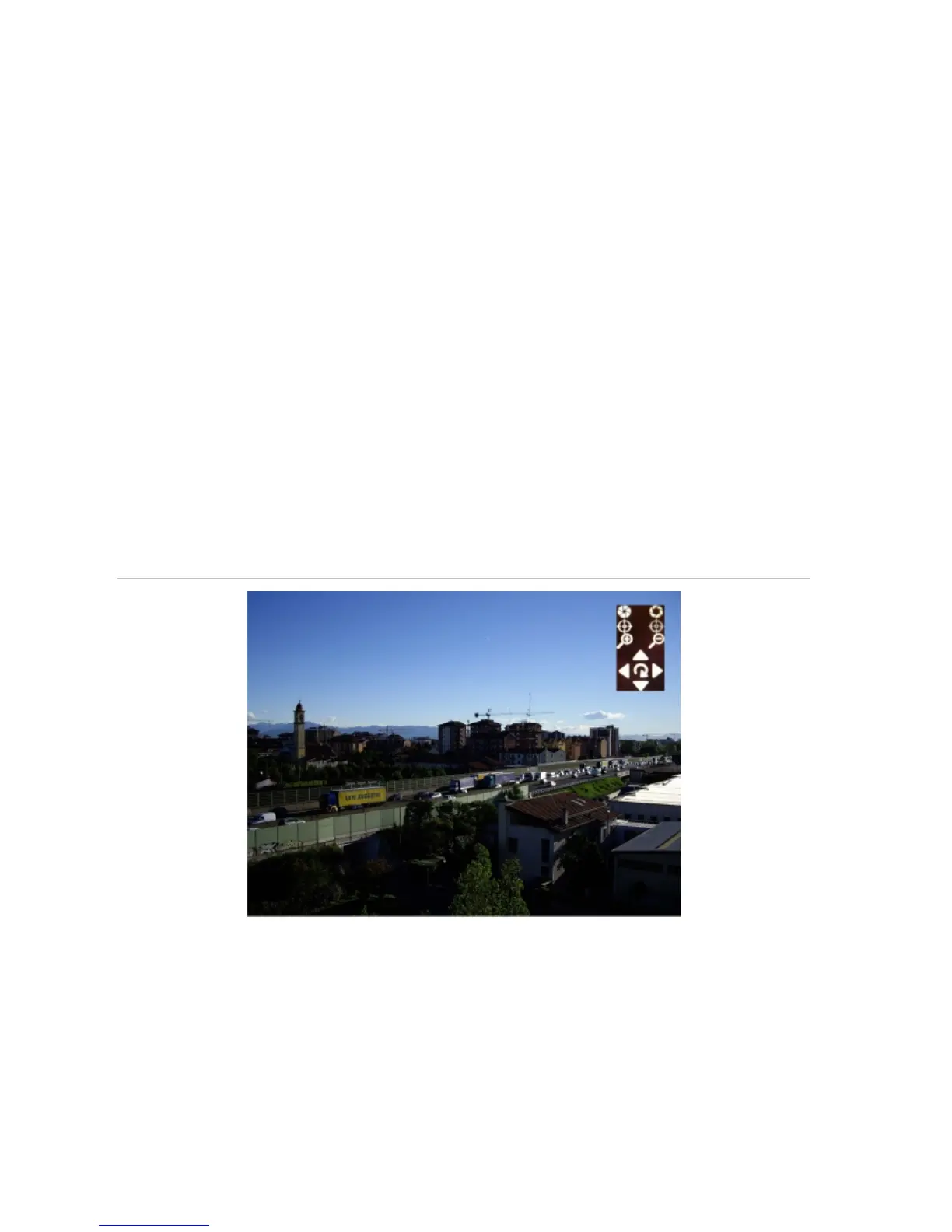
See Figure 14 below for the on-screen PTZ control icons accessed using the mouse.
Figure 14: Mouse PTZ control icons
The autopan function is only available using the mouse. This function is the automatic back and forth
movement of a camera. The function depends on the camera used.
Access to PTZ functions may require a PIN.
To enter PTZ mode
1. In live mode press the joystick on the front panel or OK on the IR remote control, or right-click on
the mouse, and select PTZ Control.
2. Move the camera as required. See Table 4 on page 30 for the descriptions on how to control PTZ
using the front panel,
IR remote control and mouse.



 To Next Page