TruVision DVR 40 User Manual 19
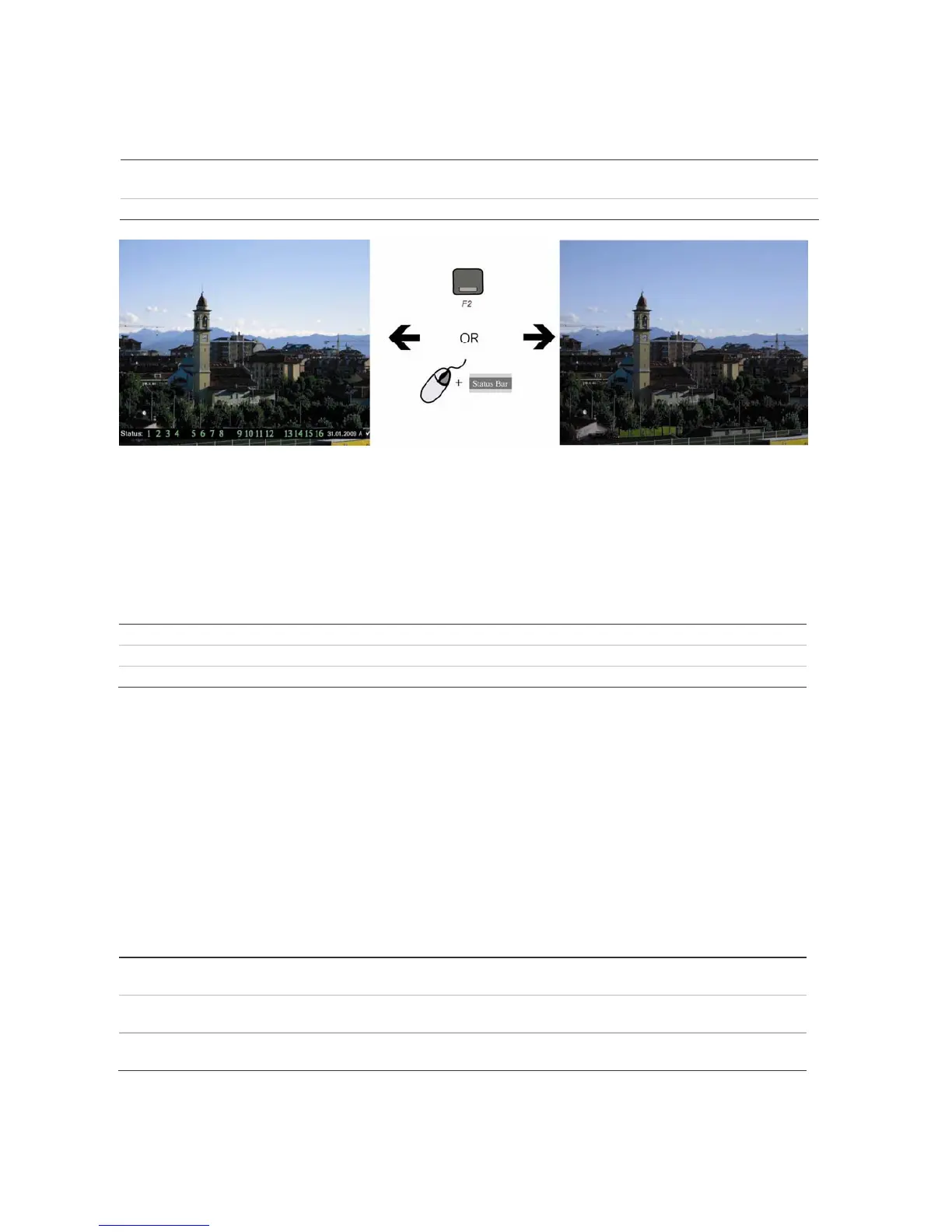
To activate/deactivate the on-screen status bar
Front panel/remote control Press the F2 button on the front panel to activate or deactivate the status bar.
Mouse Right-click the mouse and select Status Bar from the menu.
Selecting a monitor
The TVR 40 can be connected to up to two monitors. However, only one monitor can be controlled at
a time. You can select from which monitor to display the camera views in live mode.
To switch between monitors A and B
Front panel Press buttons A or B to switch between monitors A and B.
IR remote control Press buttons Mon A or Mon B to select between monitors A and B.
Mouse Right-click the mouse and select Swap Monitor from the menu shown.
Viewing in multiscreen
The 16-channel TruVision DVR 40 User Manual has five multiscreen display formats available
including full screen. The eight-channel TruVision DVR 40 User Manual has four multiscreen display
formats.
A cameo is any cell in a multiscreen display. A camera picture can only be shown in one cameo at a
time. To change the order of cameras in the cameos, see “To setup multiscreen and dwell time” on
page 41”.
T
o view a full screen display
Front panel Press the numeric button that corresponds to the camera number. For example,
press button 10 to preview camera number 10.
IR remote control Press two number buttons that corresponds to the camera number. For example,
press buttons 0 and 2 to preview camera number 02.
Mouse Right-click the mouse and select Camera from the menu shown. Select the camera
required.



 To Next Page