48 TruVision DVR 40 User Manual
7. When you have made all the changes required in the Camera menu, go to OK and press Enter or
left-click the mouse to save all changes and return to the main menu. Press the Menu button to
return to live mode.
Motion detection
The TVR 40 can be setup to trigger an alarm if a camera detects motion. Select the level of sensitivity
to motion as well as the target size so that only objects that could be of interest can trigger a motion
recording. For example, the motion recording is triggered by the movement of a person but not that
of a cat.
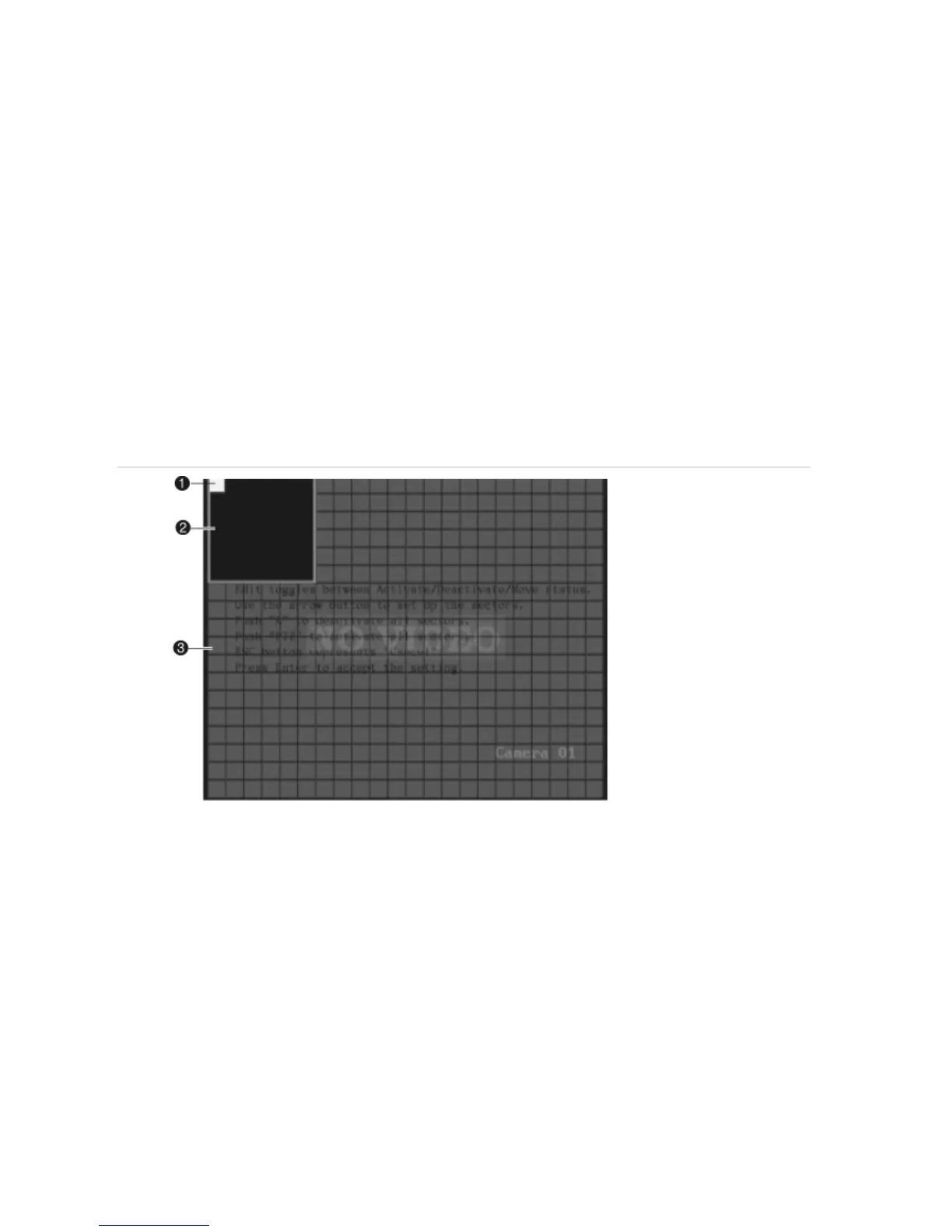
Mask out any areas of motion on-screen that you do not want to trigger recording such as a flag on a
pole or a moving tree.
Figure 18: Example of motion detection setup screen
1. White square to mark out new activated motion detection zone
2. Existing motion detection zone
3. Area not selected for motion detection
To setup the TVR 40 to respond to a motion detection alarm
1. To set the motion detection sensitivity level
In the Camera menu go to the Motion Detection list box and select the desired motion detection
sensitivity level required.
There are seven levels to choose from: 0 (lowest) to 6 (highest) as well as “Off”. If “Off” is selected,
the unit will not respond to any motion detection. If 0 to 6 is selected, motion detection Zone and
Rules setup buttons become active. Press Enter on the front panel or IR remote control, or left-
click the mouse, to confirm the change.



 To Next Page