20 TruVision DVR 40 User Manual
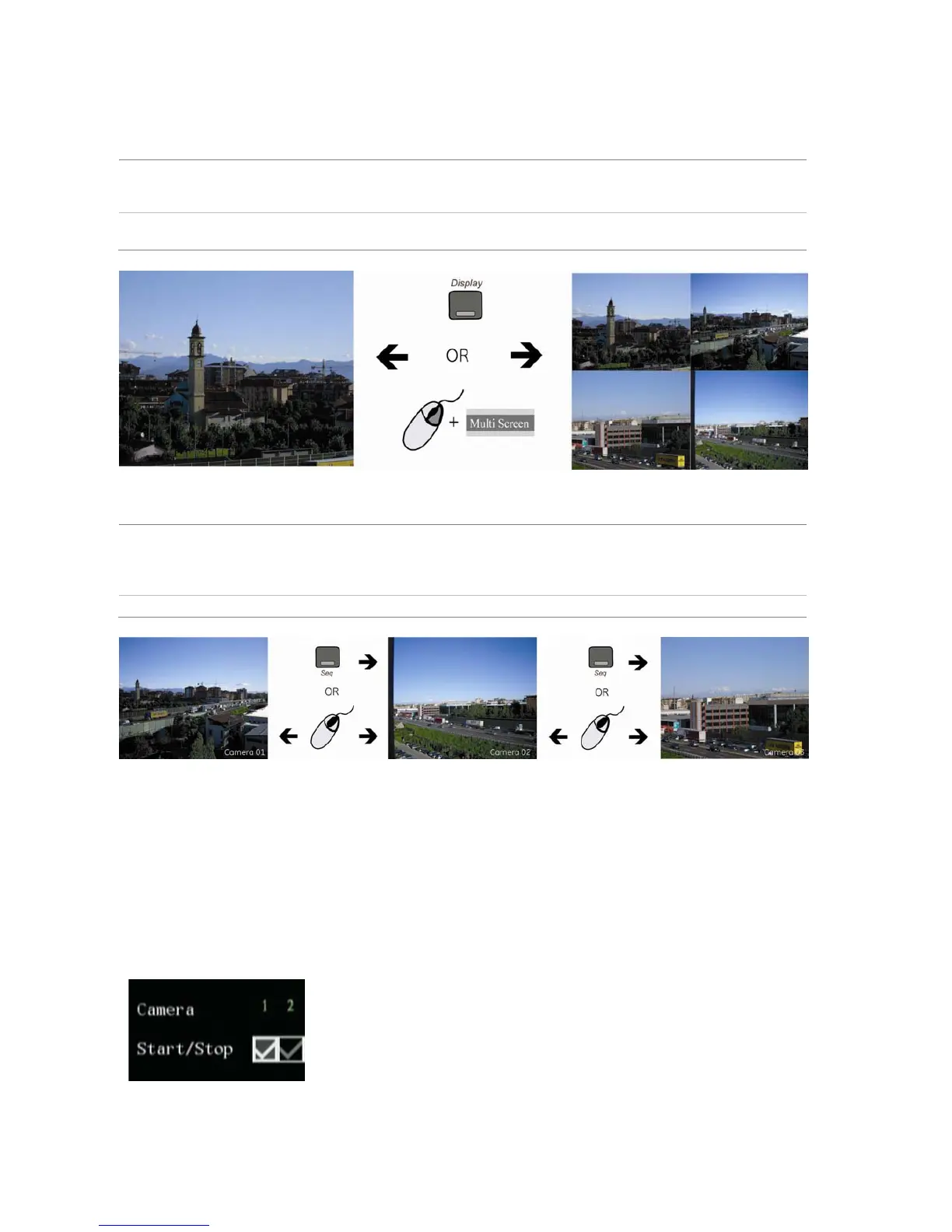
To view a multiscreen display
Front panel/ IR remote control Press the Display button to switch to multiscreen live mode. If the multiscreen
display does not include all the cameras required, keep pressing the Display button
to increase the number of screens displayed.
Mouse Right-click the mouse and select Multi Screen from the menu. Select the desired
multiscreen display layout.
To manually cycle through live mode
Front panel/ IR remote control Press the Seq button to manually step through the live modes. You can set the auto
multiscreen mode in the Display menu. See section “Multiscreen and sequencing”
on page 41 for further informati
on.
Mouse Use the mouse wheel to scroll forwards and backwards through the live modes.
Manual recording
When a channel is recording, its corresponding camera LED on the front panel is green. This
recording status is also repeated in the Manual Record menu.
Manually start or stop a channel recording from the Manual Record menu. This menu is only
accessible using the mouse.
What the status options mean in the Manual Record menu
When the status of the camera number is:
• Green: Indicates the channel is recording
• Red: Indicates remote viewing
• Orange: Indicates both recording and remote viewing
• Grey: Indicates the channel is not recording
Start/Stop options:
• : Indicates recording is enabled



 To Next Page