TruVision DVR 40 User Manual 23
Option Description
4. Current playback time Playback always starts from time zero. The actual time of the recording is shown
on the top of the screen.
Move the joystick up to jump forwards 30 seconds. It is not possible to jump
backwards.
5. Total playback time Shows the duration of the recorded file. In this example, it is 4 minutes 19
seconds.
6. Start/end copy Press the F1 button to start or stop copy a segment of the playback video.
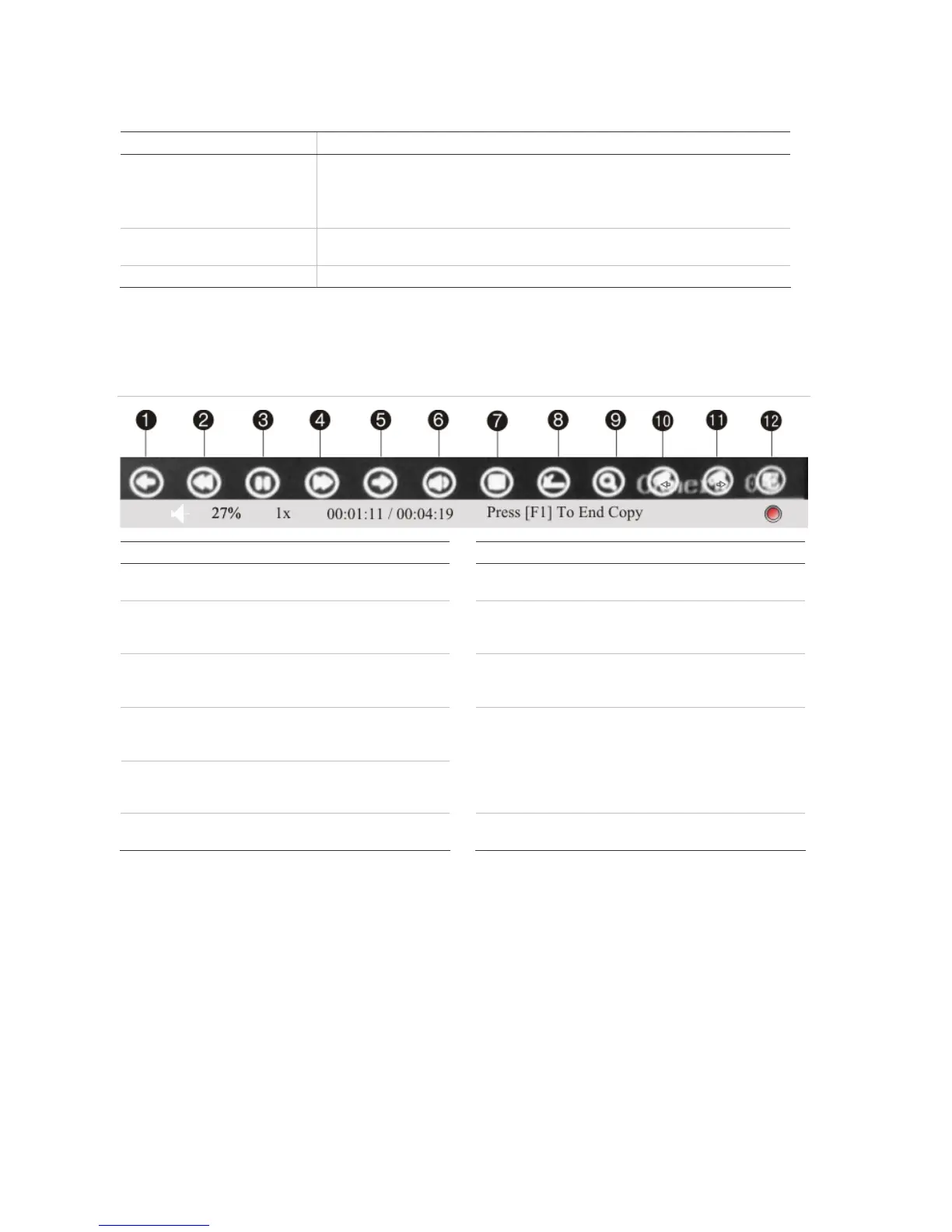
If a mouse is connected to the unit, a toolbar appears that allows you to control many playback
functions with the mouse. See Figure 13 below.
Figure 13: Mouse playback toolbar
Item Description
Icon Description
1. Jump back 30 seconds in the playback
video.
7. Start archiving the video.
2. Decrease the playback speed. See
Figure 12 for the list of speeds
available.
8 Remove the Playback toolbar. To make it
reappear on-screen, right-click the mouse
and select Display.
3. Pause playback.
9. Digital zoom. Double left-click the mouse
to zoom in. Double left-click again to
return to normal view.
4. Increase the playback speed. See
Figure 12 for the list of speeds
available.
5. Jump forward 30 seconds in the
playback video.
10 &
11.
To view full screen when in multiscreen
mode, double-click the mouse on the
desired screen. It appears as full screen.
Left-click the mouse on one of the icons
to move backwards or forwards through
the full screens.
6. Turn on or off audio.
12. Left-click the mouse to scroll through the
number of multiscreens displayed.
Search recorded video
There are many different ways to search recorded videos, such as:
Recordings which have alarms or motion detection, or have been manually recorded
Start and end time and date of recording
Text (from an ATM, for example)



 To Next Page