24 TruVision DVR 40 User Manual
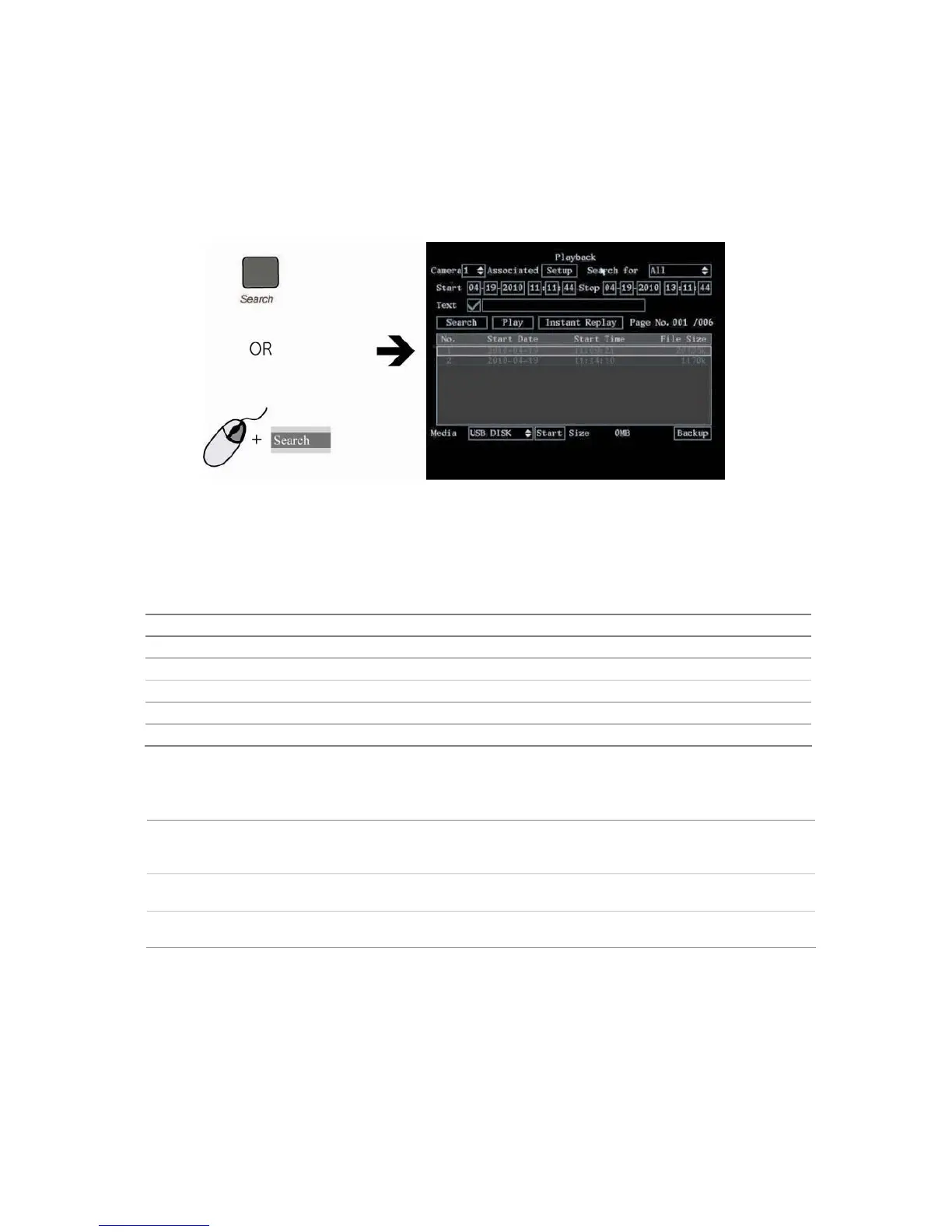
To search for recorded video
1. In live mode press the Search button on the front panel of the TVR 40 or on the IR remote control,
or right-click the mouse and select Search. Enter your user name and PIN, if requested.
The Playback menu appears.
2. In the Camera list box select the channel you want to search.
3. To select more than one camera for playback, click the Associated Setup box. In the submenu that
appears, select the cameras required.
4. In the Search for list box select the type of recorded videos to be searched.
Option Search for recorded file types
All All recordings
All Time Only scheduled time recorded files
Manual Only manually recorded files
Alarm Only alarm recorded files
Motion Det. Only motion detected files
5. For the Start and Stop recording periods go to each edit box and enter the start and end dates
and times as follows:
Front panel Press the joystick to enter the edit box. Move the joystick up or down to scroll
through the numbers to select a number. Move the joystick left or right to move to
the next edit box.
IR remote control Use the arrows buttons to change the numeric value. Press Enter when completed
and move to the next edit box.
Mouse Click the edit box and select the number required from the on-screen numeric list
that appears.
Note: Date has the format DD-MM-YYYY. Time has a 24-hour format. The default stop values shown are the
current time and date.
6. To search for video from a particular ATM, for example, enable () the Text check box.
Using the mouse, select the edit box alongside the check box to enter the text to be searched (for
example, text that appears on an ATM screen.) An on-screen alphanumeric keyboard appears.
Click Shift to select the type of character required: Number, upper case letter, lower case, letter or
symbol. There are 24 symbols to select. Press 0 on the front panel to scroll between the four
pages of symbols available.



 To Next Page