34 TruVision DVR 40 User Manual
Caution: If there is a power failure during setup, you will loose all user-modified settings. The system
will return to the programmed settings.
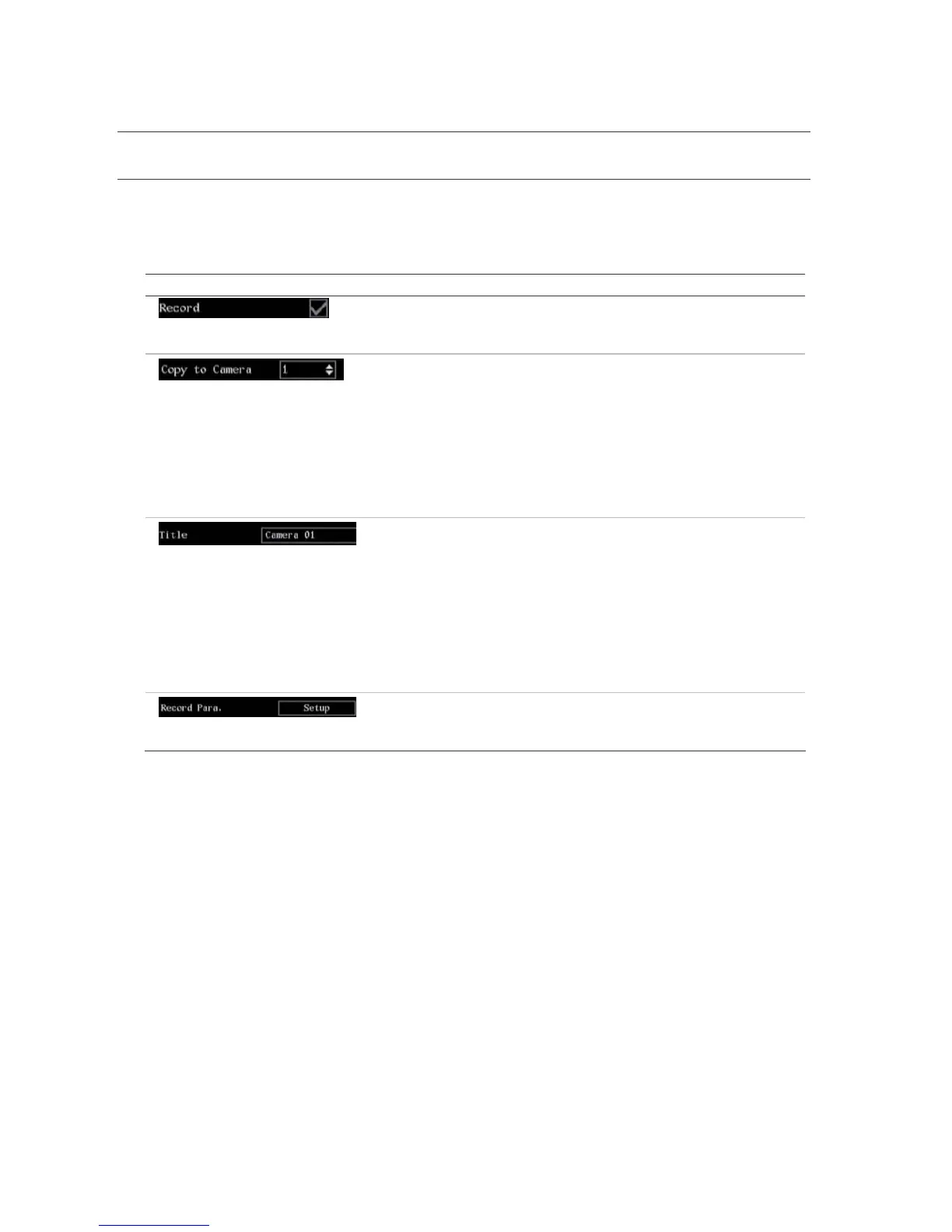
Changes to screen settings can be entered in various ways as shown in Table 6 below.
Table 6: Types of control
Control Function Description
Check box
Select either enable (
) or disable (empty).
Press the joystick to toggle between them or left-click
the mouse.
List box Select one of the listed options.
Front panel: Move the joystick up or down to select an
option. Press the joystick to accept changes made in the
list box.
IR remote control: Press the up or down arrows to select
an option. Press OK to accept changes made in the list
box.
Mouse: Position the mouse cursor on the list box arrows
and left-click the mouse to scroll through the options.
Edit box An edit box lets you type characters to set the value of
an option. Click the box and an on-screen keyboard will
appear. Depending on the type of information required,
the on-screen keyboard will be numeric or
alphanumeric.
This function can only be done using the mouse.
Left-click the mouse. A numeric or alphanumeric on-
screen display appears. Select the characters required.
When completed, left-click the mouse on the menu
screen to accept changes.
Setup button Execute a function or enter into the next submenu.
A setup button is inactive (grey) until its parameter
option is enabled.
Turning off the TVR 40
Turn off the power switch located on the back of the unit.



 To Next Page