68 TruVision DVR 40 User Manual
Note: If you change the http port from the default value 80 then you must also enter the port value in the IE
Browser address. For example, if the http port is 81 and IP is 192.168.222.12 then in the browser enter
http://192.168.222.12:81
7. When you have made all the changes required in the network menu, go to OK and press Enter or
left-click the mouse to save all changes and return to the main menu.
E-mail settings
The TVR 40 has can send e-mail notifications of alarm events through the network. The e-mails can
be sent to up to two different addresses. The device can send up to five jpeg images of a recording
with an e-mail.
To setup e-mail notification
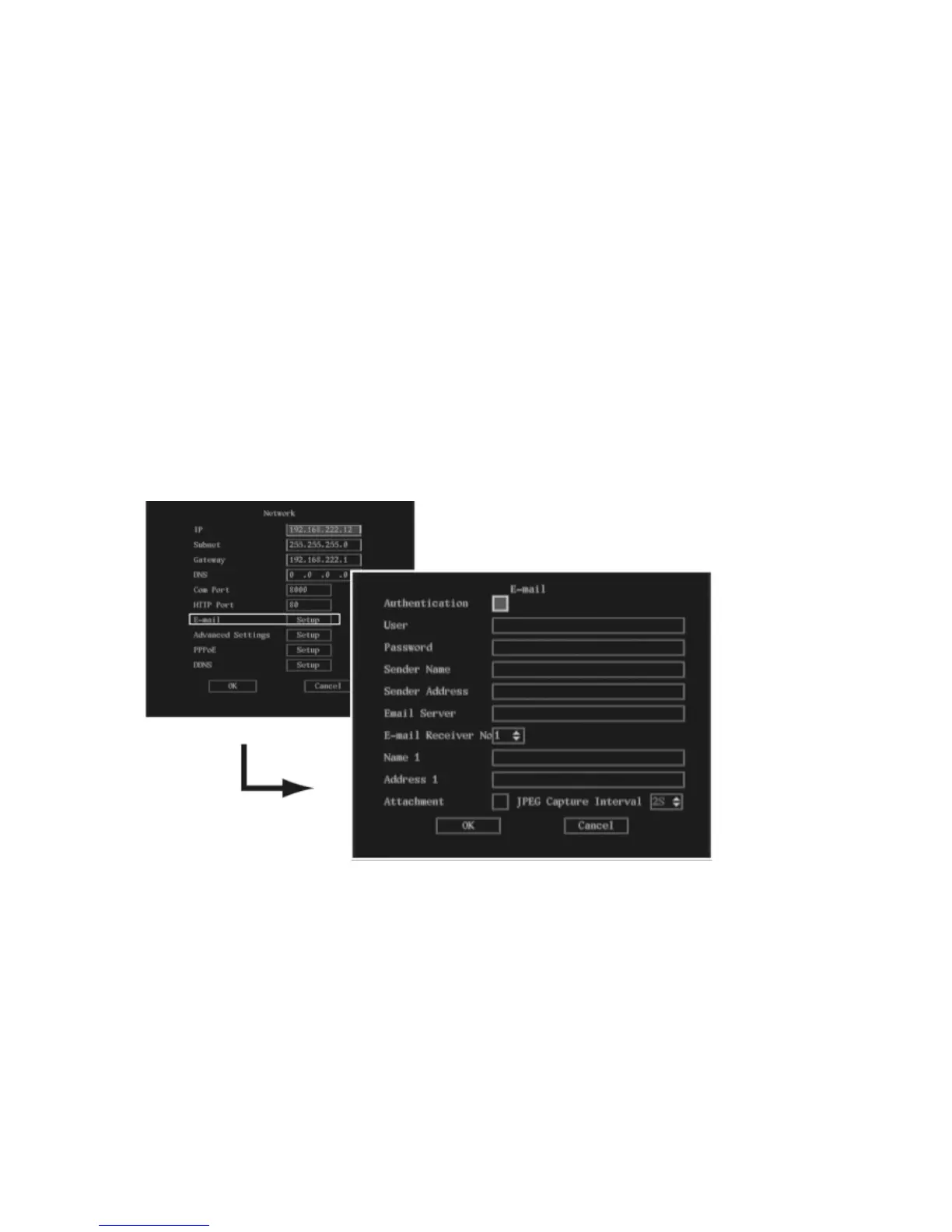
1. In the Network menu go to the E-mail setup box and press the joystick for Enter, or left-click the
mouse. The E-mail submenu appears.
2. If your E-mail server requires a user name and PIN when sending an E-mail, select Authentication
and press the joystick, or left-click the mouse, to enable the check box (). The User and Password
setup boxes are then activated.
3. Go to the User edit box and press the joystick for Enter, or left-click the mouse. Using the on-
screen alphanumeric keyboard, enter the e-mail account user name.
Note: Press the Shift key in the on-screen alphanumeric keyboard to change the type of character
(uppercase, lowercase, symbol, number). Alphanumeric information can only be entered using the mouse.
4. Go to the Password edit box and press the joystick for Enter, or left-click the mouse. Enter the e-
mail account password.
5. Go to the Sender Name edit box and press the joystick for Enter, or left-click the mouse. Using the
on-screen alphanumeric keyboard, enter the name of the person sending the e-mail.



 To Next Page