72 TruVision DVR 40 User Manual
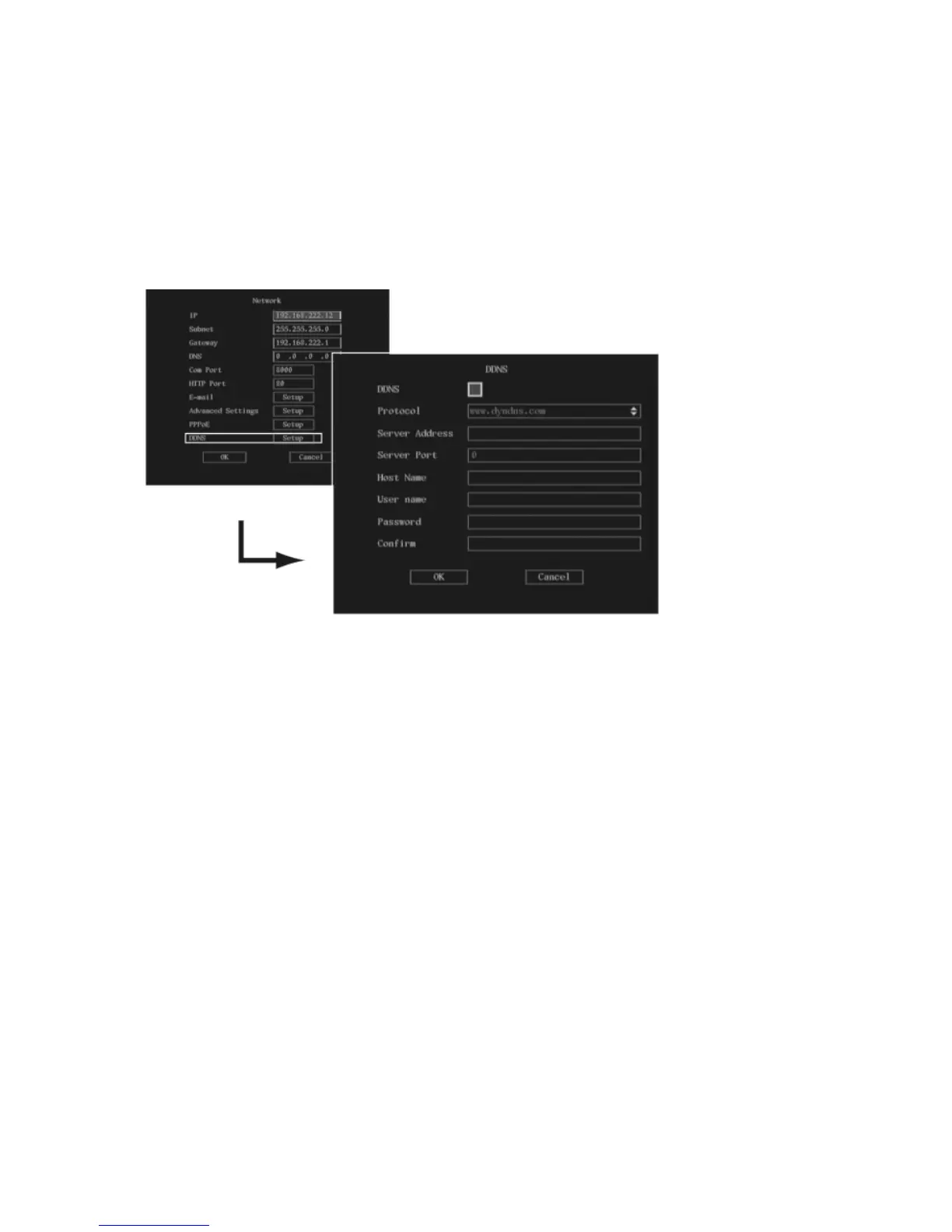
DDNS settings
Use this to select the DDNS service. The default DDNS protocol is www.dyndns.com.
To setup DDNS
1. In the Network menu go to the DDNS edit box and press the joystick for Enter, or left-click the
mouse. The DDNS submenu appears.
2. Go to the DDNS check box and press the joystick for Enter, or left-click the mouse, to enable () or
to disable the option.
3. Go to the Server Address list box and press the joystick for Enter, or left-click the mouse. Using the
on-screen alphanumeric keyboard, enter the desired DDNS provider.
4. Go to Server Port edit box and press the joystick for Enter, or left-click the mouse. Using the on-
screen alphanumeric keyboard, enter the desired port from the DDNS Service Provider.
5. Go to the Host Name edit box and press the joystick for Enter, or left-click the mouse. Using the
on-screen alphanumeric keyboard, enter the DDNS host name.
6. Go to the User Name edit box and press the joystick for Enter, or left-click the mouse. Using the
on-screen alphanumeric keyboard, enter the DDNS user name.
7. Go to the Password edit box and press the joystick for Enter, or left-click the mouse. Using the on-
screen alphanumeric keyboard, enter the Password for DDNS
8. Go to the Confirm edit box and press the joystick for Enter, or left-click the mouse. Using the on-
screen alphanumeric keyboard, re-enter the password.
9. When all the changes have been done, select OK to accept the changes and return to the
Networking menu.
10. When you have made all the changes required in the Network menu, go to OK and press Enter or
left-click the mouse to save all changes and return to the main menu.



 To Next Page