TruVision DVR 40 User Manual 21
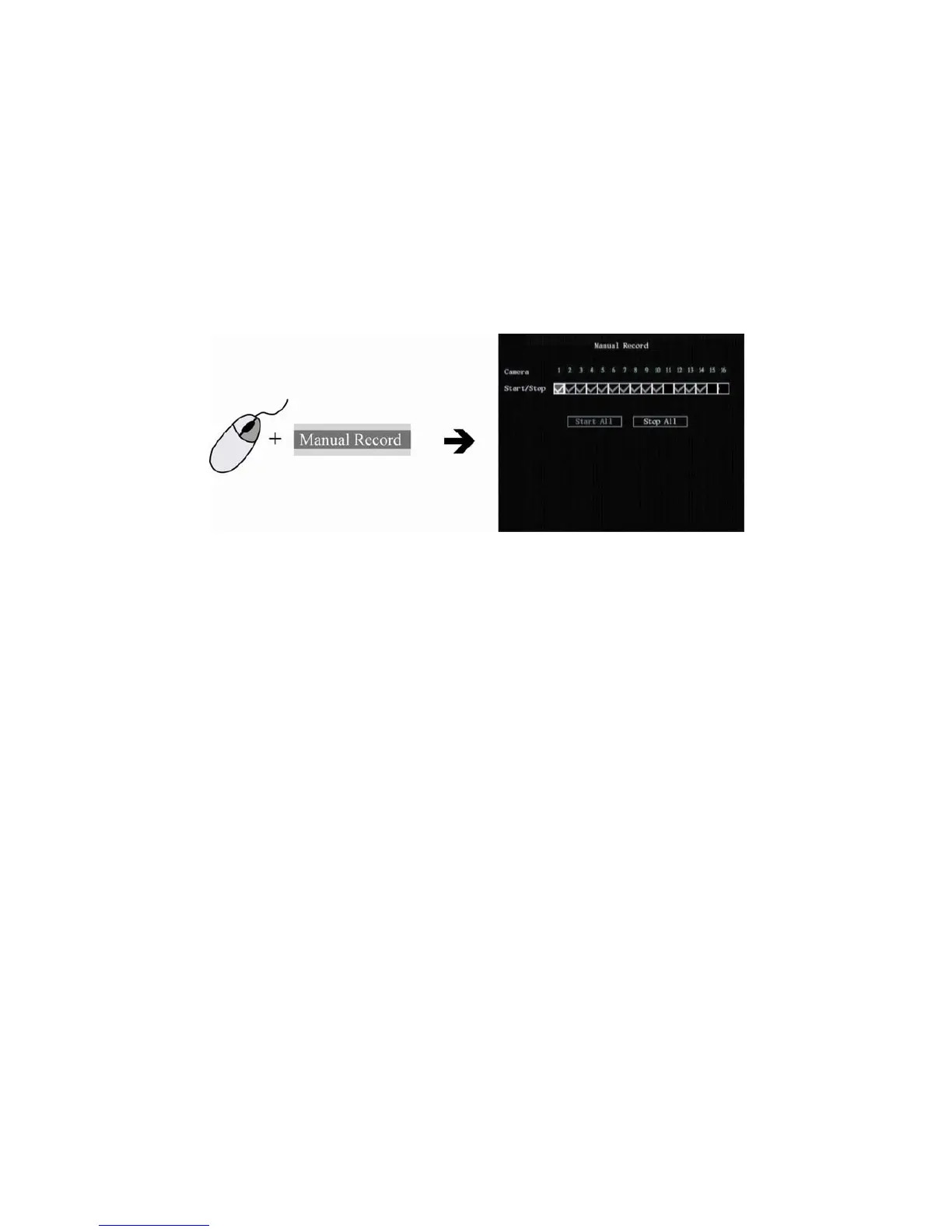
To manually start or stop a recording
1. Right-click the mouse and select the option Manual Record. Enter your user name and PIN, if
requested.
Note: You must have Record rights to change the manual recording status. See “Modifying operational
rights” on page 90 for more
information.
The Manual Record screen appears. All channels are listed. The Camera line shows the channels
that are currently recording. In the example below, 13 of the 16 channels are recording.
2. On the Start/Stop line activate or deactivate a channel by press Enter or left-click the mouse to
activate () a channel that is not recording. Press or click again to de-activate.
The camera status LED on the front panel, and the camera number in the status bar on-screen in
live mode, turn green.
3. Select the next channel from which you want to start or stop recording.
4. If you want all channels to start recording, select Start All. All the channel status LEDs on the front
panel and the on-screen camera numbers in the status bar turn green.
Select Stop All to switch off all channels.
5. Press the Menu button on the front panel, or right-click the mouse, to save changes and return to
live mode.
Searching and playing back recorded video
The TVR 40 lets you quickly search and playback recorded video. You must be in live mode to
playback video. See Figure 11 on page 22.



 To Next Page