10 TruVision DVR 40 User Manual
Using the front panel
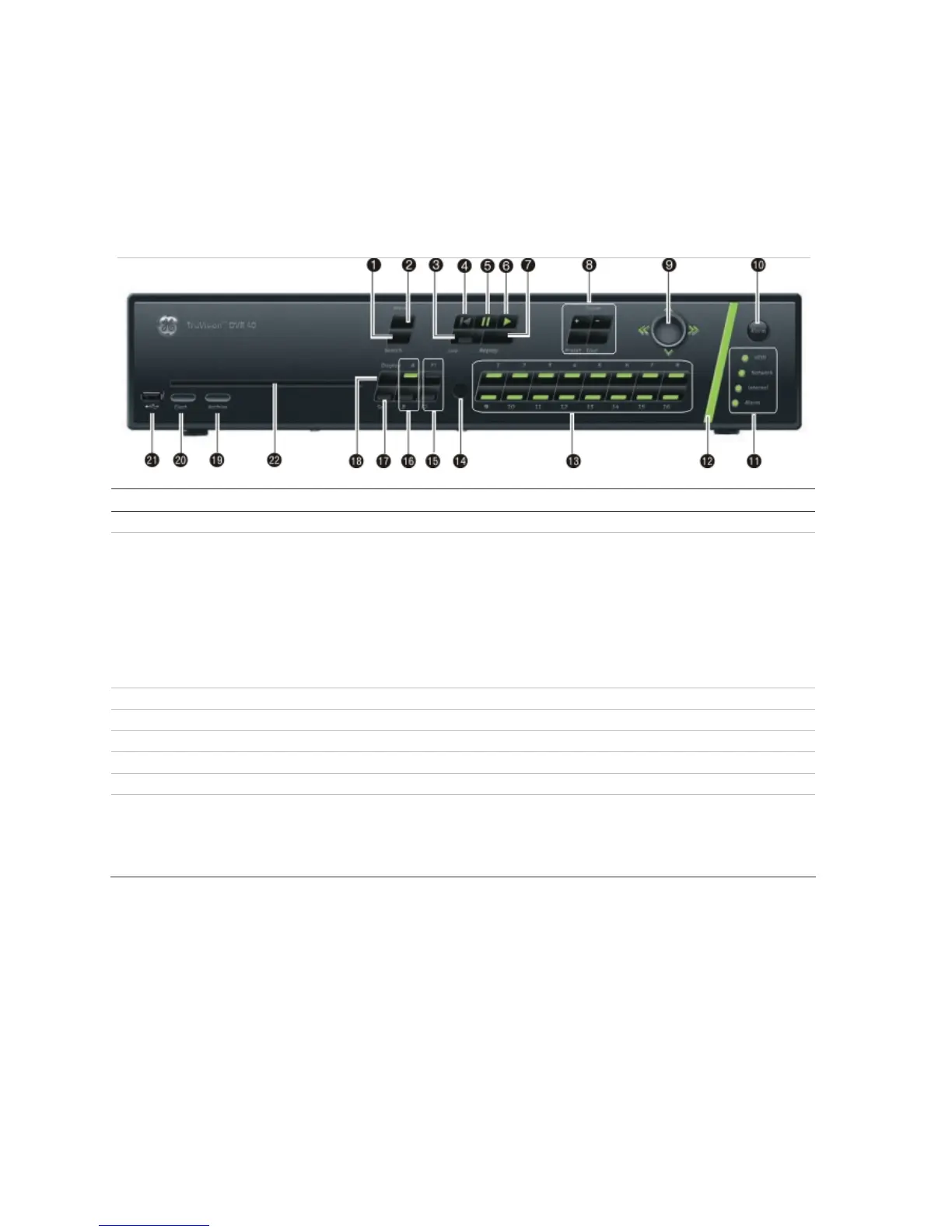
The buttons on the front panel control all functions. The LED indicators light up or flash to alert you to
various conditions. The functions available can be limited by setting passwords. See Figure 7.
Figure 7: Front panel
Item Name Description
1. Search Press to open the Playback menu to search for and playback recorded videos.
2. Menu This button has several functions depending on the operation used.
In Live mode:
Press to open the Main menu.
In menu mode:
If an edit box of a menu option is selected, press the button to exit the option.
If a check box or list box of a menu option is selected, press the button to exit the
option and return to the Main menu. Press again to return to live mode. Any
changes made will not be saved.
3. Live Press to return to live mode.
4. Playback Press to playback the oldest file in the system.
5. Playback Pause Press to pause playback.
6. Instant Playback Press to playback the most recent three minutes of video recorded.
7. Replay Press to playback current file.
8. PTZ Control Displays the PTZ control of the selected camera, if PTZ is supported.
Zoom +/-: Press to zoom camera image in and out.
Preset: Select a pre-programmed Preset option.
Tour: Select a pre-programmed Shadow Tour option.



 To Next Page