TruVision DVR 40 User Manual 37
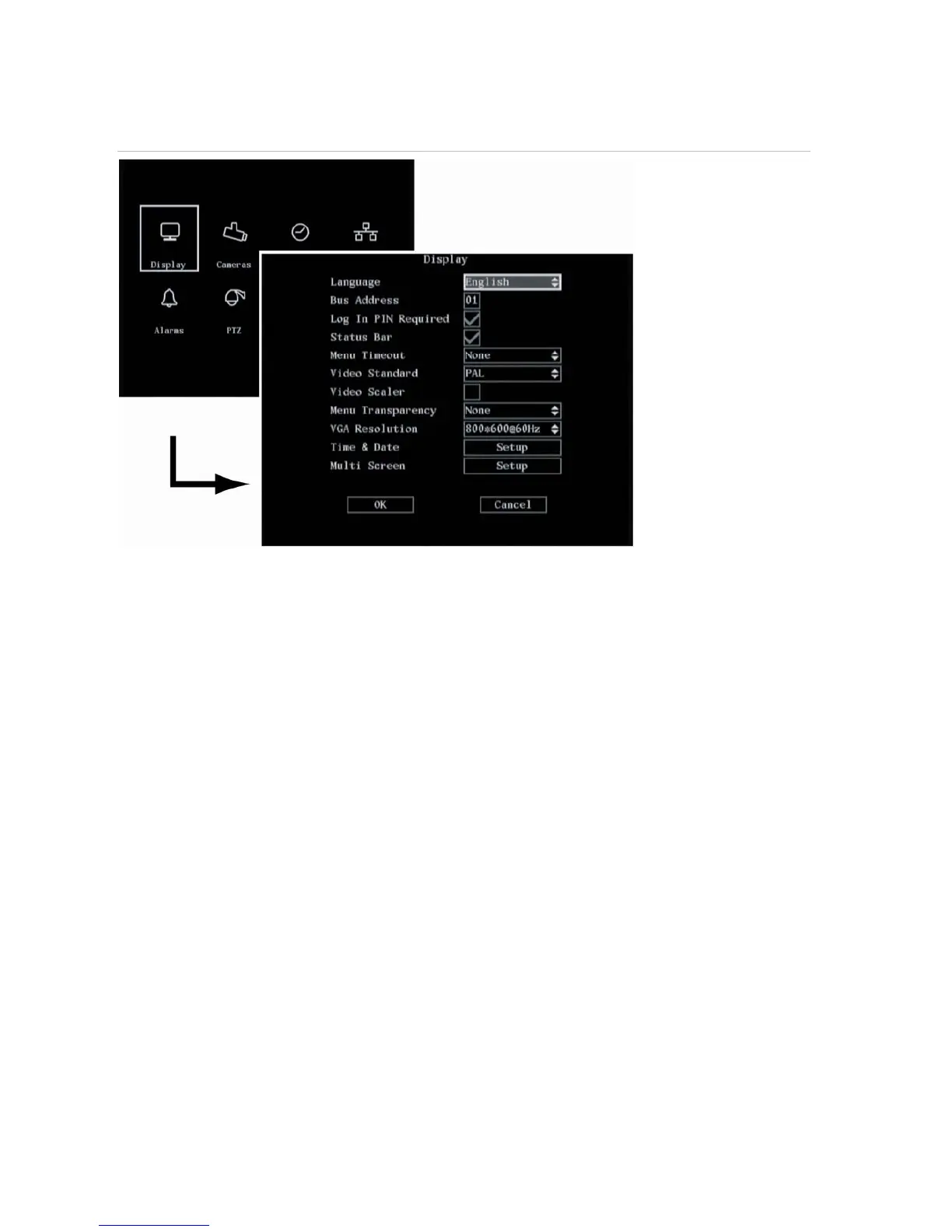
Figure 16: The Display setup menu
The following procedures show how to change the monitor display settings from the Display menu.
They can be changed in any order.
Selecting a language
To select a language
1. In the Display menu go to Language and do one of the following:
Front panel: Select the list box. Press the joystick for Enter. Move the joystick up or down to scroll
through the languages. Press the joystick to select a language.
IR remote control: Use the IR remote control arrow buttons to select the list box and press OK.
Use the up/down arrows to scroll through the language and press OK to select a language.
Mouse: Left-click the mouse to select the required language. The language on screen changes
immediately.
The default language is English.
Note: The last language used on the TVR 40 will be the unit’s language when the system is rebooted.
2. When you have made all the changes required in the Display menu, go to OK and press Enter or
left-click the mouse to save all changes and return to the main menu. Press the Menu button to
return to live mode.



 To Next Page