TruVision DVR 40 User Manual 33
To access a menu
1. Press the Menu button on the front panel of the TVR 40 or on the IR remote control, or right-click
the mouse and select Menu. Enter your name and PIN, if requested. The main menu appears.
Note: The factory default Administrator name is “admin“ and the PIN is “1234“.
2. Using the joystick, IR remote control, or the mouse, select the menu icon required.
3. Press the joystick, press the OK button on the IR remote control, or left-click the mouse to enter
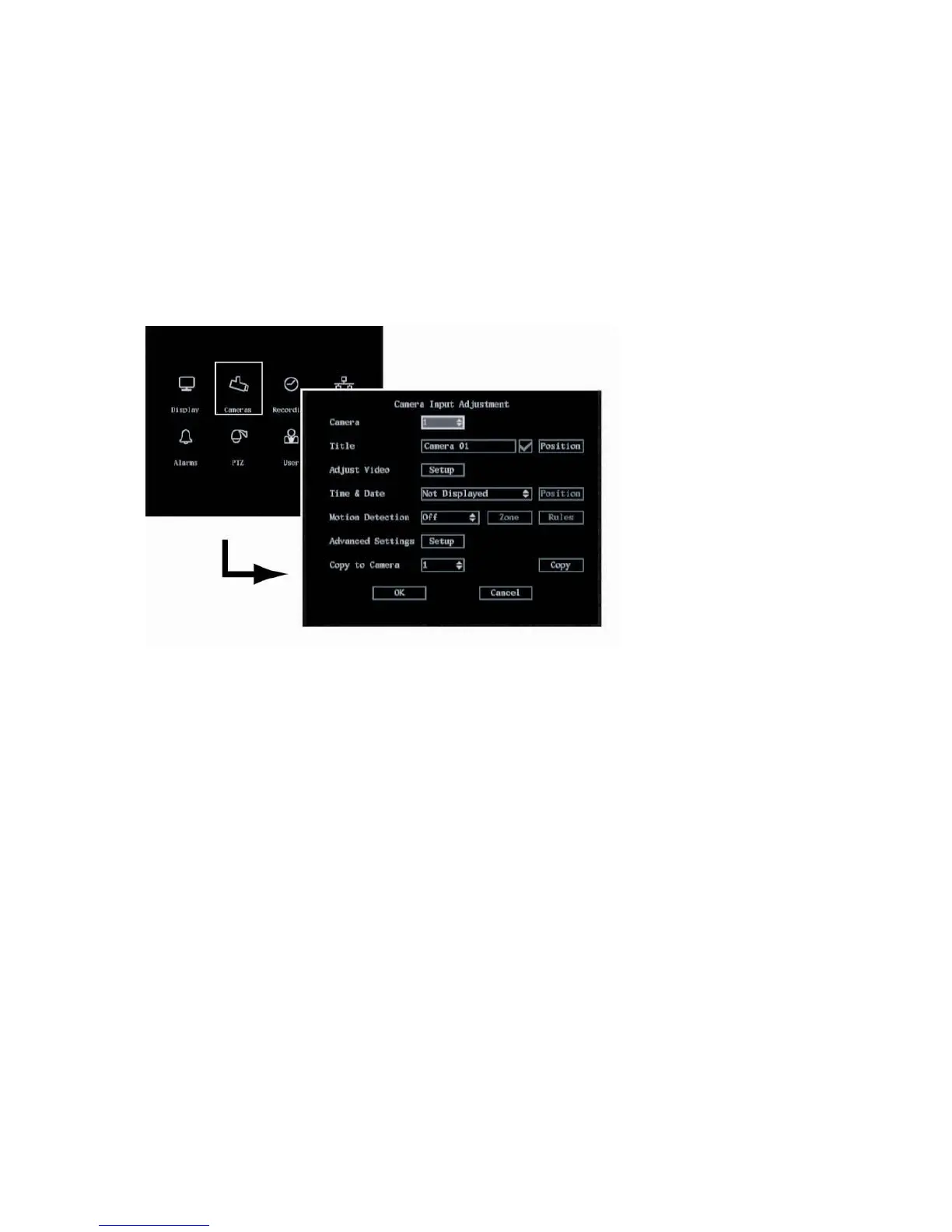
the selected menu. The selected menu screen appears. An example is shown below:
4. When all changes to menu options have been done, go to OK. Press the joystick, press OK on the
IR remote control, or left-click the mouse to save the changes and return to the main menu
screen.
To abort all changes select Cancel.
Note: Selecting OK in submenus confirms but does not save the changes made. Changes are only saved
when OK is selected in the main menu.
5. Press the Live button on the front panel or the IR remote control, or right-click the mouse, to exit
the main menu and return to live mode.
Navigating through a menu screen
The TVR 40 is delivered with default settings that can be easily changed from the menus.
You can use the mouse, front panel buttons, or the IR remote control to change settings.
Mouse: Use the mouse to select any option or button on the screen.
Front panel: Move the trigger-point joystick on the front panel up, down, left, and right to navigate
through the options and press the joystick for Enter to select. Press the Menu button to return to the
configuration category and the main menu.
IR remote control: Press the arrow buttons on the IR remote control to navigate through the options
and press OK to select. Press the Menu button to return to the configuration category and the main
menu.



 To Next Page