TruVision DVR 40 User Manual 49
2. To select the motion detection zone(s)
a. Go to the Zone setup button and press Enter or left-click the mouse. The Motion Zone setup
screen appears.
There is a solid white pane on-screen. The motion zone setup steps are the same as those for
mask zone setup (see page 52).
b. Front pa
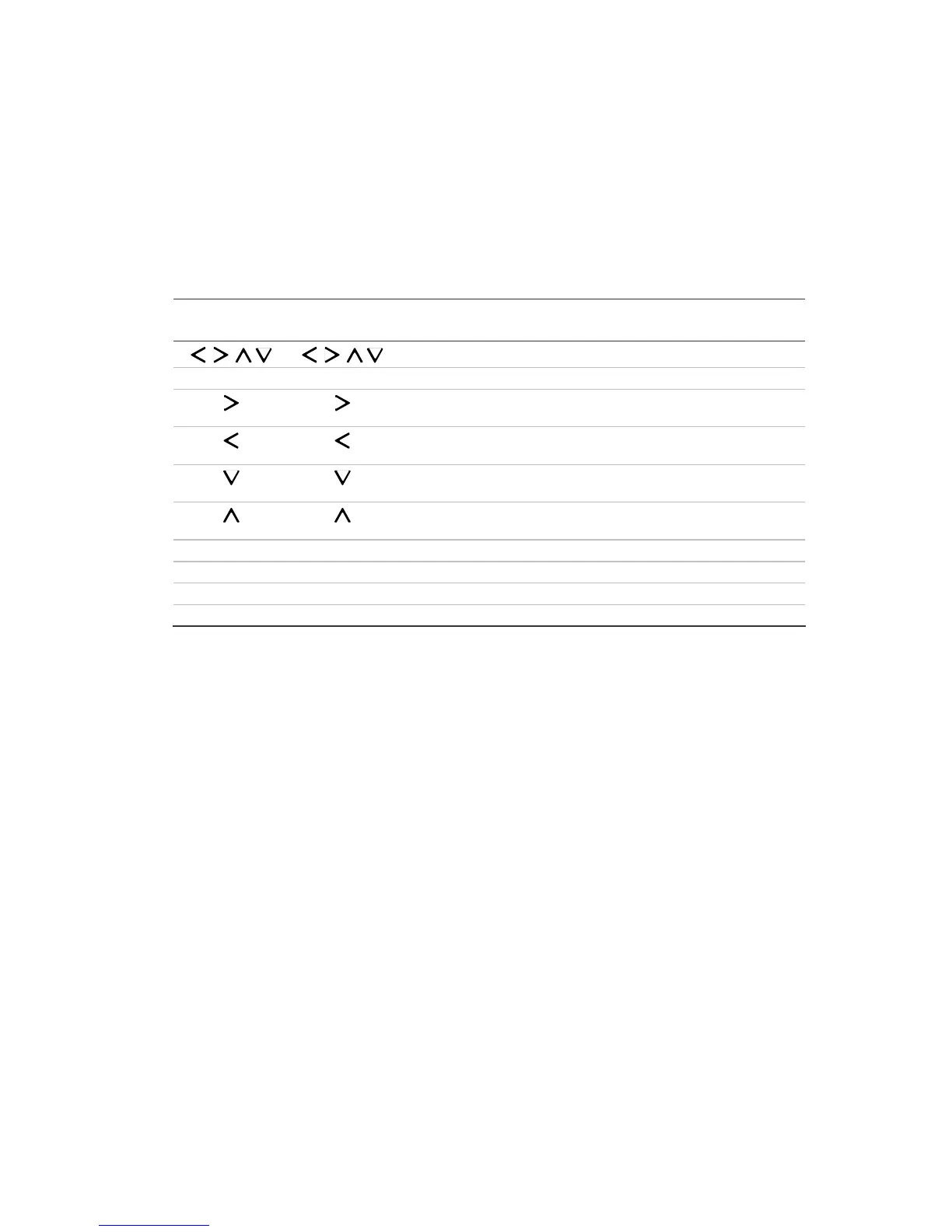
nel/IR remote control: Use the following buttons to setup the motion zones:
Front panel
buttons
IR remote control
buttons
Action
, , , , , ,
Move the white pane to any position
F1 Analog Toggle between the white (deactivate) and grey (activate) panes
When the square is grey (activated) increase the size of the transparent
zone when moved left to right
When the square is grey (activated) decrease the size of the
transparent zone from the right to left
When the square is grey (activated) increase the size of the transparent
zone from up to down
When the square is grey (activated) decrease the size of the
transparent zone from down to up
F2 IP Select the whole screen as a motion zone
F2 IP Clear all motion zones
Enter OK Save changes and return to the Camera menu
Menu Menu Cancel setup and return to the Camera menu
Move the white square to the area on-screen that you want to mark as a motion detection
zone. Press F1. The square becomes transparent. This shows the selected square is activated
and will detect motion.
Use the arrow buttons or drag the square with the mouse cursor in a left-to-right or up-to-
down direction to extend the transparent square. When you have finished marking out the
transparent zone to be masked, press Enter to exit and return to the solid white square to
continue masking.
Mouse: Position the mouse cursor at the top of the zone to be activated for motion detection.
Drag the cursor in a left-to-right or up-to-down direction to extend the transparent square.
c. Repeat step b for each zone on-screen where you want to detect motion. An example of
motion detection zones is shown below.



 To Next Page