TruVision DVR 40 User Manual 61
To change the recording parameters of a camera
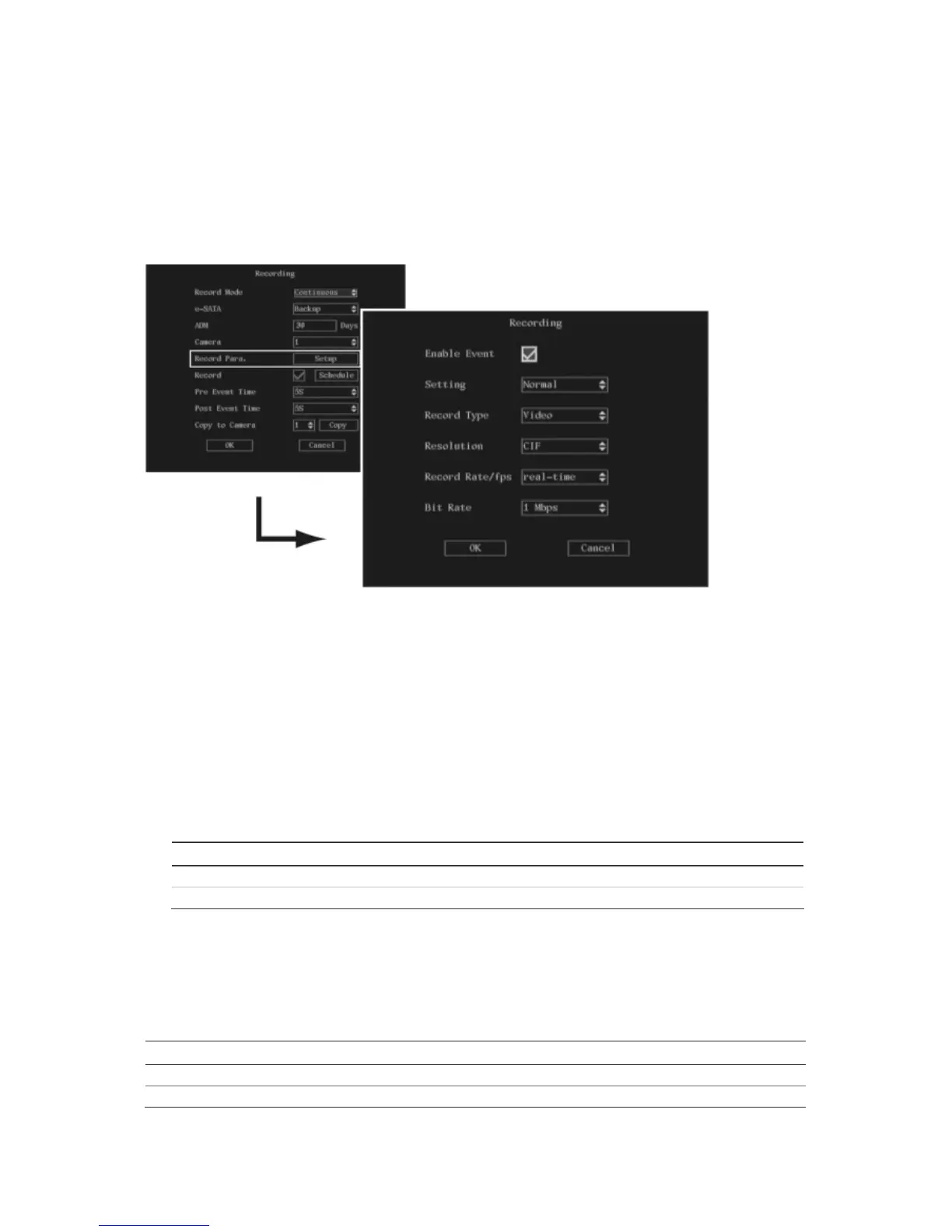
1. In the Recording menu go to the Camera list box and select the camera whose settings you want
to modify.
2. Go to the Record Para. Setup box and press Enter, or left-click the mouse. The Recording submenu
appears.
3. To setup normal and alarm recordings
You can select the recorded image parameters for both normal and alarm events. However,
Enable Event must be enabled for alarm events to be recorded differently from normal events. If
this option is not enabled then it is not possible to change any image parameters when Event is
selected as a setting—all event parameters will be identical to those of normal events.
a. If you want the recorded image parameters for alarm events to be different from those of
normal events, go to the Enable Event check box and press Enter, or left-click the mouse, to
enabled the check box (). Press or click again to disable.
b. Select which event type you want to set:
Option Description
Normal Records both scheduled and manual.
Event Records all alarms.
4. To select audio and/or video recording
You can select whether the recording is video only (default), or audio and video. If this option is
changed, you must reboot the TVR 40 to implement the change.
Go to the Stream Type list box and select one of the two options:
Option Description
Audio&Video Records both audio and video.
Video Records video only.



 To Next Page