70 TruVision DVR 40 User Manual
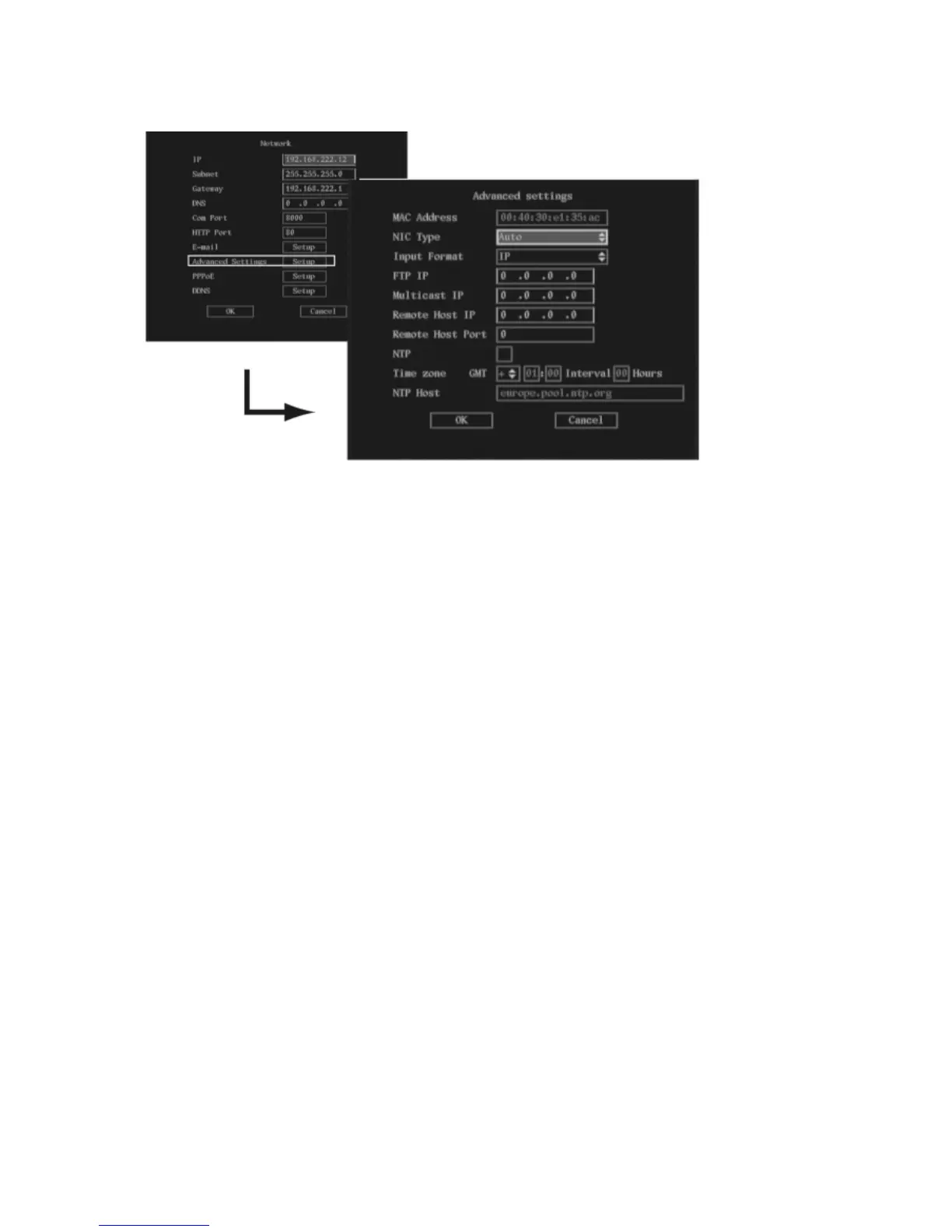
2. Go to the NIC Type list box and select one of the three options listed:
Auto
100M Full Duplex
10M Full Duplex
3. Go to the Input Format list box and select either IP or Domain Name.
If the option IP is selected, FTP IP edit box appears below. If the option Domain Name is selected,
Domain Server edit box appears instead.
4. Depending on which entry is shown, use the numeric buttons on the front panel, or the on-screen
numeric keypad if using the mouse, to enter the IP address of the FTP IP, or the domain server of
the Domain Name. If using the front panel, press the joystick for Enter.
Note: Use the FTP IP if the PPPoE function is used, and the TVR 40 gets a dynamic IP address from the ISP. If
you set the FTP IP you will get one fixed Internet IP, TVR 40 will send information such as its name, serial
number, and current IP to that fixed IP address. This is called the Fixed Transfer Protocol IP (FTP IP). The IP
server with that fixed Internet IP can receive DVR information and be used to resolve DVR dynamic IP.
Contact your local supplier to obtain the IP server software.
5. Go to the Multicast IP edit box and press the joystick, or left-click the mouse. Using the numeric
buttons on the front panel, or the on-screen numeric keypad if using the mouse, enter a D-class IP
address between 224.0.0.0 - 239.255.255.255, and press Enter. If using the front panel, press the
joystick for Enter.
This function is optional as not all systems use it.
Note: Some routers or network switchers do not allow the multicast function. Multicast is not supported
over the internet by ISP providers.
6. Go to the Remote Host IP edit box and press the joystick, or left-click the mouse. Using the
numeric buttons on the front panel, or the on-screen numeric keypad if using the mouse, enter
the remote host IP address. If using the front panel, press the joystick for Enter.



 To Next Page