84 TruVision DVR 40 User Manual
To set preset positions
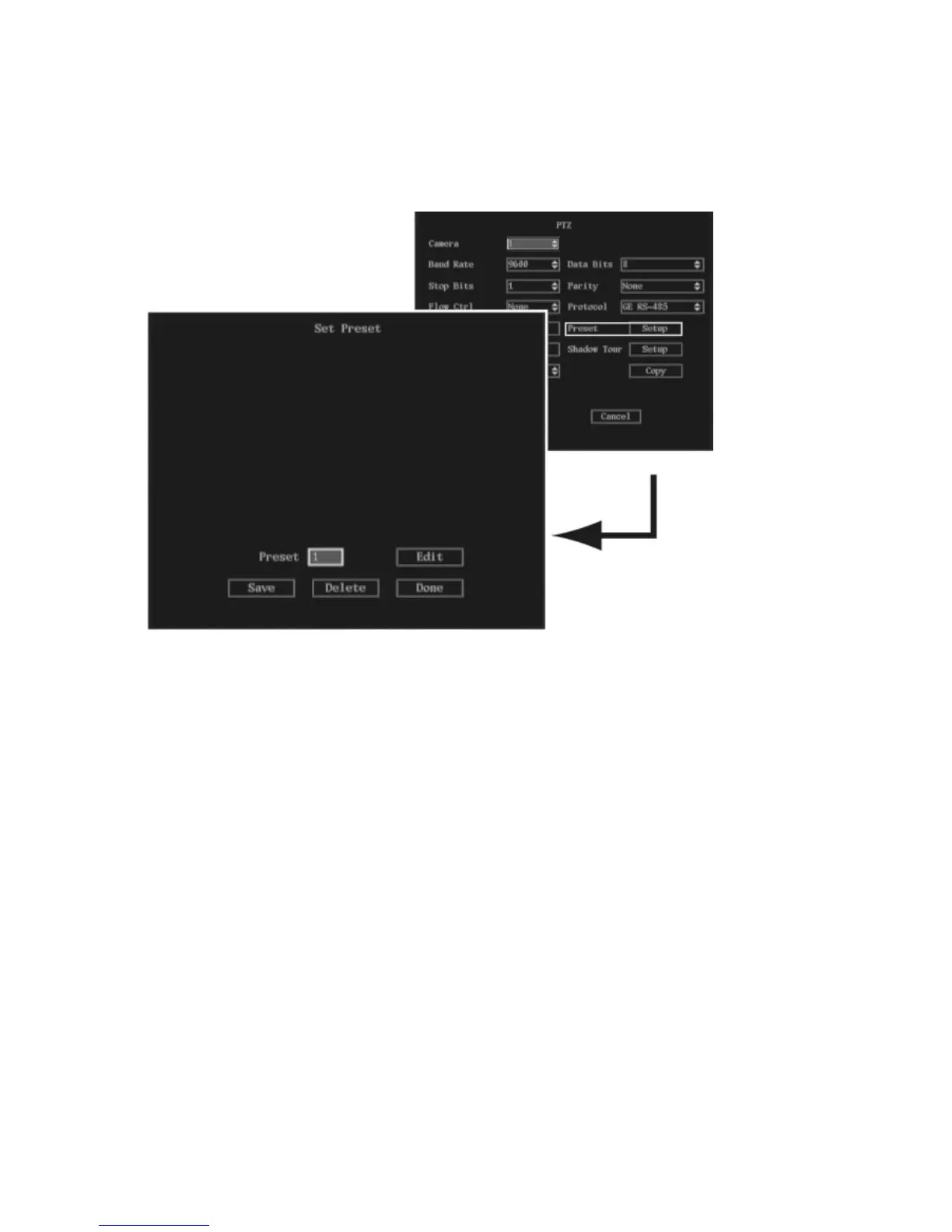
1. In the PTZ menu go to the Preset setup button and press Enter or left-click the mouse. The Set
Preset submenu appears.
2. Select the Preset setup button and press the joystick for Enter, or left-click the mouse. Enter your
preset number (between 1 and 16) and press Enter, or left-click the mouse, to accept.
3. Using the arrow buttons IRIS+, IRIS-, FOCUS+, FOCUS-, and ZOOM adjust the PTZ to the desired
position. Press Enter.
4. Select Save to save the preset number.
5. Repeat steps 2 to 5 for each preset number.
6. When all the preset numbers have been saved, select Done and press the joystick for Enter or left-
click the mouse to return to the PTZ menu.
To delete preset settings
1. In the PTZ menu go to the Preset setup button and press Enter or left-click the mouse. The Set
Preset submenu appears.
2. Select the Preset edit box and press the joystick for Enter, or left-click the mouse. Enter your
preset number (between 1 and 16) and press Enter, or left-click the mouse, to accept.
3. Go to Delete and press Enter, or left-click the mouse, to delete the number.
4. When all the required preset numbers have been deleted, select Done and press the joystick for
Enter, or left-click the mouse, to return to the PTZ menu.
5. When you have made all the changes required in the Alarms menu, go to OK and press Enter or
left-click the mouse to save all changes and return to the main menu.



 To Next Page