GSI Audera Pro User Manual
D-0129360 Rev A Page 83 of 231
Data Pages
Recordings are displayed on the Acq page as the data is being collected and saved
automatically when the acquisition completes. In addition to the Acq page, there are 9
additional pages for the display and analysis of data. On each page there is a time scale
at the bottom and a vertical scale marker in the top left. There are ten waveform
display areas or pages and each page that contains test data is printed as a report page
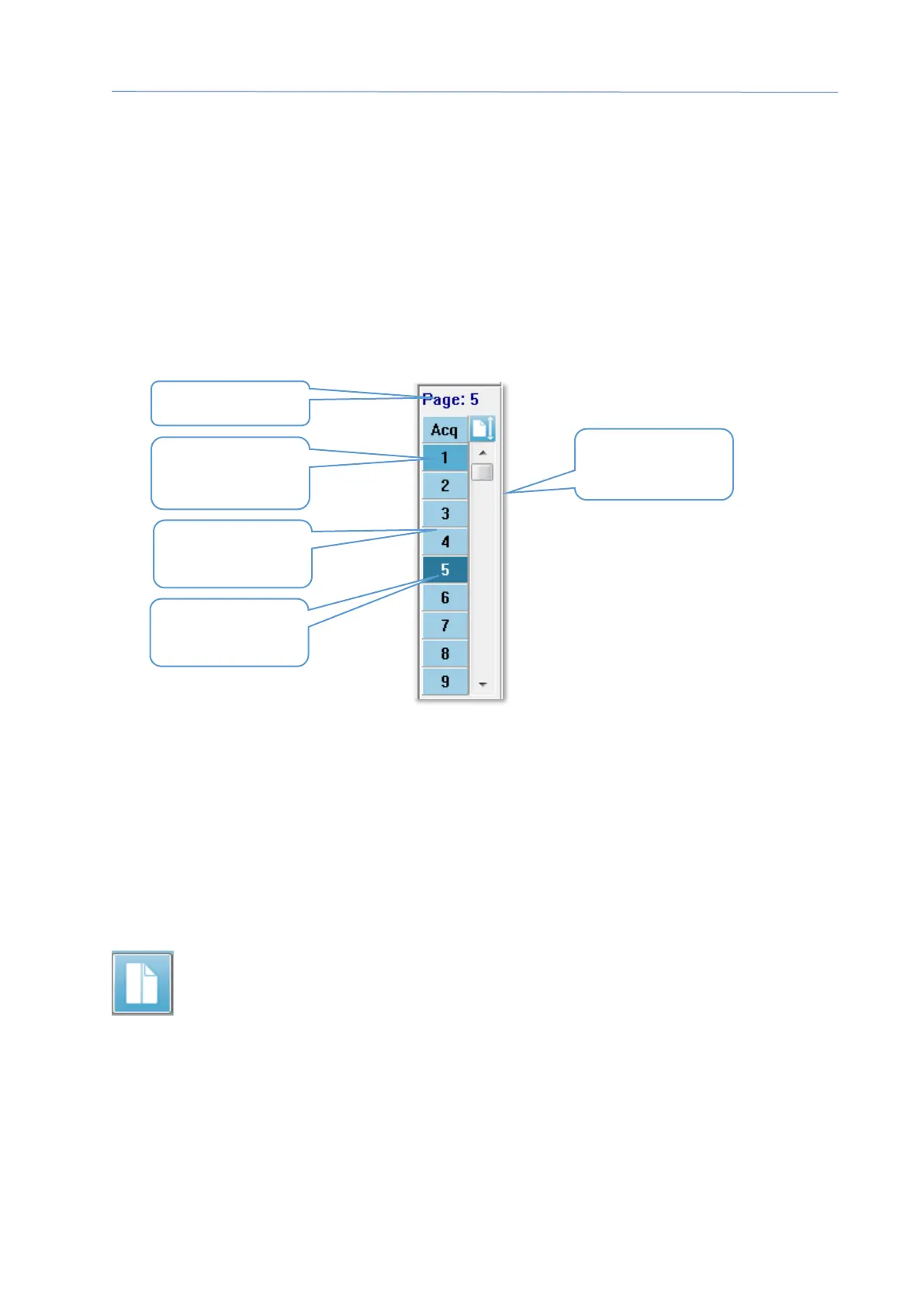
when a report is printed. Each page is accessible from the Page Selection control. The
Page button on the control can be shaded a different color depending on the status of
the page. The current active page will be shaded the darkest and indicated at the top of
the control, pages that have data on them will be darker than those without data.
Pages may be renamed by selecting Report menu and clicking on Page Labels, then
choosing the page to modify. There are two labels that may be defined, the 4-character
button label and the tool tip label that appears when hovering over the button and
printed on the report. The page labels may be saved, loaded, or saved as the default
labels from the Page Labels sub menu.
To select a page, click on Page button in the control. The numeric character keys (at the
top of the keyboard), 0-9 may also be used to select the active page. The keyboard
shortcut keys function even if the pages have been renamed.
Data pages may be displayed as a full page or split page using the Toolbar
Full/Split Page icon which toggles between the two displays.
shading
Empty page
scroll bar


 To Next Page