GSI Audera Pro User Manual
D-0129360 Rev A Page 82 of 231
DATA ANALYSIS
The center white area of the program window contains all recordings acquired or
loaded.
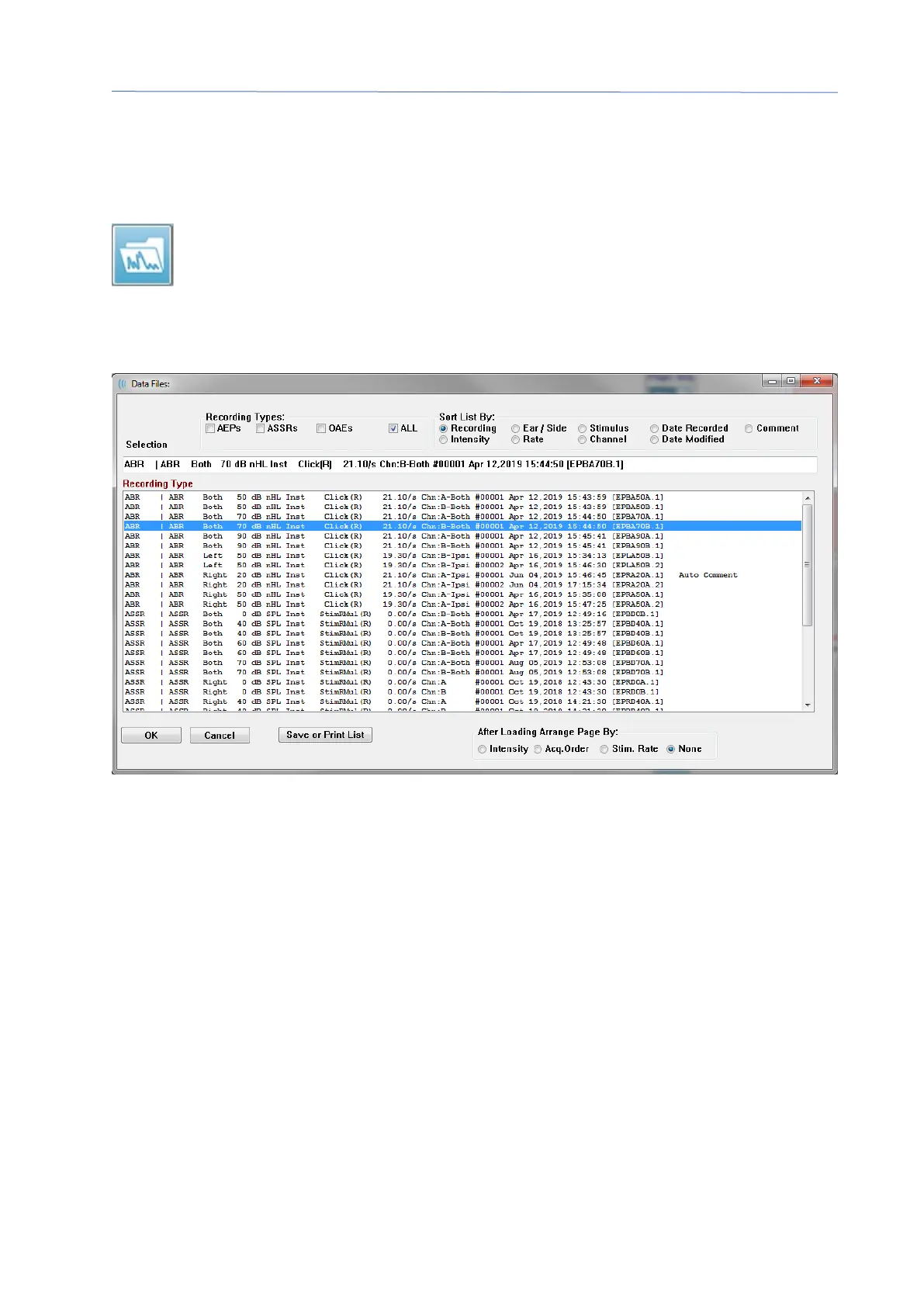
To load previously collected data, on the Recordings menu, click Load
Recordings or select the Load Recordings icon from the toolbar. The Data
Files dialog is presented where you select the recordings to load for analysis.
The recordings are loaded onto the current page.
DATA FILES DIALOG
The top of the dialog has options where you may choose the recording types to display
and how to sort the display. There is a Selection text box that shows the information
from the first recording if no record has been selected or the highlighted selection row.
To select a recording, click on the row in the listing. Selecting a record will highlight the
row. To select multiple recordings, hold the Shift key while clicking on the first and last
recording of the group of records you wish to load. You may also select multiple
recording by holding the Ctrl key and selecting the recordings from the list.
The bottom of the dialog provides options to arrange the data after it is loaded and to
Save or Print the list of records. Click OK to load the highlighted records to the active
page and close the dialog. Click Cancel to close the dialog without loading any
recordings.
You may also load recordings from the Recordings menu, Load Recordings from
Protocol Results for data that has been collected by executing an automated protocol.


 To Next Page