SECURITY
Version 4.2.7.2, 05/2014. Copyright 2012 Hitron Technologies
102
Version 4.2.7.2, 05/2014. Copyright 2014 Hitron Technologies
102
Hitron CGNV User’s Guide
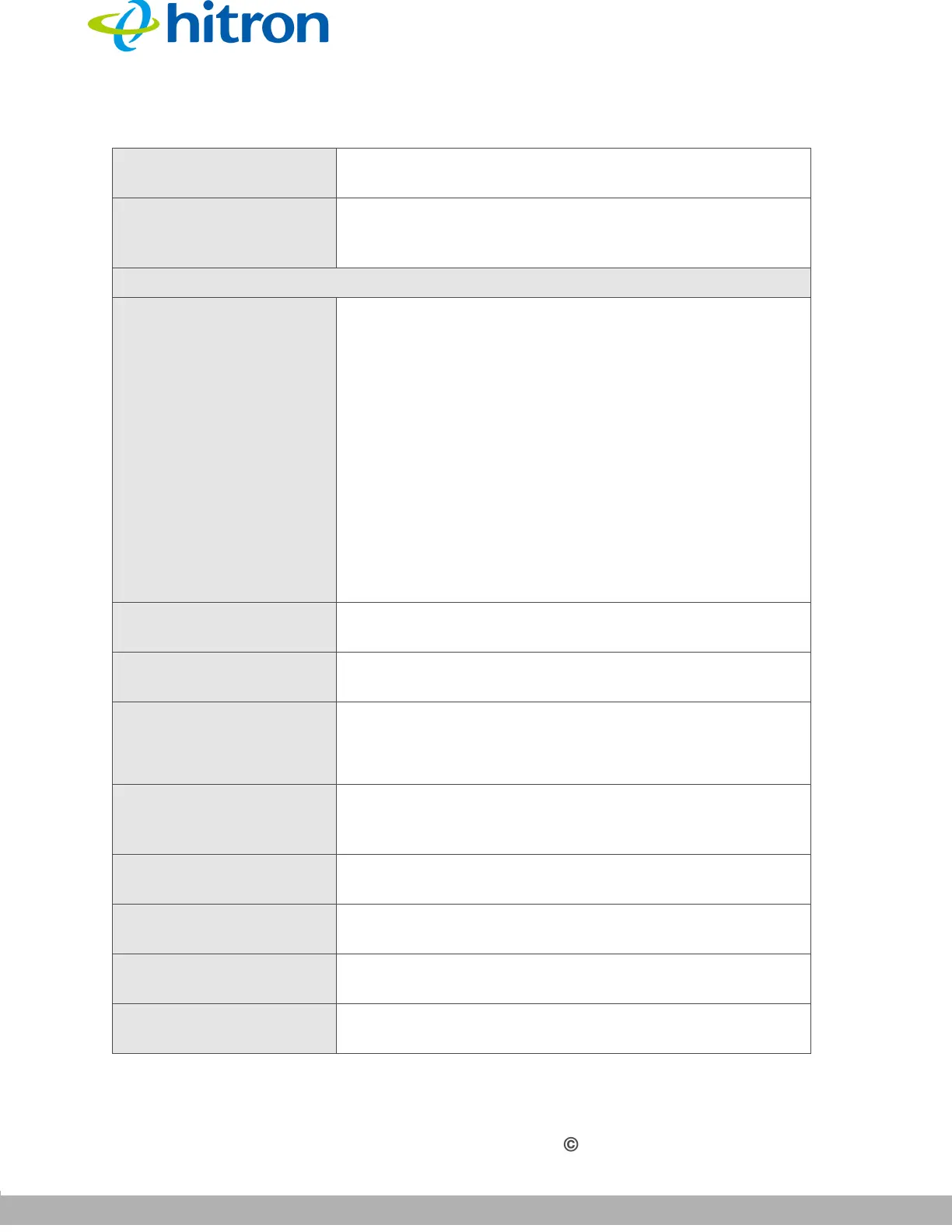
Interface This displays the name of the interface on which the
relevant device is connected.
Action Click Manage to make changes to the device’s filtering
status; see Adding or Editing a Managed Device on
page 103 for information on the screen that displays.
Managed Devices
Block Rules Use these buttons to control the action to be taken for
the devices listed:
Select Allow All to ignore the Managed Devices
list and let all devices connect to the CGNV.
Select Allow to permit only devices you added to
the Managed Devices list to access the CGNV
and the network. All other devices are denied
access.
Select Deny to permit all devices except those you
added to the Managed Devices list to access the
CGNV and the network. The specified devices are
denied access.
Host Name This displays the name of each network device in the
list.
MAC Address This displays the Media Access Control (MAC) address
of each network device in the list.
Managed Weekdays This displays the days of the week on which the device
is managed.
Managed Time This displays the start (From) and end (To) of the time
period during which the device is managed, on the
specified Managed Weekdays.
Action Click Manage to make changes to a filtering rule (see
Adding or Editing a Managed Device on page 103).
Save Changes Click this to save your changes to the fields in this
screen.
Add Managed Device Click this to add a new service filtering rule (see Adding
or Editing a Managed Device on page 103).
Help Click this to see information about the fields in this
screen.
Table 38: The Security: Device Filter Screen (continued)


 To Next Page