WIRELESS
Version 4.2.7.2, 05/2014. Copyright 2012 Hitron Technologies
75
Version 4.2.7.2, 05/2014. Copyright 2014 Hitron Technologies
75
Hitron CGNV User’s Guide
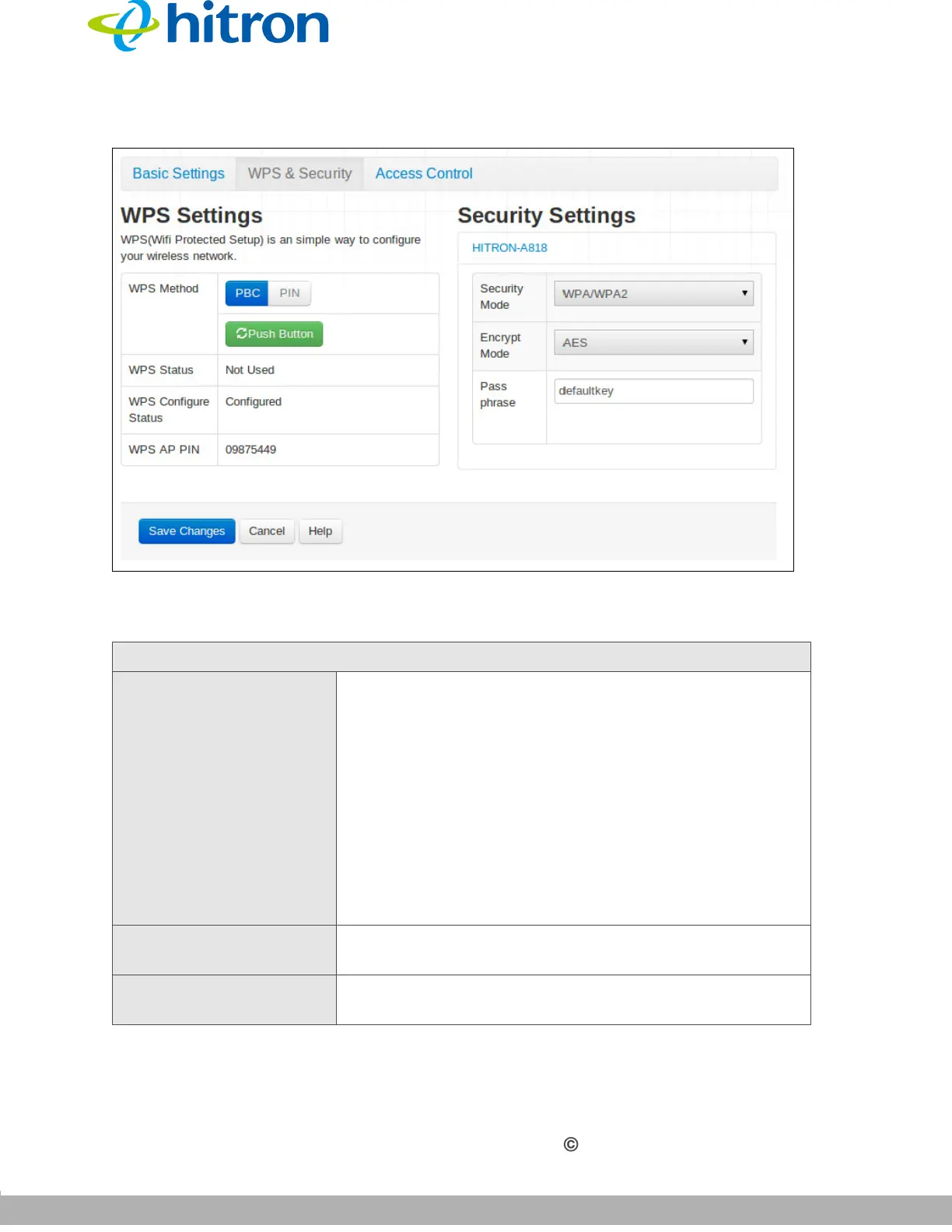
Figure 27: The Wireless: Security Settings Screen
The following table describes the labels in this screen.
Table 25: The Wireless: Security Settings Screen
WPS Settings
WPS Method Use these buttons to run Wifi Protected Setup (WPS):
Click the PBC button and then Push Button to begin
the Push-Button Configuration process. You must
then press the PBC button on your client wireless
devices within two minutes in order to register them
on your wireless network.
Click the PIN button to begin the PIN configuration
process. In the screen that displays, enter the WPS
PIN that you want to use for the CGNV, or the WPS
PIN of the client device you want to add to the
network.
WPS Status This displays whether or not the CGNV is using Wifi
Protected Setup.
WPS Configure
Status
This displays the Wifi Protected Setup configuration for
the wireless network.


 To Next Page