EOS
|
HD OPERATION
36
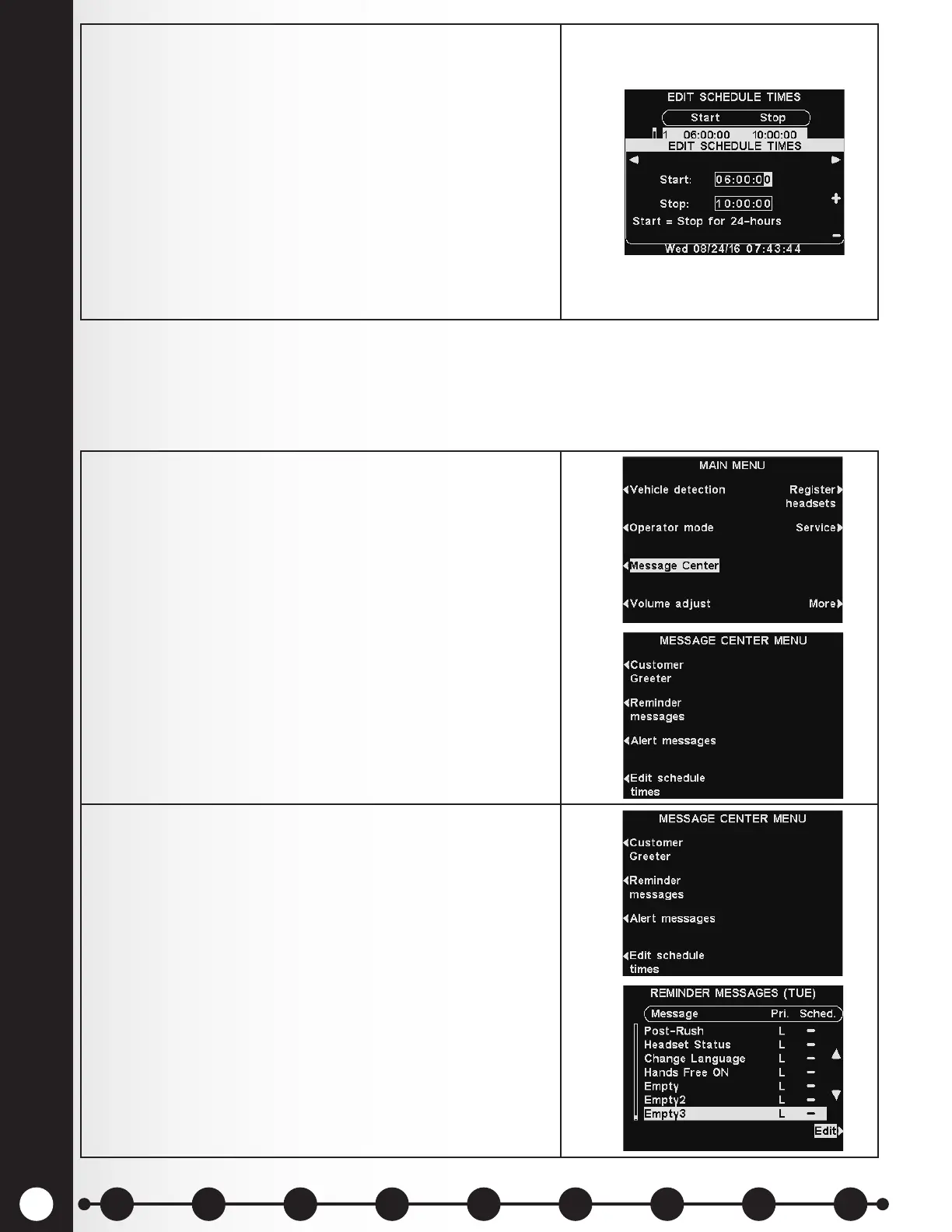
4. On the drop-down EDIT SCHEDULE TIMES display, to
edit the Start or Stop time, use the ◄ and ► buttons
to move the highlight in the Start or Stop eld, and
use the + and − buttons to change the highlighted
numbers.
Note: Times are in 24 hour format (ex: 0500 = 5 A.M,
1700 = 5 P.M., 0000 = Midnight, etc).
To move from one eld to the other, repeat pressing
the ◄ or ► button until the highlight moves from one
eld to the other.
Press the Back button to save these settings.
1. Select Message Center on the MAIN MENU display to
view the MESSAGE CENTER MENU.
Set Reminders
There are 12 pre-named and pre-recorded Reminder messages that can be named and recorded to meet
store needs. There are also three “Empty” messages that can be named and recorded as needed. If you
require more than the three “Empty” message slots available for the Reminder Messages option, you
can add more “Empty” slots from the Alert Messages using this option.
2. On the MESSAGE CENTER MENU display, select
Reminder Messages.
Use the ▼ button to scroll down, exposing the 4 new
empty slots.
1 2 3 4 5 6 7 8 9
Introduction
EOS|HD
Equipment
EOS|HD
Operation
Audio Processing
Functions
Equipment Care
and Cleaning
Troubleshooting
Equipment
Specications
EOS|HD Message
Center Guide
Important
Notices


 To Next Page