EOS
|
HD OPERATION
46
Set Store Hours
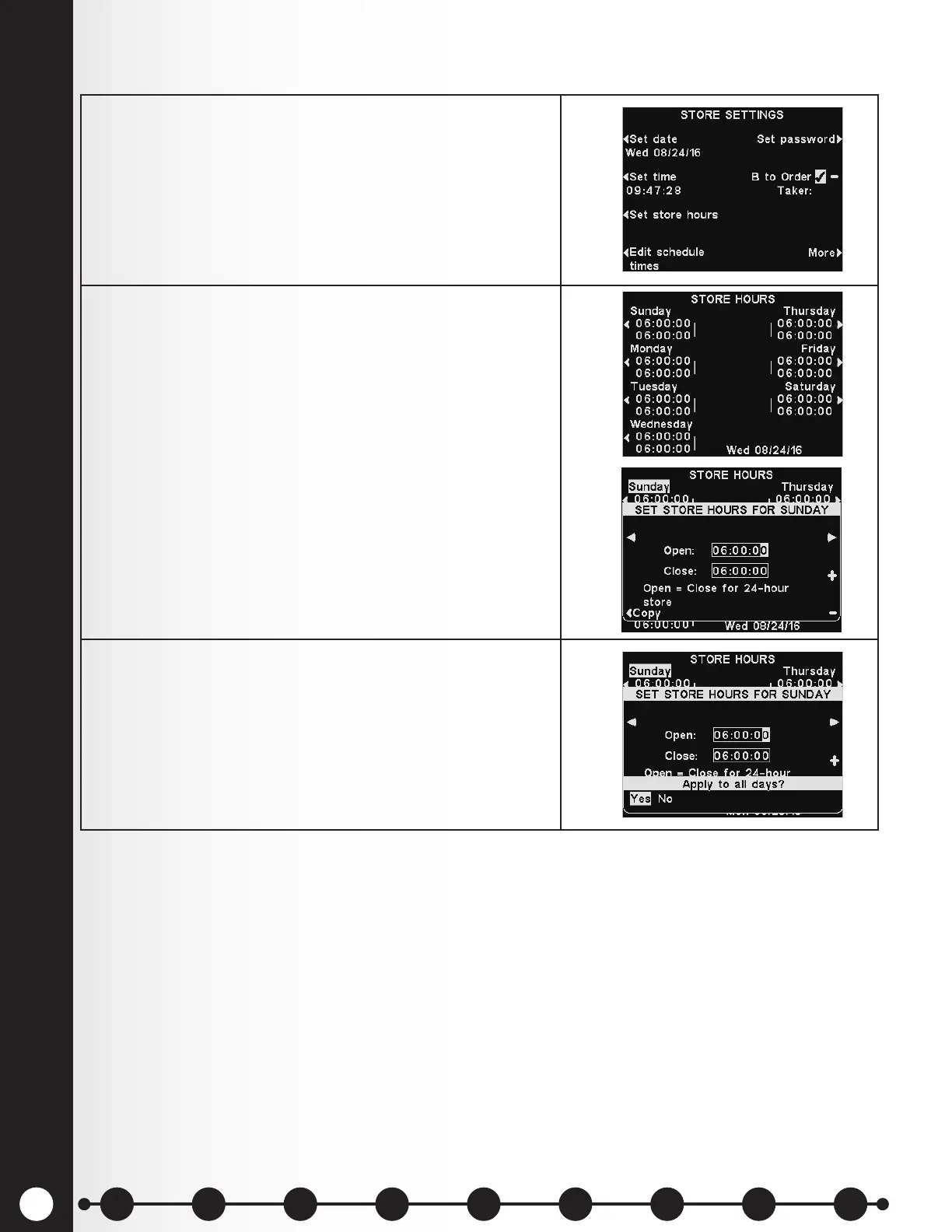
1. To set the store hours for any or every day, press the
Set store hours button on the STORE SETTINGS
display.
2. On the STORE HOURS display, press the button next
to the day you would like to change.
On the SET STORE HOURS display, use the ◄ and ►
buttons to move the highlight in the Open or Close
eld, and use the + and − buttons to change the
highlighted numbers.
To move from one eld to the other, repeat pressing
the ◄ or ► button until the highlight moves to the
other eld.
Note: If your store is open 24 hours, set the Open
time the same as the Close time.
3. If you want these store hours to apply to every day,
press the Copy button and then press the Apply to
all days? button to highlight Yes.
If No is highlighted, these store hours will apply only
to the selected day.
To save these settings, press the Back button.
1 2 3 4 5 6 7 8 9
Introduction
EOS|HD
Equipment
EOS|HD
Operation
Audio Processing
Functions
Equipment Care
and Cleaning
Troubleshooting
Equipment
Specications
EOS|HD Message
Center Guide
Important
Notices


 To Next Page