EOS
|
HD OPERATION
51
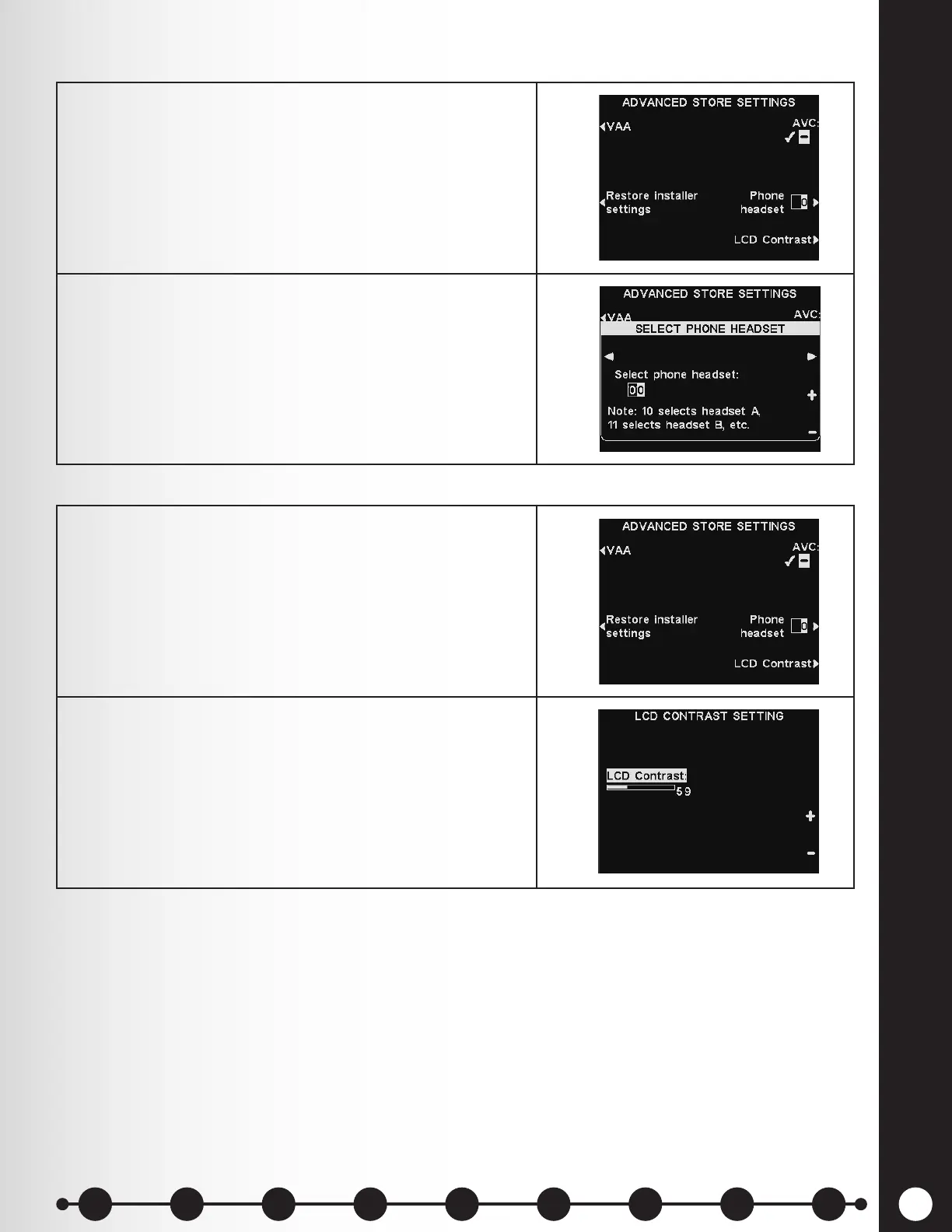
1. Press the Phone headset button on the ADVANCED
STORE SETTINGS display.
2. On the SELECT PHONE HEADSET display, use the
◄ and ► buttons to move the highlight in the Select
phone headset eld, and then use the + and − buttons
to enter number of the headset.
Press the Back button to save the settings.
1. Press the LCD Contrast button on the ADVANCED
STORE SETTINGS display to adjust the light/dark
contrast of the base station display.
2. Press the + (lighter) and − (darker) buttons to adjust
the contrast.
Note: This is a factory setting, and does not normally
require adjustment during installation.
Press the Back button to save the settings.
Phone Headset
LCD Contrast
1 2 3 4 5 6 7 8 9
Introduction
EOS|HD
Equipment
EOS|HD
Operation
Audio Processing
Functions
Equipment Care
and Cleaning
Troubleshooting
Equipment
Specications
EOS|HD Message
Center Guide
Important
Notices


 To Next Page