72
5 Digital
zoom
Click this button and then left drag the mouse in the zone to
zoom in. Right click mouse system restores original status.
6 Change
show
mode
Resize or switch to full screen mode.
7 Local
record
When you click local record button, the system begins
recording. The recorded file is saved to system folder: \
RecordDownload(default).
8 Capture
picture
You can snapshoot important video. All images are memorized
in system folder: \ picture download (default).
9 Audio
Turn on or off audio.(It has no relationship with system audio
setup )
10 Close
video
Close video in current window.
11 Channel
number
Current view channel number.
7.2.2 System Menu
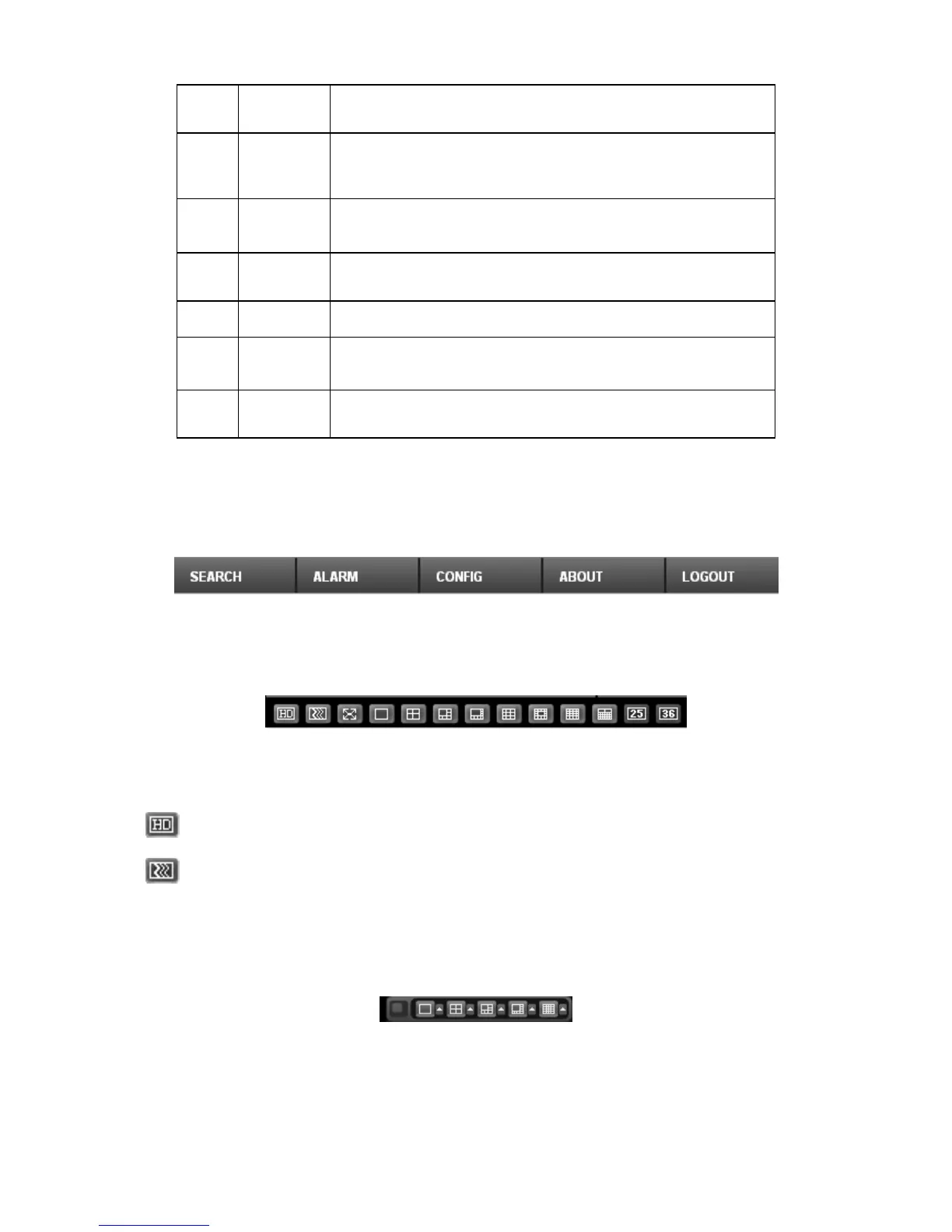
System menu is shown as in .Figure 7-7.
Please refer to chapter 7.3 Configuration, chapter 7.4 Search, chapter 7.5 Alarm, chapter 7.6
About, chapter 7.7 Log out for detailed information.
Figure 7-7 System Menu
7.2.3 Monitor Window Switch
The monitor window switch interface is shown as in Figure 7-8.
Figure 7-8 Monitor Window Switch
System supports 1/4/6/8/9/13/16/20/25/36-window real-time preview.
----It is video quality adjustment button. It has relationship with decode via software.
--Fluency button. You can use this function to adjust the priority between real-time and
fluency.
7.2.4 Preview Window Switch
The preview window switch interface is shown as in Figure 7-9.
NVR series products do not support this function.
Figure 7-9 Preview Window Switch
7.2.5 PTZ Control
Before PTZ operation, please make sure you have properly set PTZ protocol. (Please refer to
chapter 7.3.2.6 PTZ).



 To Next Page