10
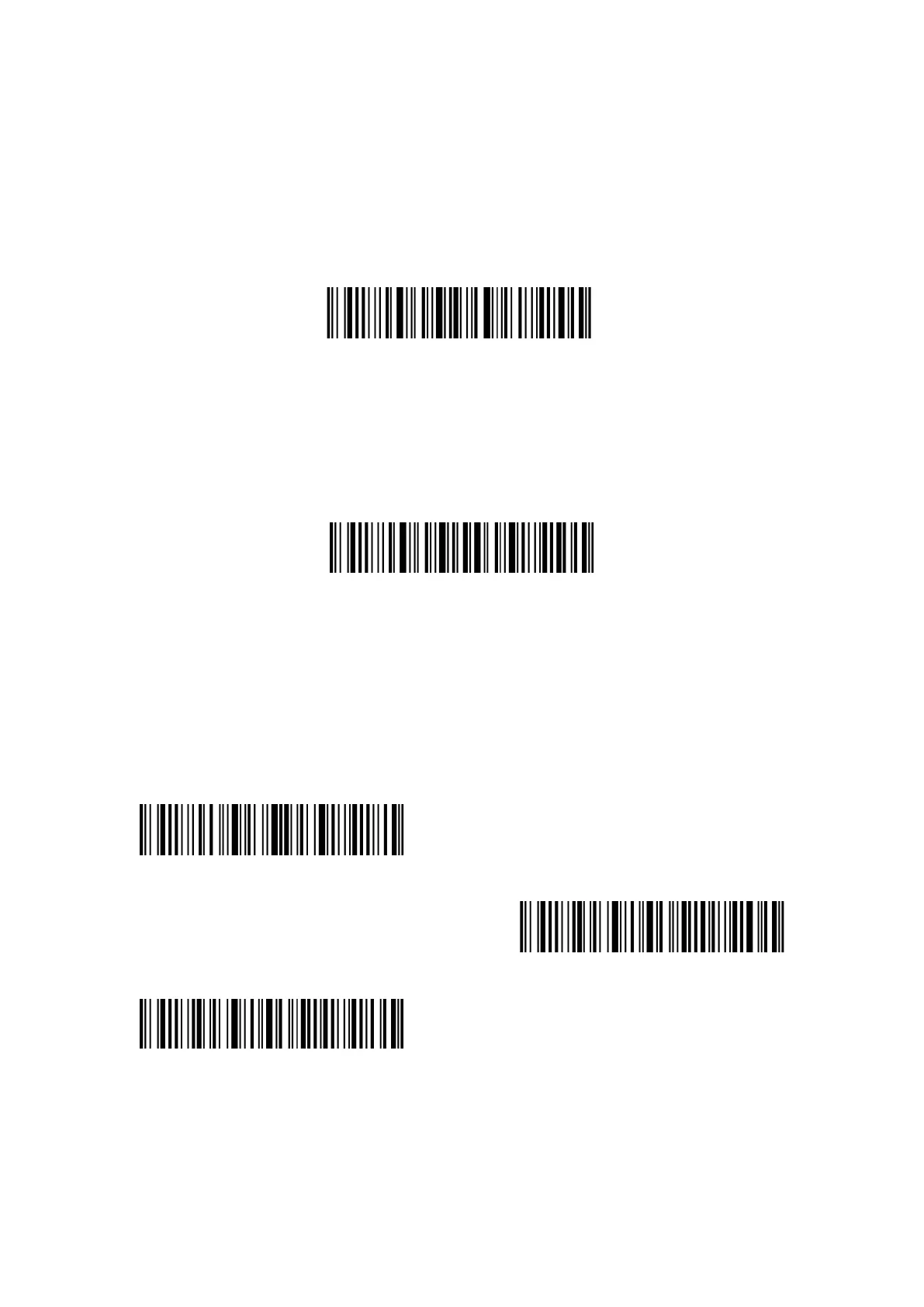
Exit with Save
“Exit with Save” barcode exists here and in the following chapters. The Inateck P7 barcode
scanner will exit setting mode once this barcode is scanned successfully.
When scanning the barcode successfully, the Inateck P7 barcode scanner will respond with three
chord sounds, and the LED indicator turns blue.
Exit with Save
Exit without Save
When error setup occurs, please scan the “Exit without save” barcode. The Inateck P7 Barcode
Scanner will respond with three chord sounds, and the blue LED indicator will be off.
Exit without save
To Save Custom Settings
When use the P7 barcode scanner, you may customize some functions and restore them when
needed. To do that, you just need to scan the setting barcode "Enter setup", and then scan the
function barcode needed, e.g. "Enable Code ID", and then scan "Save custom settings".
Afterwards, P7 will exit the setting mode after successful operation.
Enter setup
Save custom settings
Restore custom settings
If you want to return to the custom settings while the barcode scanner has been reset, just scan
the barcode "Enter setup", and then scan "Restore custom settings". The P7 will exit the setting
mode after successful operation.


 To Next Page