22
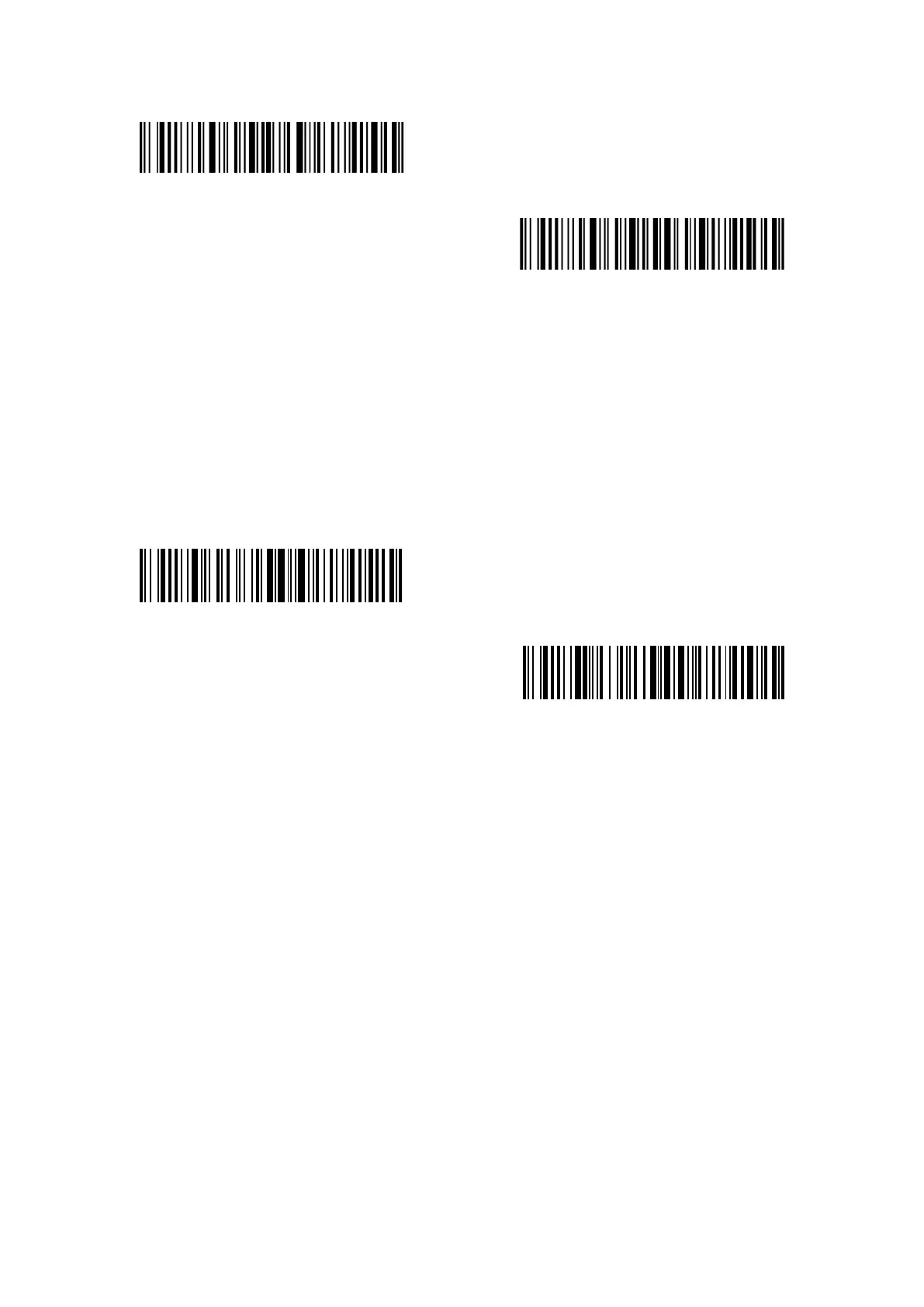
Exit with save
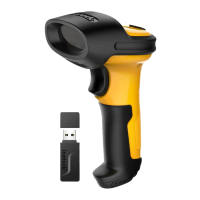
Exit without save
For Example, if you want to set the scanner into Hands-free mode, you may need to:
1. Read the "Enter Setup" barcode;
2. Read the "Hands-free Mode" barcode;
3. Read the "Exit with Save" barcode.
1.7 Types of Keyboard
Inateck P7 is compatible with Windows, Android, iOS, and MacOS. The working mode is for
Windows/Android by default. You can change it by scanning the barcodes below.
(*) Windows/Android mode
MacOS / iOS mode
To run P7 with MacOS/iOS devices, please follow the steps:
1) Scan “enter setup”;
2) Scan “MacOS/iOS device mode”;
3) Scan “Save and exit”.
Note: If you are to use P7 with Android devices, make sure to apply Gboard as the
input method. Apart from setting the scanner under “Windows/Android” mode, you also
need to set the scanner keyboard language as American English that supports “Gboard”
input method. The language settings of Gboard won’t affect the output.
Inateck P7 support six international keyboards: US Keyboard, German Keyboard, French Keyboard,
Spanish Keyboard, Italian Keyboard, UK English Keyboard, with US Keyboard as default. You are
suggested to set the keyboard type of the scanner to be in agreement with that in real use by
scanning the correspondent barcode listed below.


 To Next Page