15
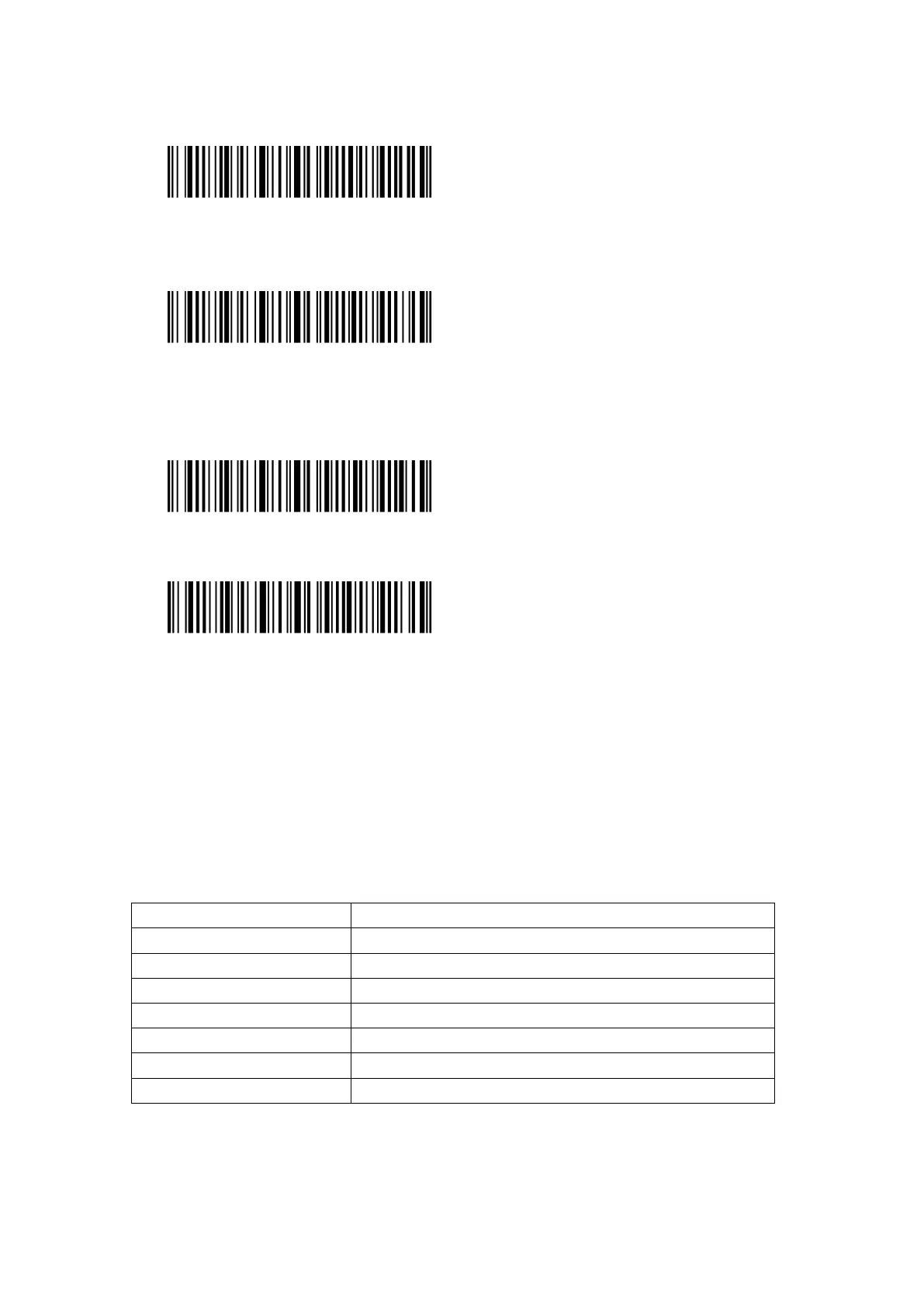
2) Scan the barcode to return to Common Mode
(*)Common Mode
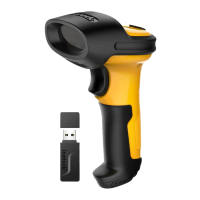
3) Scan the barcode to clear data in buffer (for Inventory Mode only).
Clear Data in Buffer (for Inventory Mode only)
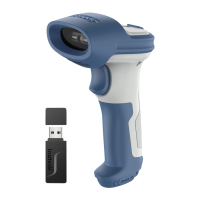
4) Scan the “Data Upload (for Inventory Mode only)” barcode to upload data from buffer (for
Inventory Mode only).
Data Upload (for Inventory Mode only)
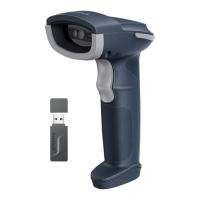
5) Scan the barcode to upload the number of scanned barcodes (for Inventory Mode only)
Upload the Number of scanned barcodes (for Inventory Mode only)
Note: For achieve these five functions above, you can just scan the setting barcode. There is no
need to scan “Enter setup” and “Exit with save”.
1.3 LED Indicator
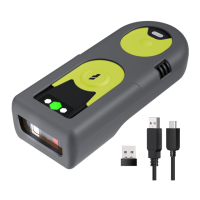
The LED indicators on Inateck P7 can help the user know more about the current operation
status.
Ever paired but not successfully connected this time
Barcode successfully read and uploaded to computer/phone
Blue LED blinks Bluetooth broadcasting and could be found by other devices
Bluetooth LED flashes once Barcode successfully read and saved in buffer
Blue LED stays on On setup status
Yellow LED blinks Low battery
Red LED stays on In Charge ( Red LED off when battery is full )


 To Next Page