2.4. Board Update Portal
The Board Update Portal design example included in this development kit facilitates
easy development of software and board flash memory updates, allowing you to
access useful information on Intel website and to load software files into the Quad SPI
flash memory on your board.The following steps ensure that you have the latest
software available on both your computer and your board. The Board Update Portal
design example, which includes a Nios
®
II embedded processor, an Ethernet media
access control (MAC), and a web page, is stored in the “factory” portion of your
board’s flash memory. The source for this design is installed with the development kit
software. When your board is connected to a DHCP-enabled network, the Nios II
processor obtains an Internet protocol address and allows you to interface with your
board over the network through a web page.
Before you begin, ensure that you have the following:
• A computer with a connection to a working Ethernet port on a DHCP-enabled
network.
• A separate working Ethernet port connected to the same network for your board.
• The Ethernet, power cables, and development board included in your kit.
2.4.1. Step 1: Connect to the Board Update Portal
1. Install the Quartus Prime software. Refer to Installing the Quartus Prime Software
for instructions.
2. With the board powered down, set the DIP switch SW2.2 to the ON position
(factory default), which loads the factory default design from the MAX 10 FPGA
internal flash image 0 on power up.
3. Attach the Ethernet cable from RJ-45 port A (the bottom one) to your network
hub.
4. Power up the board. The board connects to your network server and obtains an
Internet protocol address.
5.
On installation directory of the Quartus Prime software, click nios2eds ➤ Nios II
Command Shell.bat
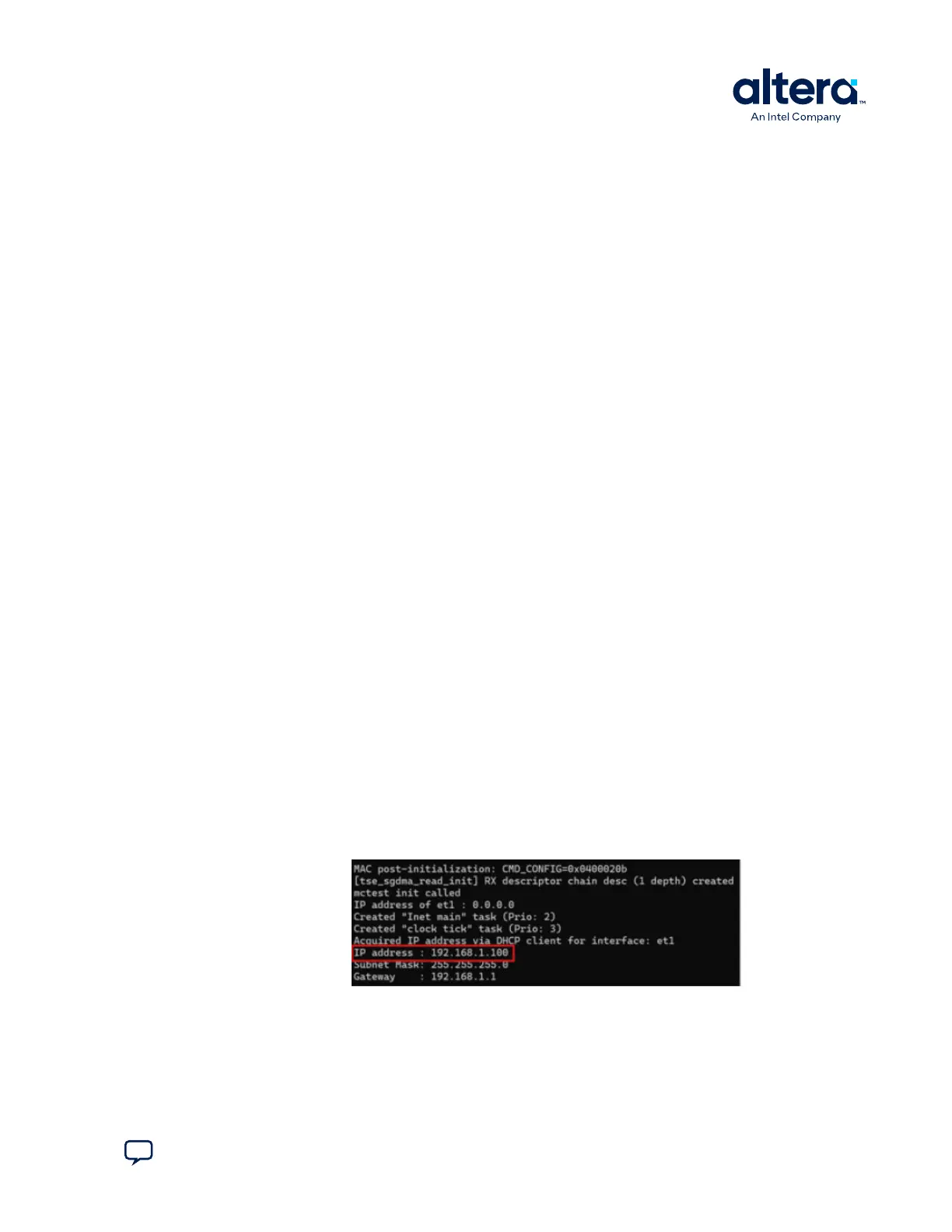
6. In the Nios II command shell, type the following command:
nios2-terminal.exe
When the IP address has been assigned, the command shell displays the following
information:
7. Launch a web browser on a computer that is connected to the same network and
type the Internet protocol address displayed on the Nios II command shell. The
Board Update Portal web page appears on your PC.
2. Getting Started
683460 | 2024.11.20
Send Feedback
MAX
®
10 FPGA Development Kit User Guide
11




 To Next Page