NOTE: If your laptop or desktop PC does not have a DB-9 plug connector pin and you want to
connect your laptop or desktop PC directly to the device, use a combinaon of the RJ-45-to-
DB-9 socket adapter and a USB-to-DB-9 plug adapter. You must provide the USB-to-DB-9 plug
adapter.
NOTE: We no longer include a DB-9-to-RJ-45 cable or a DB-9-to-RJ-45 adapter with a CAT5E
copper cable as part of the device package. If you require a console cable, you can order it
separately with the part number JNP-CBL-RJ45-DB9 (DB-9-to-RJ-45 adapter with a CAT5E
copper cable).
You can congure and manage your network devices using a dedicated management channel. Each
device has a console port that you can connect to using an Ethernet cable with an RJ-45 connector. Use
the console port to connect the device to the console server or management console. The console port
accepts a cable that has an RJ-45 connector.
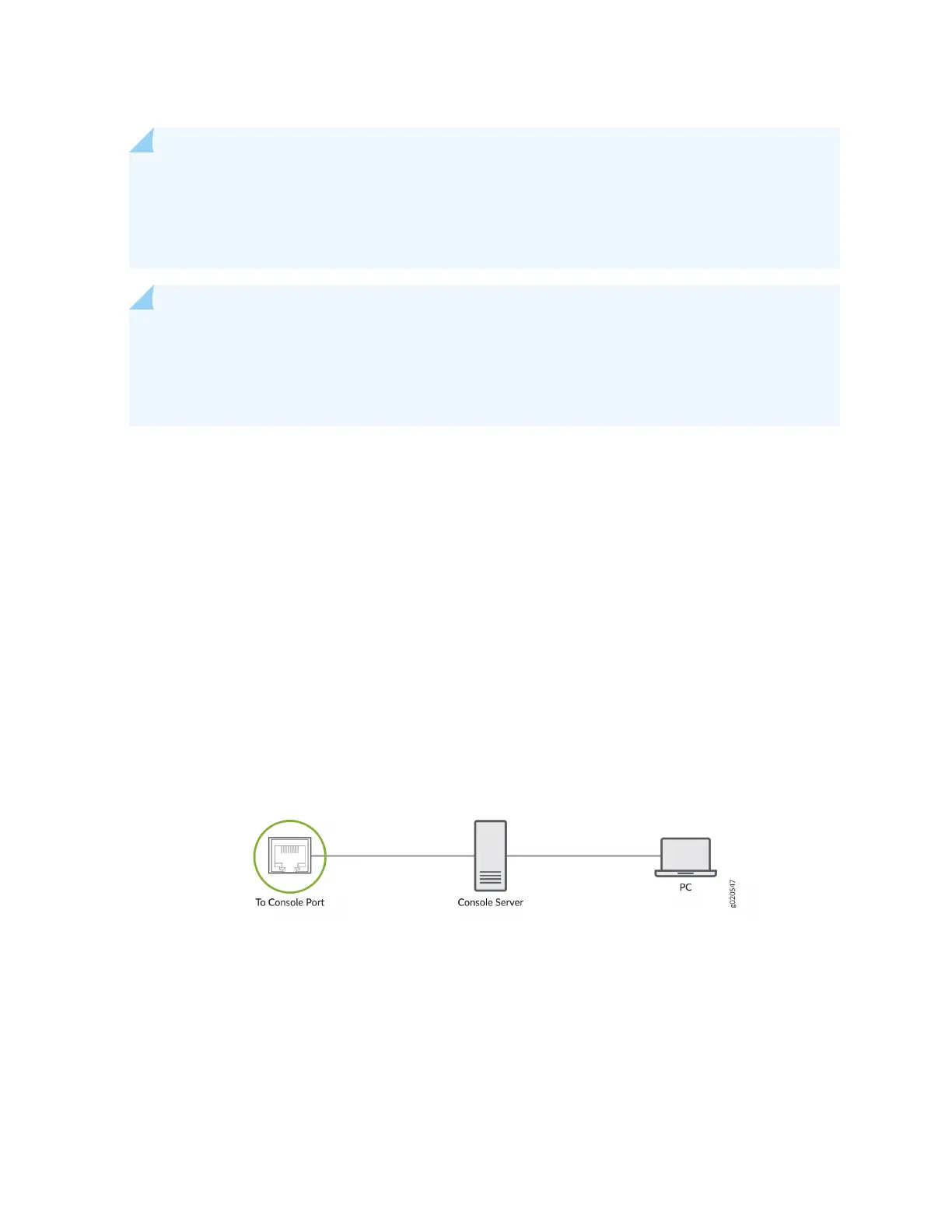
To connect the device to a management console (see Figure 29 on page 85 and Figure 30 on page
86):
1. Connect one end of the Ethernet cable to the console port (labeled CON, CONSOLE, or CON1) on
the device.
2. Connect the other end of the Ethernet cable to the console server (see Figure 29 on page 85) or
management console (see Figure 30 on page 86).
Figure 29: Connect a Device to a Management Console Through a Console Server
85





 To Next Page