EasyManua.ls Logo

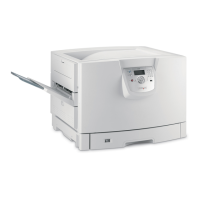
Lexmark C920 - Service Manual

Lexmark C920
370 pages
Print Icon
To Next Page IconTo Next Page
Loading...
Lexmark
C920
Color Laser Printer
5056-XXX
Table of contents
Start diagnostics
Safety and notices
Trademarks
•Index
Lexmark and Lexmark with diamond design are
trademarks of Lexmark International, Inc., registered
in the United States and/or other countries.

Table of Contents

Other manuals for Lexmark C920

Questions and Answers

  • R
    Randy RhodesAug 29, 2025
    Why are blank pages feeding into the output bin of my Lexmark C920 Printer?
    • B
      Brian SmithAug 29, 2025
      Blank pages may feed if an incorrect media type is loaded in the tray. Load the correct type media for your print job, or change the Paper Type setting to match the type of media loaded.
  • A
    Audrey ReedSep 5, 2025
    How to print documents with unavailable fonts on Lexmark C920 Printer?
    • L
      Luis CookSep 5, 2025
      If some documents do not print, it may be due to unavailable fonts. To resolve this, open the document in Adobe Acrobat, click the printer icon, and in the Print dialog box, check the 'Print as image' box, then click 'OK'.
  • G
    Gregory WilsonAug 28, 2025
    What to do if the Lexmark C920 operator panel display is blank?
    • A
      Anna DeanAug 28, 2025
      If the operator panel display is blank or shows only diamonds, it could indicate a failed self-test. Turn the printer off, wait 10 seconds, and turn it back on. If the 'Performing Self Test' and 'Ready' messages do not appear, turn the printer off and call for service.
  • J
    John JohnsonSep 23, 2025
    Why is toner coloring the background of the page from my Lexmark C920 Printer?
    • J
      Jose CruzSep 23, 2025
      To address toner coloring the background of the page with your Lexmark Printer, ensure the affected photodevelopers and toner cartridges are completely installed.
  • C
    Cynthia DavisSep 6, 2025
    What to do if held jobs do not print on Lexmark Printer?
    • K
      Katie PayneSep 6, 2025
      If held jobs do not print, it may be due to a formatting error or invalid data. You can try to print the job (knowing that only part of it may print), delete the job, or free up printer memory by deleting other held jobs.
  • A
    andersontheresaSep 9, 2025
    Why rubber feed rollers do not turn to advance paper on Lexmark C920?
    • S
      Sarah HortonSep 9, 2025
      Check that the power cord is firmly plugged into the back of the high capacity feeder and into an outlet that has power.
  • A
    Anthony Hood MDSep 13, 2025
    What to check if the paper tray does not raise or lower correctly on my Lexmark Printer?
    • J
      jasonharrellSep 13, 2025
      Check the following: the printer is properly attached to the high capacity feeder, the printer is powered on, the power cord is plugged firmly into the back of the high capacity feeder, the power cord is plugged into an outlet, and the outlet has power.
  • M
    matthew58Sep 23, 2025
    What causes white gaps between color fills on Lexmark Printer?
    • A
      April JonesSep 23, 2025
      If you notice a white gap between color fills due to poor color registration on your Lexmark Printer, ensure all four corners of the printer are resting on a steady flat surface. If the issue persists, try turning the printer off and back on.
  • M
    Mark FarrellAug 26, 2025
    What to do if held jobs do not print on my Lexmark C920 Printer?
    • Z
      zholderAug 26, 2025
      If held jobs do not print, a formatting error may have occurred, or the printer has received invalid data. You can try to print the job (only part of the job may print) or delete the job.
  • S
    Sylvia HernandezAug 25, 2025
    What to do if my Lexmark Printer frequently jams?
    • R
      Ronald CoxAug 26, 2025
      Frequent paper jams may occur if you are using paper that does not meet the printer specifications. Use recommended paper and other specialty media. Ensure that the stack of paper you load does not exceed the maximum stack height indicated in the tray or on the multipurpose feeder. Make sure the guides in the selected tray are set to the appropriate position for the size paper loaded. High humidity may cause the paper to absorb moisture. Load paper from a fresh package and store paper in its original wrapper until you load it.

Lexmark C920 Specifications

General IconGeneral
BrandLexmark
ModelC920
CategoryPrinter
LanguageEnglish

Related product manuals