LogTag TRIX-8/TRIX-16 Work Instruction Manual Revision 9.20 Page 53/53
Serialisation Setup
The setup for the serialisation of a given test fixture controller can be initialised using the LogTag
Serialisation Setup utility that is included with the production software installation.
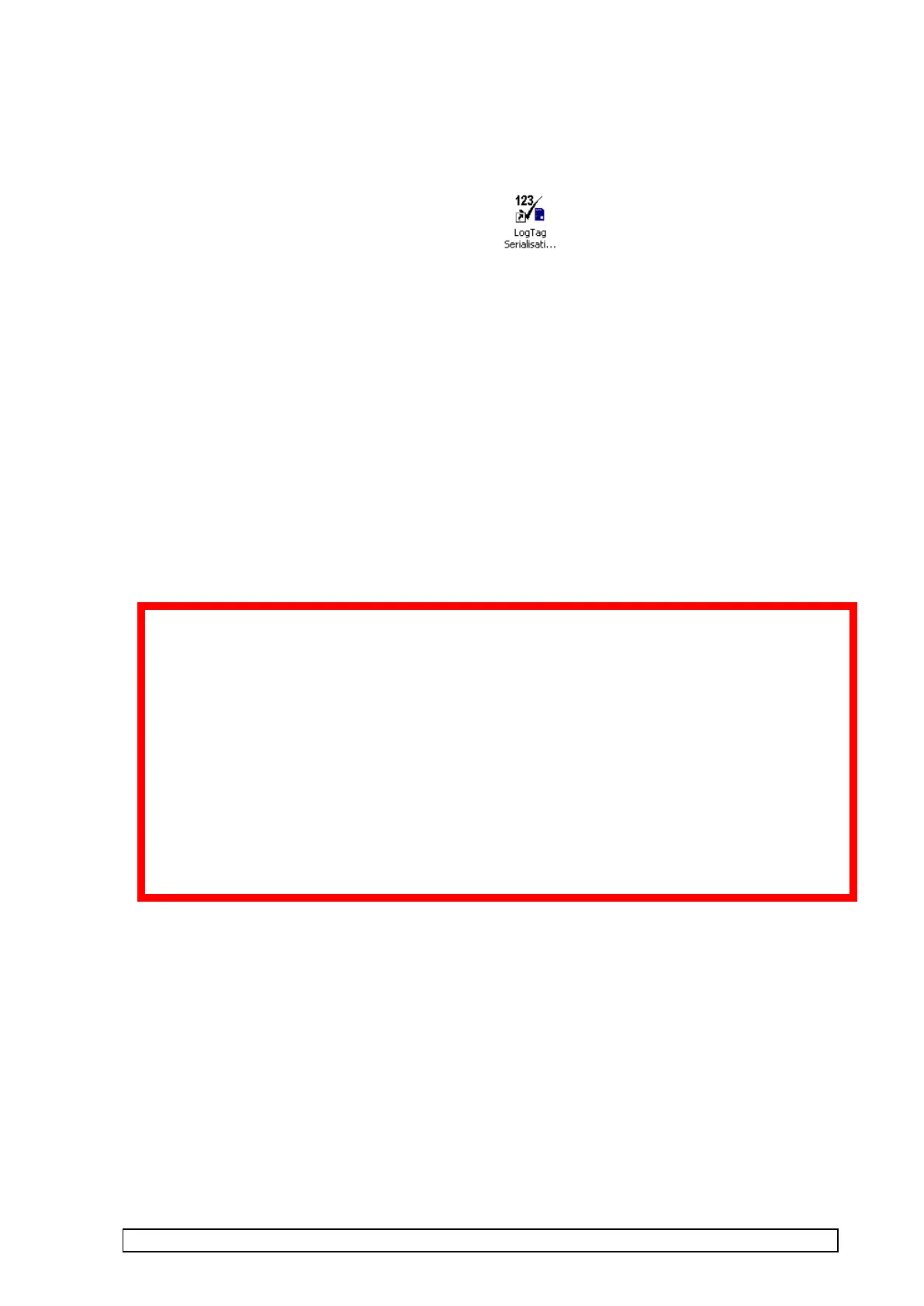
Double clicking the LogTag Serialisation Setup icon accesses the setup utility.
This WIM will detail the use of this utility in a later revision.
The New Zealand Technical Office will issue serial number tracking files for manual installation.
When these files are received they must be copied to the folder:-
C:\Documents and Settings\All Users\Application Data\LogTag Production
The tests “PCB Test-Cal”, “USB Interface Test” and “Rework Customisation” all require serial number
tracking files.
How to transfer Serial Number Files from one computer to another
To transfer the serial number file from one test computer to another, copy all the files and folders in
location
C:\Documents and Settings\All Users\Application Data\LogTag Production on the original test
computer to a floppy disk or USB drive and then copy to the same location on the new test computer.
The test software must not be running on either computer at the time of copying and
transfer.
The serial number tracking files supplied by NZ Tech office are for the first test computer setup.
Every subsequent test computer configured for a given test requires the related serial number
tracking files transferred from the previous test computer. If transferring any serial number
tracking tests back to a test computer that has been previously used, the files must be transferred
back to the test computer, replacing any existing files on the test computer.
If there is any doubt about performing this task, confirm your actions with NZ Tech Office before
they are performed. Otherwise the production run data files may not be passed if performed
incorrectly!


 To Previous Page