.
The next step depends on the type of measurement:
For a continuous measurement a size history window will open. The
system immediately starts displaying the measured particle size in real time
in the Particle Size History window as the spray is produced. To display the
most recent measurement, right-click on the window and select Real
Time Tracking.
For a rapid mode measurement if Manual Triggering was selected the
system starts measuring immediately. If transmission, scattering or external
triggering was selected a "Waiting for a measurement trigger" message is
displayed in the status bar. Spray the sample through the measurement
zone the number of times required by the SOP or send an external trigger
to start the measurement.
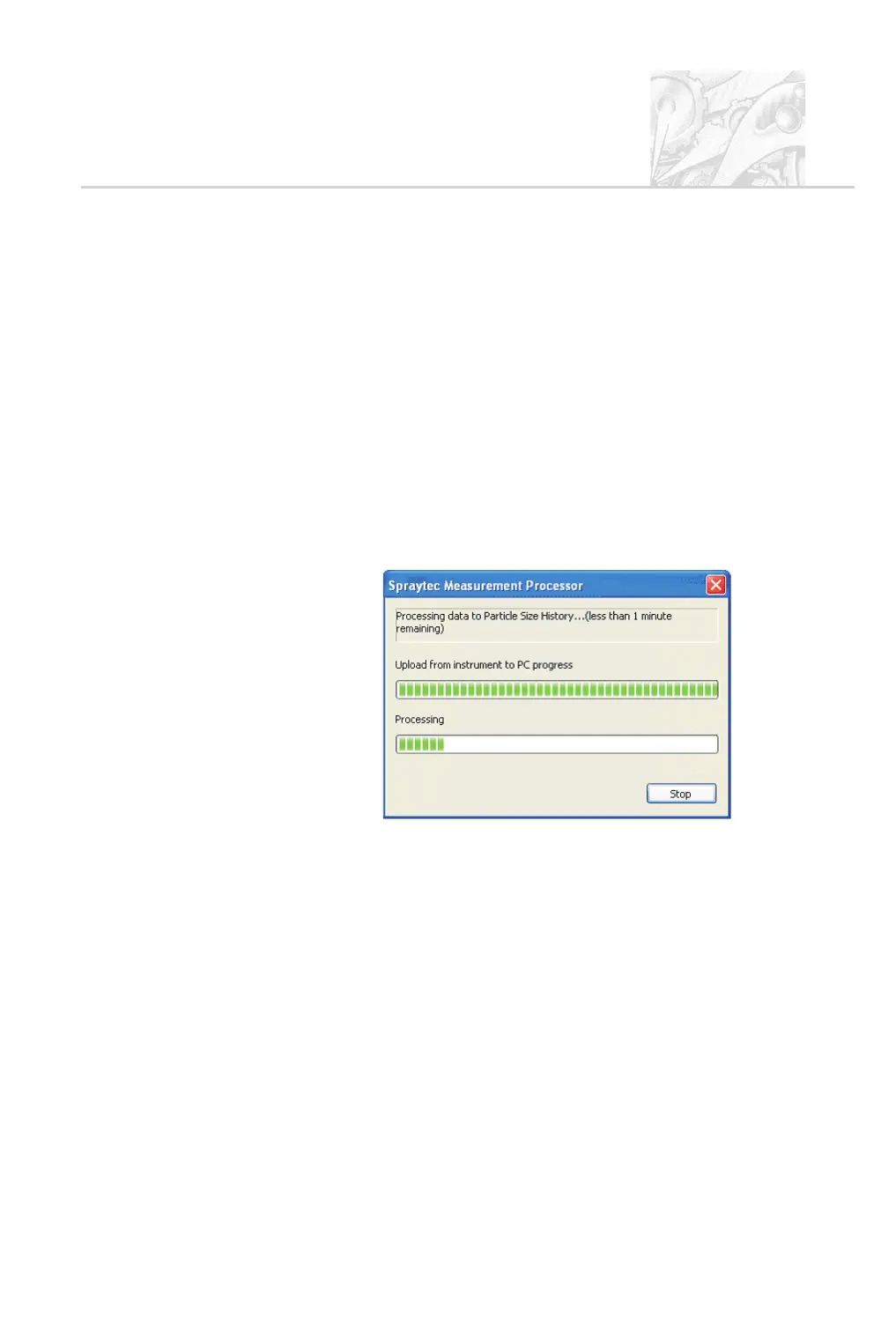
Once the rapid measurement finishes the Spraytec Measurement Processor
dialogue shown below appears and the system starts to process the data.
Wait for this process to complete (the dialogue shows how long it will take).
When processing is complete, the results appear in the Particle Size History
window. Review the results as described in Chapter 6.
.
When either kind of measurement finishes a prompt appears: “Would you
like to repeat the measurement?”.
.
When the measurement finishes or the user presses the Stop button, the
Spraytec waits for another spray. Either prepare this and press Start again
or click Close to end the session.
CHAPTER 5
Spraytec Page 5.33



 To Next Page