Version 1.9 Page 52 of 170
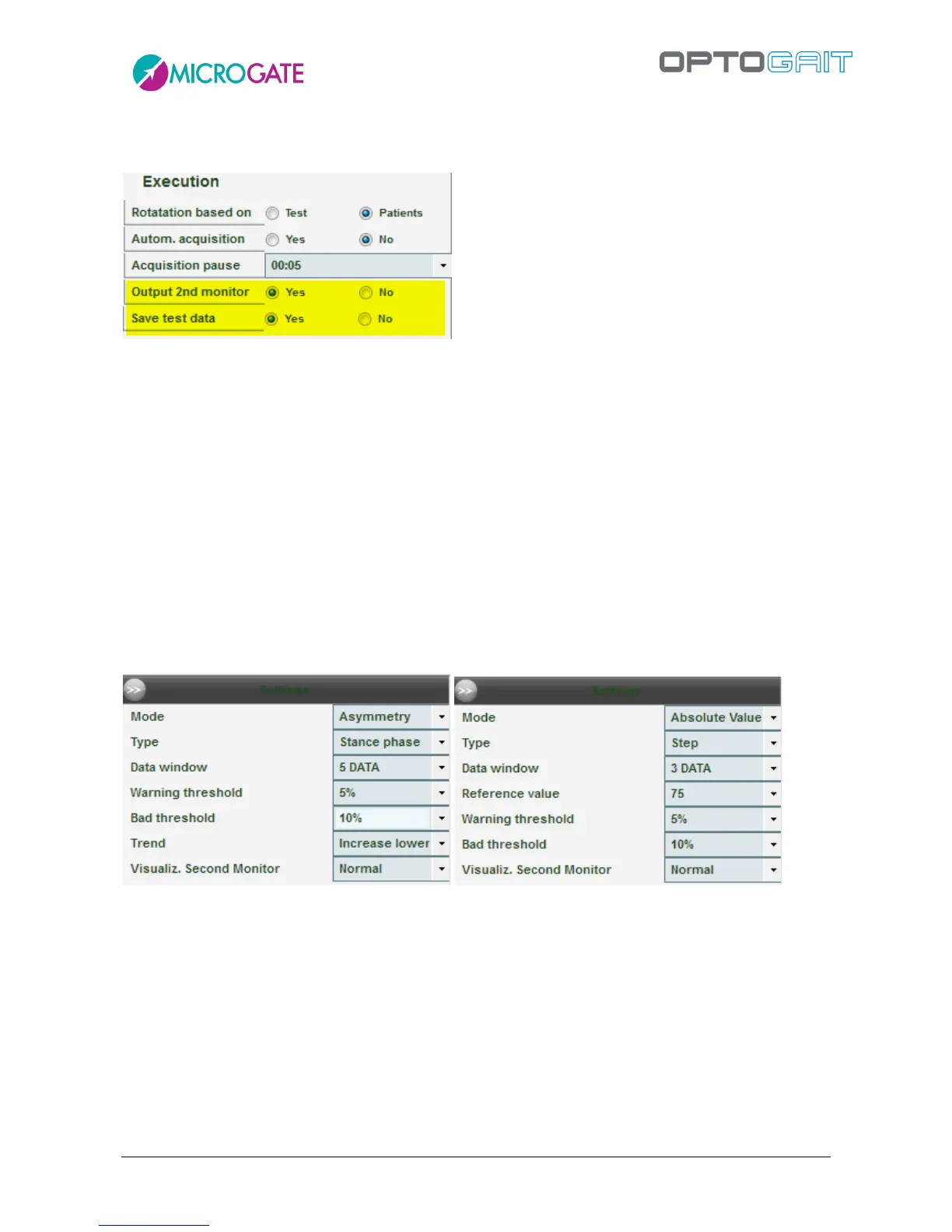
The new feature (available from version 1.7) is found in Test Module > Execute > Configure, with
the two parameters 'Output second monitor' and 'Save Test Data'.
When the 'Output Second Monitor' option is selected, a window is created on the second monitor
(or on the same monitor, when the second one is not physically present), where the displaying of
the absolute value or the test parameter asymmetry can be configured (e.g. the step length for a
gait test) both as a numerical value and as a graphical bar display.
Instead the 'Save Test Data' parameter is used (if set on No) when, as previously described, the
patient must 'exercise' and it is not necessary to save the test at the end of the trial. In this case no
data 'sampling' and, most of all, no webcam video sampling is carried out, thus reducing the used
disk space (temporary video files and memory swap files) as well as CPU use.
The parameter to be displayed is configured in the main window on a side panel bar, which can be
minimized (>> key). The panel appears when the type of test and the patient performing it are
selected, because the values associated with the patient-test type pair are saved so that they can
be recalled exactly as they are whenever the test is repeated.
The parameters, which can be set, are the following:
Mode: select 'Absolute Value' (the values for the 'type' selected in the drop-down menu
below are shown) or 'Asymmetry' (the two right and left values and the delta values are
shown).
Type: the parameter to be displayed (changes depending on the test type carried out; e.g.
for a tapping test, the flight and contact times, rhythm, etc., for run tests, speed,
acceleration, etc., whereas for gait tests, regular gait analysis parameters, such as stance,
swing, single support, step length, etc.).



 To Next Page