Version 1.9 Page 53 of 170
Data Window: the amount of data used for calculating the asymmetry (the last N are
used); the higher the data, the better the 'average' and the more real the value, but it will
be more difficult for the patient to try and correct his/her asymmetry.
Reference Value: only appears when Mode = Absolute Value and is the value taken as a
reference when calculating the thresholds. Obviously it should be set in line with the type
of measurement selected (e.g. 30 cm for height, 0.5 s for flight time, 70 cm for step length,
etc.).
Warning Threshold: if the asymmetry is lower than this percentage, the value is displayed
on a green background, and if it is higher, the background colour is orange.
Bad Threshold: if the asymmetry is lower than this percentage, the value is displayed on an
orange background, and if it is higher, the background colour is red. Setting for example
the warning threshold at 5% and the bad threshold at 10% the following background
colours will be used:
- 0 <= value < 5 = green
- 5 <= value <10 = orange
- >= 10 = red
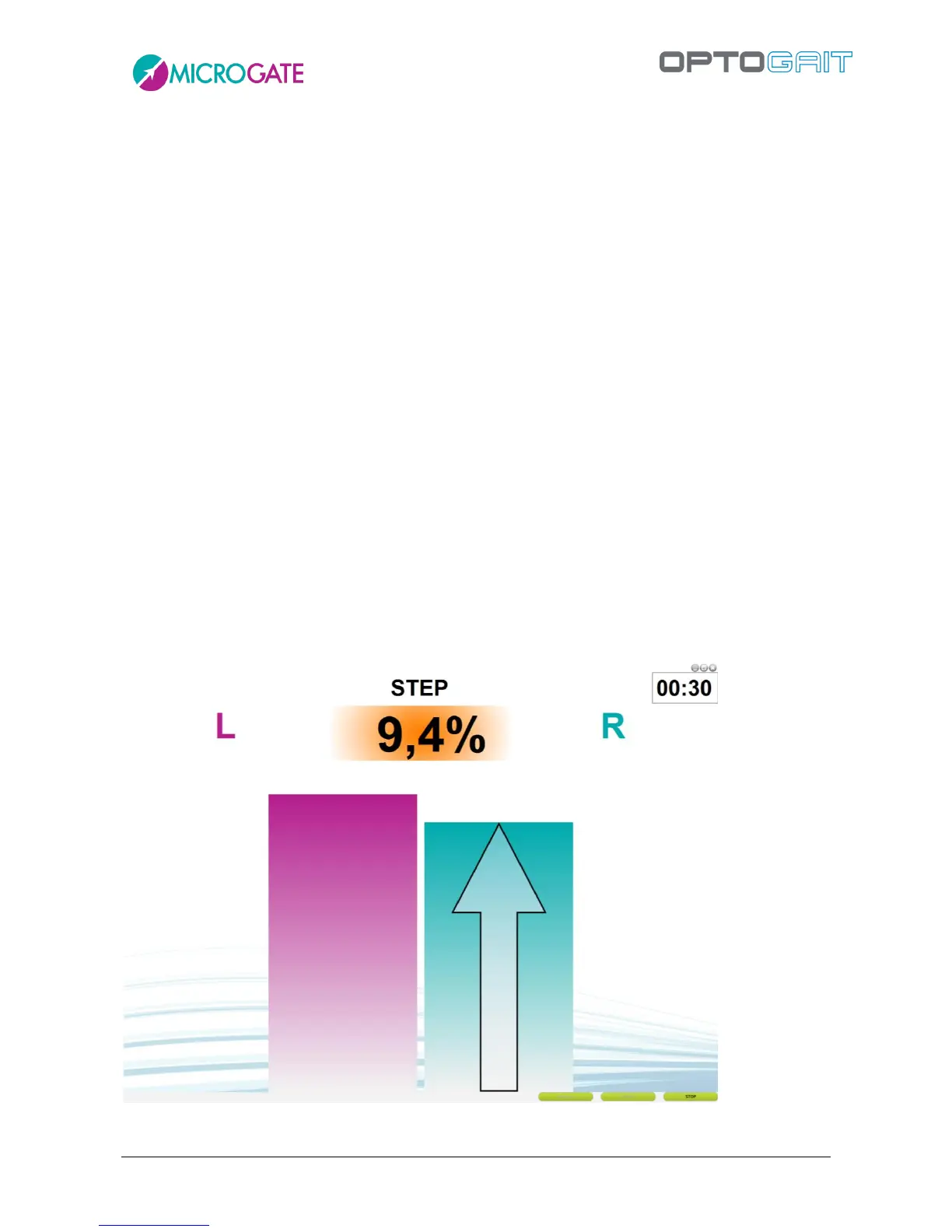
Trend: only appears if Mode = Asymmetry; if the asymmetry value exceeds the warning
threshold, an indication for the patient is displayed with an arrow on the value bar. The
indication can be to increase the lower value or to decrease the higher value.
View Type: choose between 'normal' (below) or 'Opto 4 Kids' (see next chapter).
Figure 39 - Example Output 2nd monitor with Asymmetry on the Step Length, normal view



 To Next Page