81
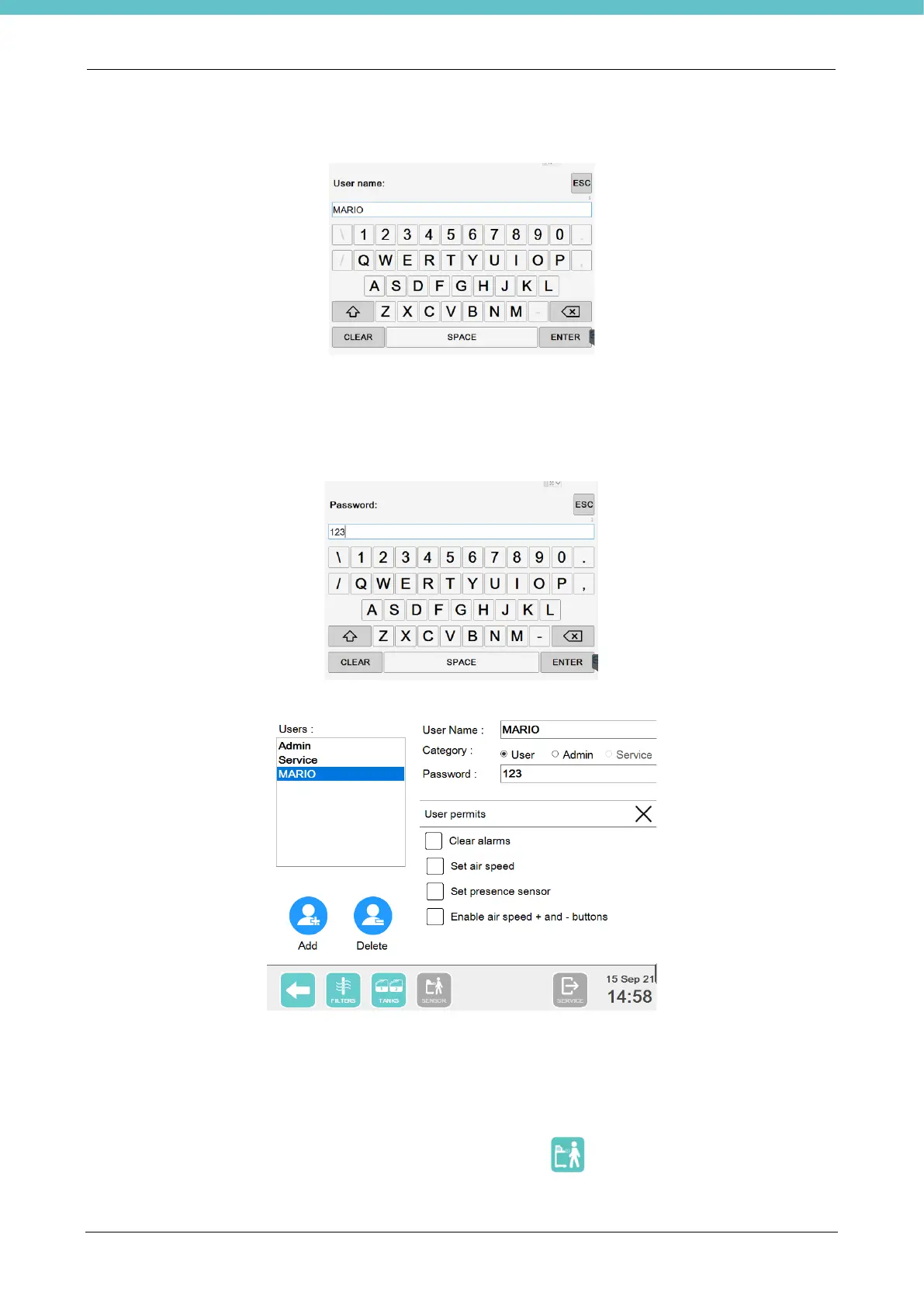
Click on “Add”, a keyboard appears. Enter the new user name and press “Enter”.
Now select and set up the new user choosing:
• “Category”: “User”or “Admin”.
• “Password”: the password of the new user. Click the Password checkbox, a keyboard is displayed as
shown below, enter the alphanumerical password then click “Enter”.
Now enable the permissions to give to the new user by enabling the concerned checkboxes shown in the
following figure:
- “Clear alarms”: allows to reset the alarms/warnings by pressing the “Clear” button that appears together
with their description.
- “Set air speed”: allows you to access the General software settings (next chapter) and to edit the air speed
thresholds, when necessary.
- “Set presence sensor” (only for letter A): allows you to enable/disable the operator presence sensor in the
General software settings explained in the next chapter and to switch the sensor on/off during use of the
unit by means of the relative button on the membrane keyboard .
- “Enable air speed + and – buttons” (only for letter A): allows you to enable use of the + and – buttons on
the membrane keyboard explained above, to edit the ventilation power when this is on.


 To Next Page