Configuring Softkeys
2. Select from Key 1 through Key 20 on the Top keys.
or
Select from Key 1 through Key 18 on the Bottom keys.
3. In the Type field, select Speed Dial/Conf.
4. In the Label field, enter a label for the Speed Dial/Conf key.
5. In the Value field, enter the speed dial extension or the extension to add to the conference (for example,
3600).
6. In the Line field, select the line for which you want to use the key functionality.Valid values are:
• global
• 1 through 24
7. In the state fields, check (enable) or uncheck (disable) the states you want to apply to this softkey.
8. Click Save Settings.
7.16 Speed Dial/MWI
Note:
Speed Dial/MWI functionality can only be programmed on the left softkeys.
The 6915 supports multiple voicemail registration by using the Speed Dial/MWI key. This feature can be
useful in scenarios where you need to monitor the voicemail accounts of your team members or you need
access to your manager’s voicemail messages.
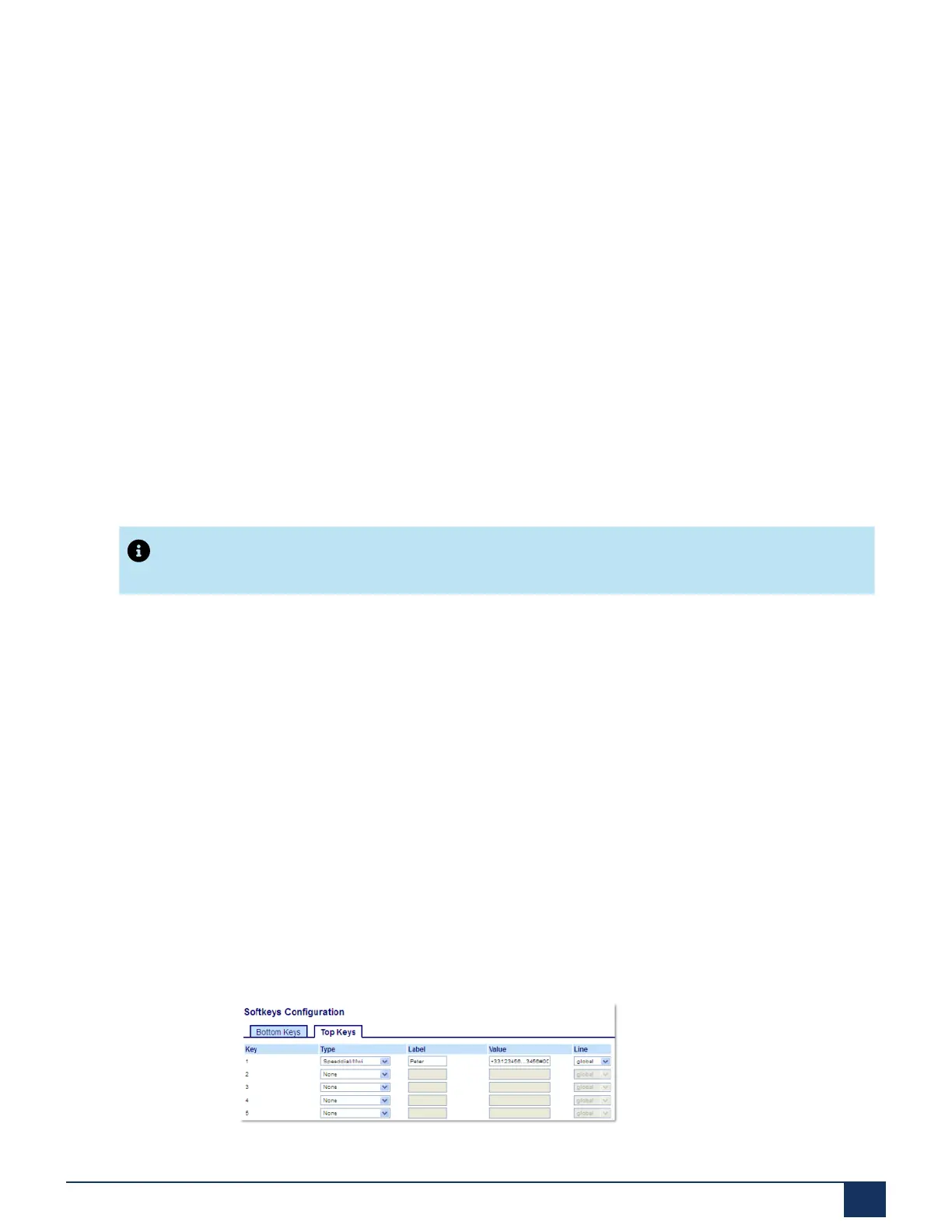
By configuring a top softkey as “Speed Dial/MWI” and defining call and voicemail URIs, users can monitor
and listen to pending messages on multiple voicemail accounts. When new messages are pending on a
monitored voicemail account the corresponding Speed Dial/MWI key’s LED will blink and the UI will display
the number of pending messages beside the defined label.
When you press the configured key, the phone will send an INVITE to the configured call URI whereby you
will be able to listen to the new messages. The Speed Dial/MWI key can be configured through the Mitel
Web UI.
Configuring a Speed Dial/MWI Key Using the Mitel Web UI
1. Click on Operation > Softkeys and XML.
Version 1.0
User Guide 96



 To Next Page