Configuring Softkeys
Mitel Web UI Configuration
Note:
Contact your System Administrator for other softkey display behavior options.
7.2 Line Key
Note:
Line functionality can only be programmed on the left softkeys.
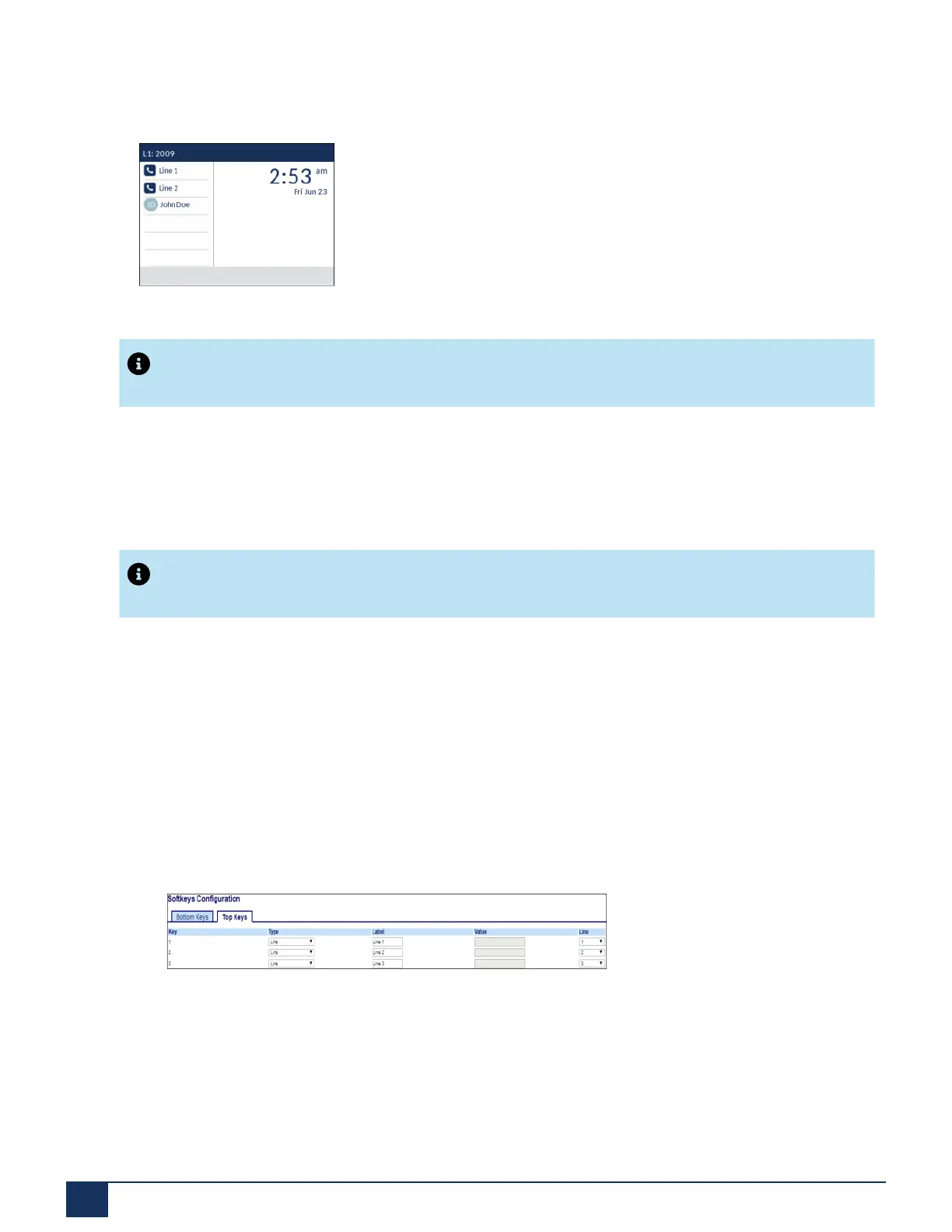
The Line 1 and Line 2 softkeys are autoconfigured in the 6915 SIP Phone due to the absence of Line 1 and
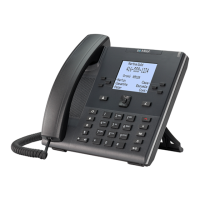
Line 2 hardkeys. By default, the line values for top softkey 1 and top softkey 2 are set to Line 1 and Line 2
in the WebUI.
You can set a softkey to act as a line/call appearance key on the 6915.
Configuring a Line Key Using the Mitel Web UI
1. Click on Operation > Softkeys and XML.
2. Select from Key 1 through Key 20 on the top keys.
3. In the Type field, select Line to apply to the key.
4. In the Label field, enter a label to apply to this key.
5. In the Line field, select a line to apply to this key. Valid values are 1 through 24.
6. Click Save Settings.
Version 1.0
77 User Guide



 To Next Page