Configuring Softkeys
7.14 Speed Dial/Xfer
The Speed Dial key allows a number to be dialed quickly by pressing one key configured for speed dialing.
The Transfer key allows a call to be transferred to other recipients blindly or consultatively. The Speed
Dial/Xfer key combines the Speed Dial and Transfer keys’ functionality together allowing the user to
transfer calls or speed dial with one key.
Note:
It is recommended that you enable the Switch UI Focus to Ringing Line parameter when using the
Speed Dial/Xfer feature. For more information about this parameter, see “Switch UI Focus to Ringing
Line” .
Speed Dial/Xfer Key Requirements and Functionality
The Speed Dial/Xfer key has the following capabilities:
• Speed Dial/Xfer and Speed Dial: When the phone is in the idle state, pressing the Speed Dial/Xfer key
causes the phone to go offhook and dial the predefined extension.
• Speed Dial/Xfer and Blind Transfer: When the phone is connected to a call, pressing the Speed Dial/
Xfer key blind transfers the call to the predefined target.
If transferring a call fails, a message Transfer Failed displays, and you can reconnect the call (get the call
back) by pressing the line key again.
• Speed Dial/Xfer and Call Forward: When the phone is in the ringing state, pressing the Speed Dial/Xfer
key forwards the call to the predefined extension.
Configuring a Speed Dial/Xfer Key Using the Mitel Web UI
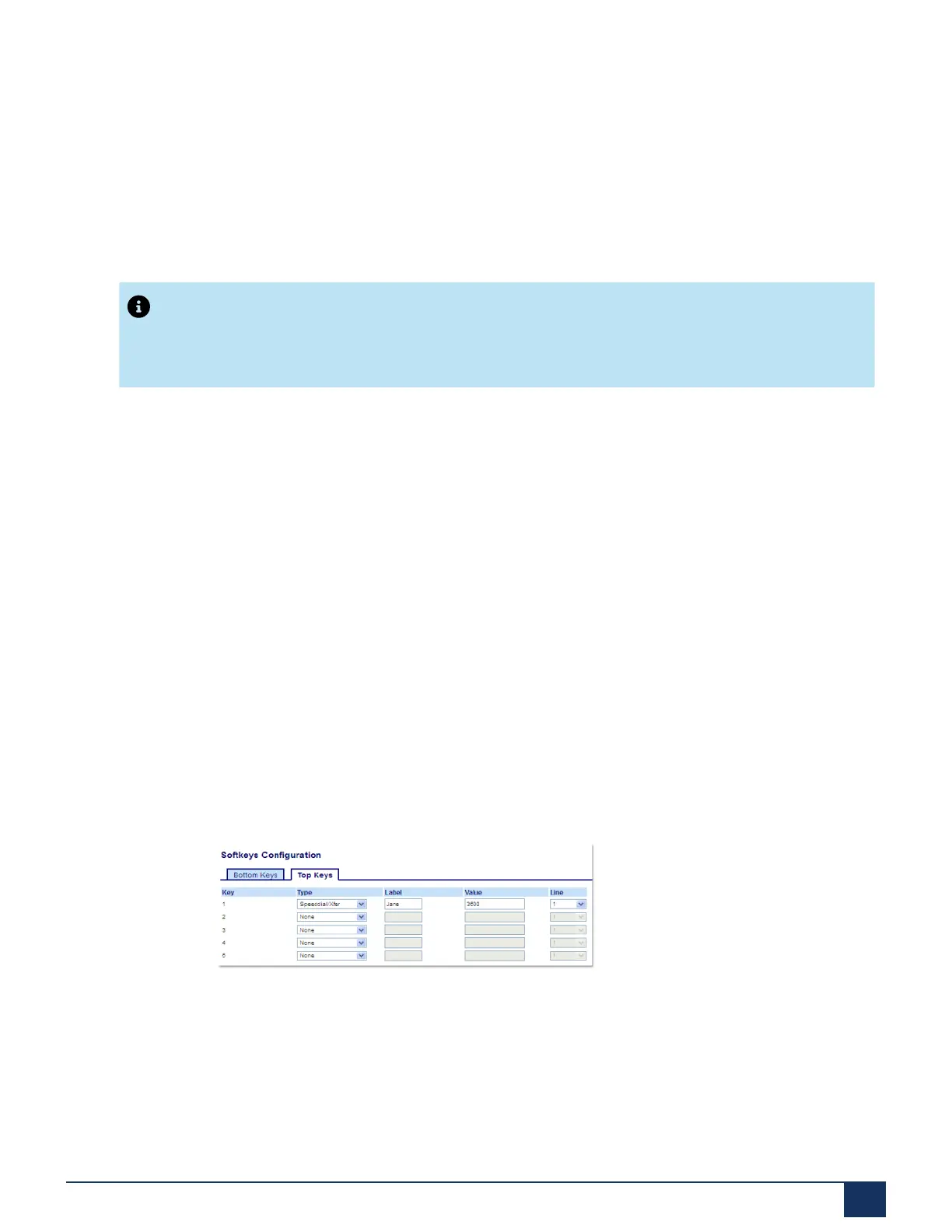
1. Click on Operation > Softkeys and XML.
2. Select from Key 1 through Key 20 on the Top keys.
or
Select from Key 1 through Key 18 on the Bottom keys.
3. In the Type field, select Speed Dial/Xfer.
4. In the Label field, enter a label for the Speed Dial/Xfer key.
Version 1.0
User Guide 94



 To Next Page