Configuring Softkeys
3. In the Type field, select Flash.
4. In the Label field, enter a label to display on the phone for the key.
5. Click Save Settings.
7.9 Sprecode Key
You can set a key to automatically activate specific services offered by the server by setting a key
to Sprecode. For example, if the sprecode value of *82 is configured, then by pressing the key, *82
automatically activates a service provided by the server. The value you enter for this field is dependent
on the services provided by the server. Contact your System Administrator for information about available
services.
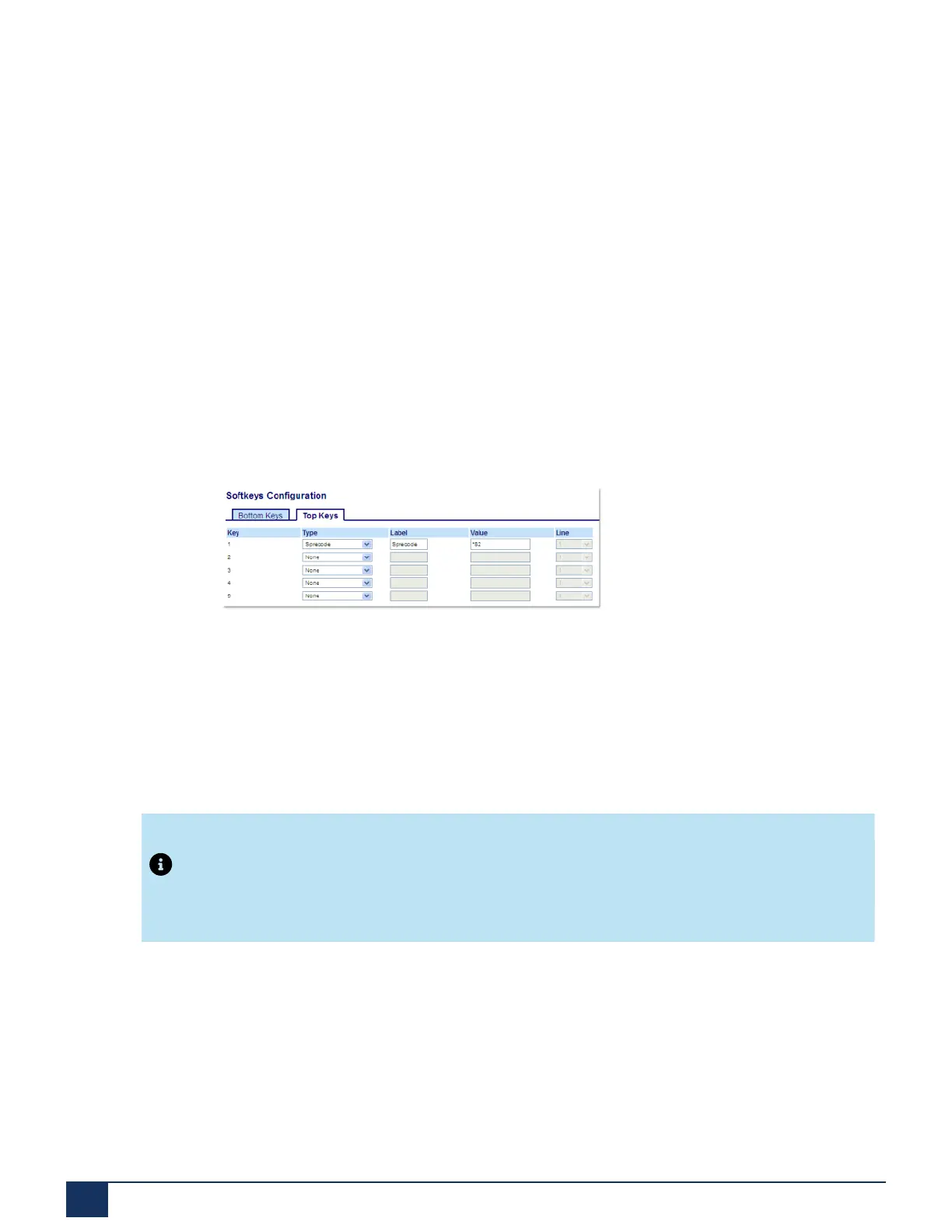
Configuring a Sprecode Key Using the Mitel Web UI
1. Click on Operation > Softkeys and XML.
2. Select from Key 1 through Key 20 on the Top keys.
or
Select from Key 1 through Key 18 on the Bottom keys.
3. In the Type field, select Sprecode.
4. In the Label field, enter a label to display on the IP phone for this key.
5. In the Value field, enter the appropriate value for accessing specific services from the server.
Note:
For values to enter in this field, contact your System Administrator.
6. In the state fields, check (enable) or uncheck (disable) the Connected state for this softkey.
7. Click Save Settings.
Version 1.0
89 User Guide



 To Next Page