Configuring Softkeys
In addition to creating a Directory key, you can also download a Directory to your PC, if required, using the
Mitel Web UI.
Note:
For more information about the Directory, see Directory.
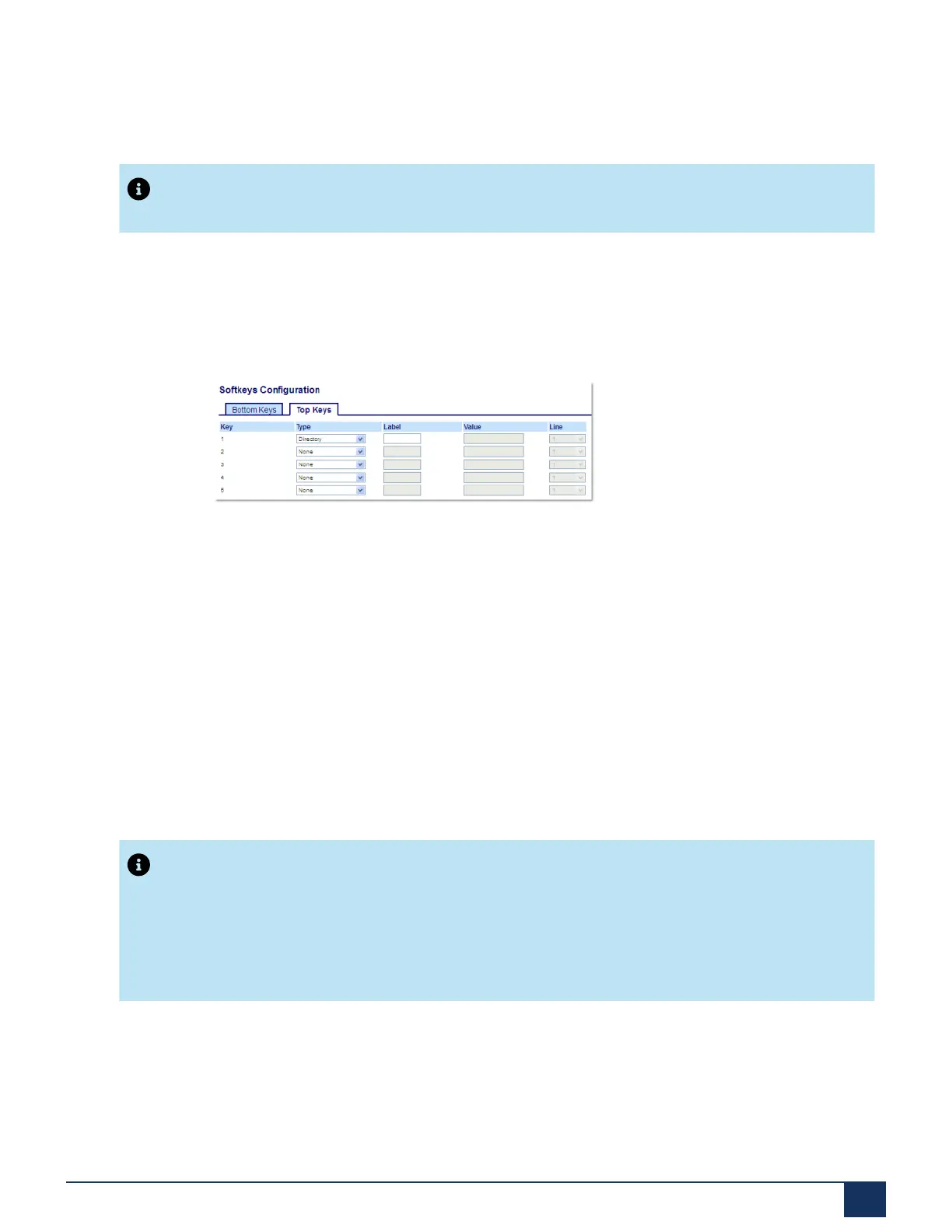
Configuring a Directory Key Using the Mitel Web UI
1. Click on Operation > Softkeys and XML.
2. Select from Key 1 through Key 20 on the Top keys.
or
Select from Key 1 through Key 18 on the Bottom keys.
3. In the Type field, select Directory.
4. In the Label field, enter a label to apply to this key.
5. In the state fields, check (enable) or uncheck (disable) the states you want to apply to this softkey.
6. Click Save Settings.
7.18 Received Callers List Key
Note:
Received Callers List information in this User Guide describes the phone’s native Received Callers
List. In some environments, the Received Callers List key may bring up a Received Callers List
provided by the call manager; therefore, depending on your call manager, the Received Callers List
on your phone may function and behave differently then what is documented in this User Guide. If this
is the case, contact your System Administrator for more information regarding your specific Received
Callers List.
By default, the 6915 has a dedicated Received Callers List key. However, using the Mitel Web UI, you can
assign the Received Callers List key to any key on the left or bottom keys on the phone.
Version 1.0
User Guide 98



 To Next Page