Configuring Softkeys
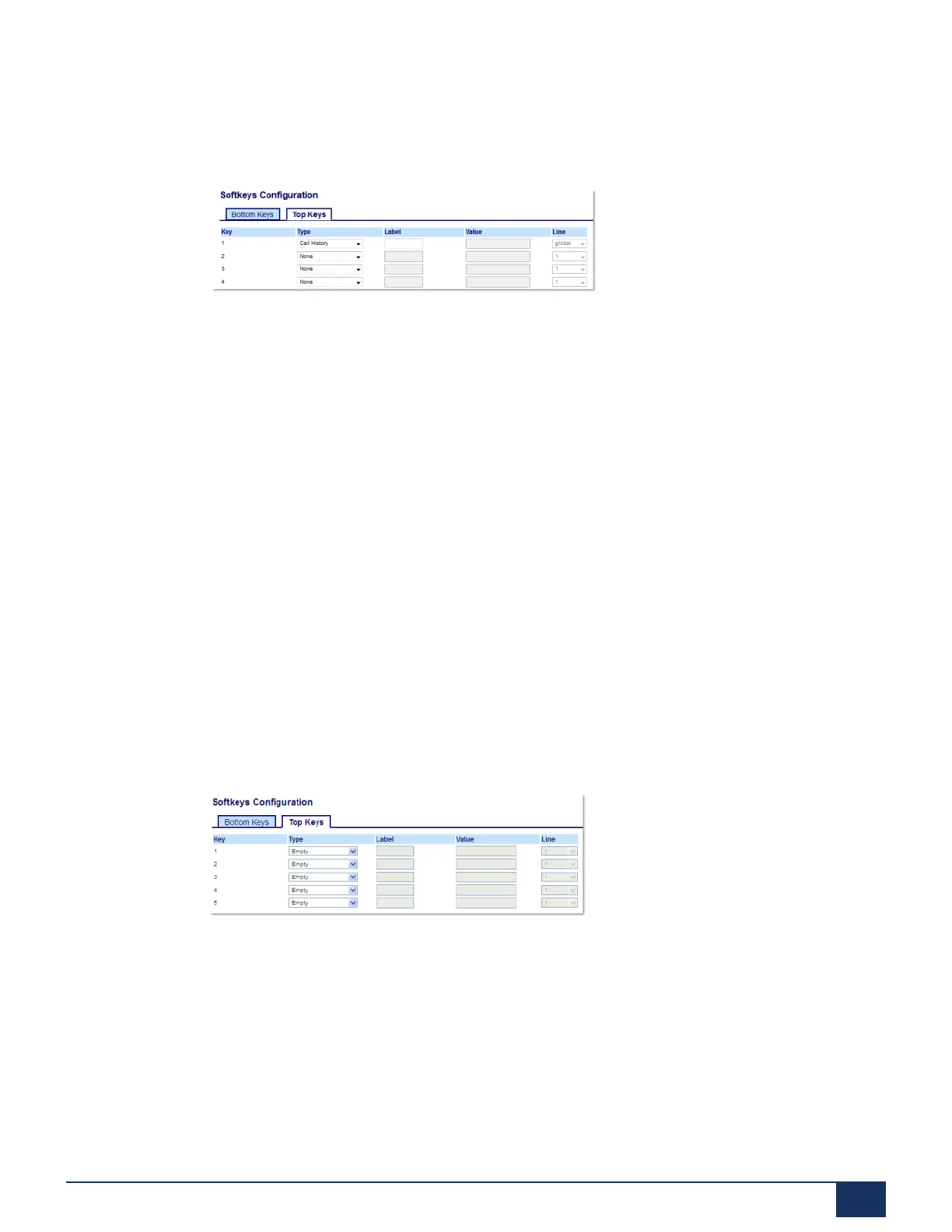
Configuring a Call History Key Using the Mitel Web UI
1. Click on Operation > Softkeys and XML.
2. Select from Key 1 through Key 20 on the Top keys.
or
Select from Key 1 through Key 18 on the Bottom keys.
3. In the Type field, select Call History.
4. In the Label field, enter a label to display on the phone for the key (default is "Call History").
5. Click Save Settings.
6. Click Save Settings.
7.27 Empty Key
You can set a softkey to force a blank entry on the IP phone display for a specific key. You do this by
setting the softkey to Empty. The keys are added in order (from key 1 to key 18 [bottom] or key 20 [top])
after any hard-coded keys have been added. If a particular key is not defined, it is ignored.
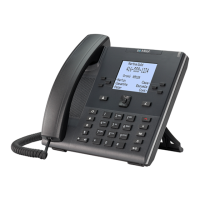
Configuring an Empty Key Using the Mitel Web UI
1. Click on Operation > Softkeys and XML.
2. Select from Key 1 through Key 20 on the Top keys.
or
Select from Key 1 through Key 18 on the Bottom keys.
3. In the Type field, selectEmpty.
4. In the state fields, check (enable) or uncheck (disable) the states you want to apply to this softkey.
5. Click Save Settings.
Version 1.0
User Guide 106



 To Next Page